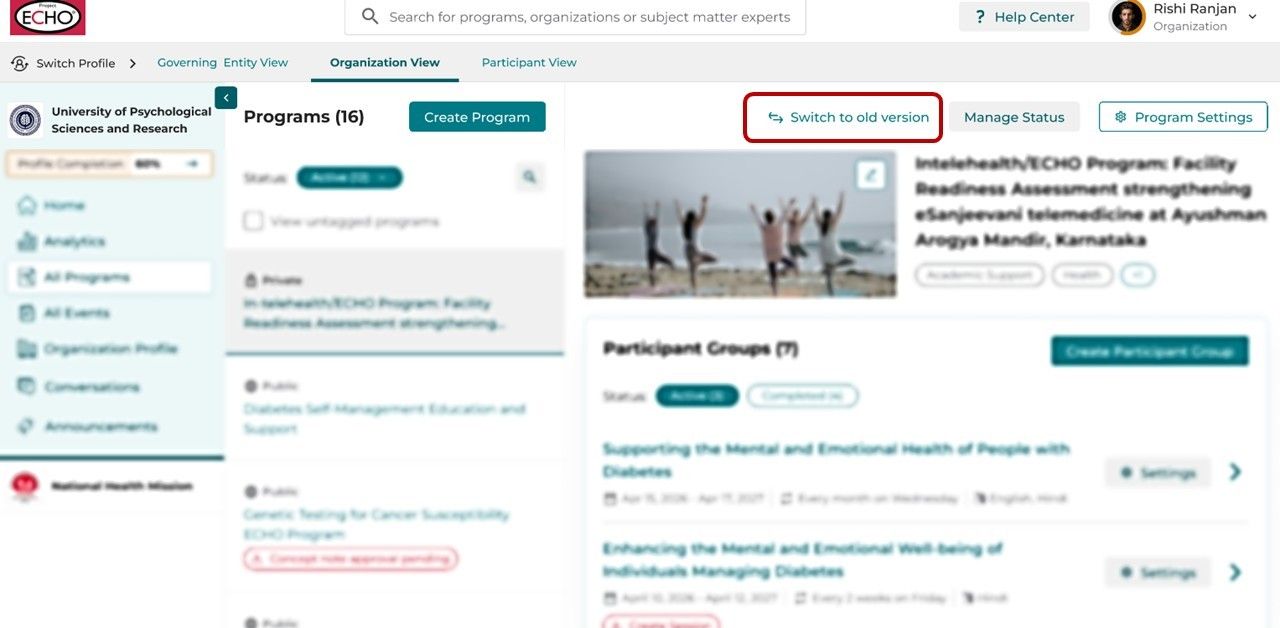
Learn about the change we are making to how you view programs and participant groups, and how to find your way around it.
iECHO is bringing programs and participant groups together in one connected view, so you can find and open what you need in fewer steps.
Why we are making this change Upcoming
Getting to program details, participant groups, and sessions currently means moving between different pages. We are simplifying this journey so that navigating your programs feels easier.
- Less back-and-forth: Reach program details and participant groups without having to switch between pages.
- Clearer navigation: Find what you need through a more organized layout.
What is changing
Current experience: Move through separate pages to access program and participant group details.
Upcoming experience: Explore programs and participant groups in one connected view, with everything available on a single page.
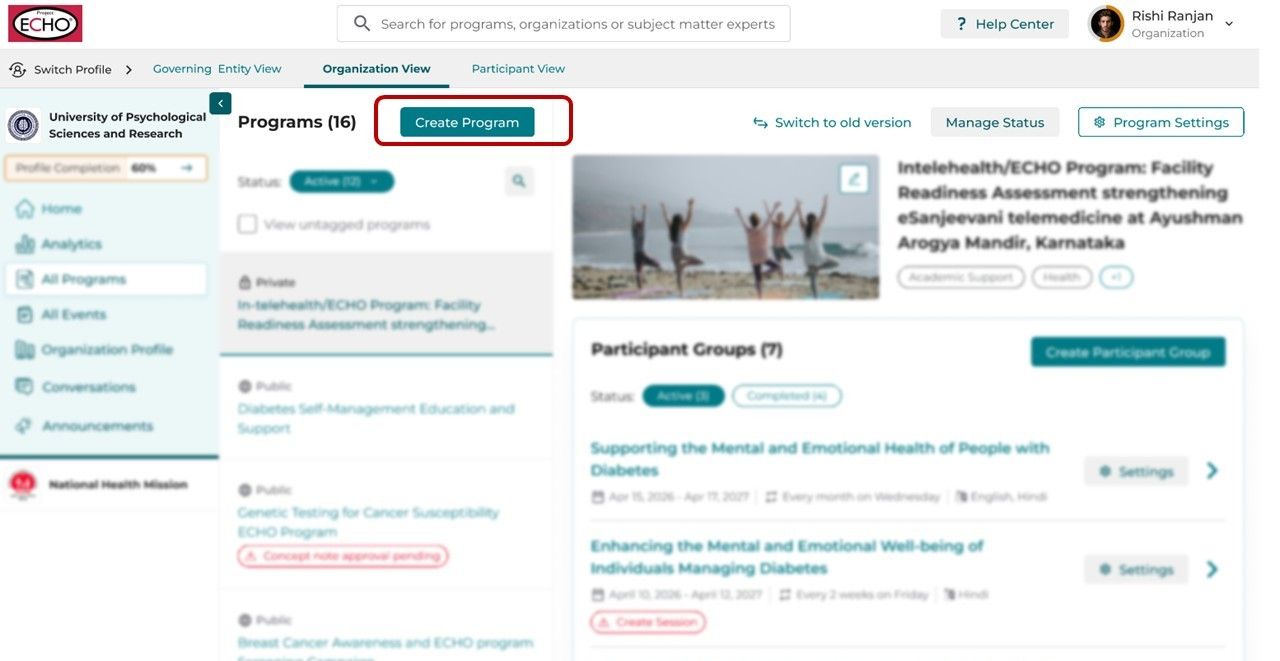
Creating a Program
- From your iECHO homepage, open the left navigation panel and click All Programs.
- At the top of the program list on the left, select Create Program.
Creating a Participant Group
- From your iECHO homepage, open the left navigation panel and click All Programs.
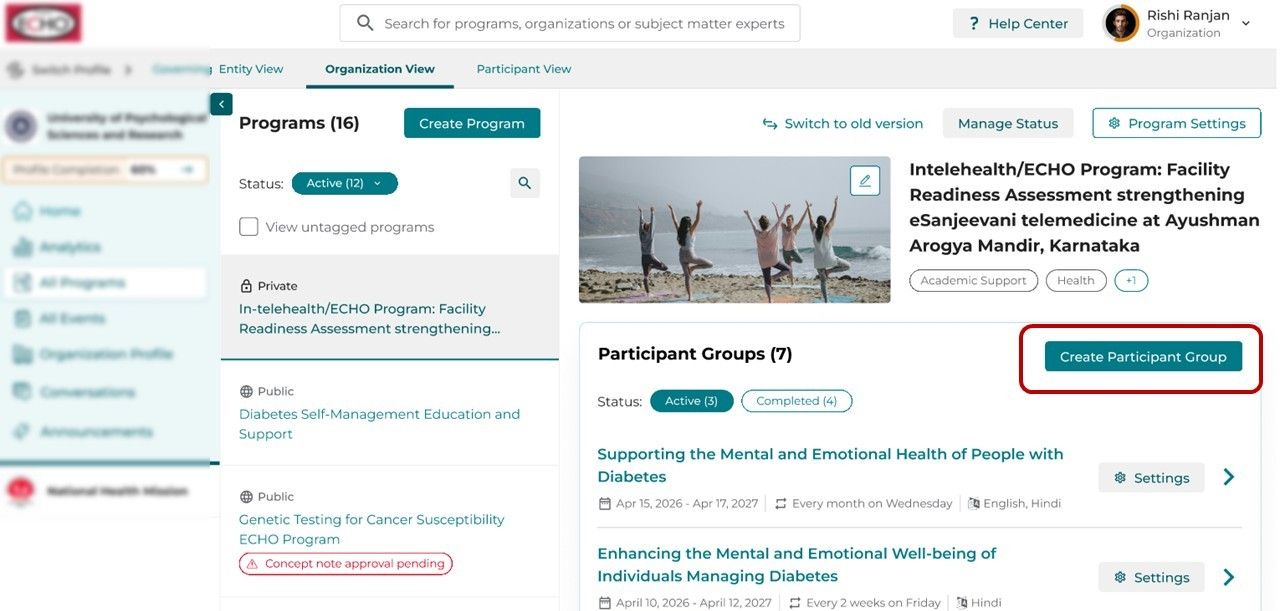
- In the program list on the left, select the program you want to add a participant group to. Its participant groups appear on the right, along with other program information.
- At the top of the participant group list, click Create Participant Group.
Accessing Program Settings
- From your iECHO homepage, open the left navigation panel and click All Programs.
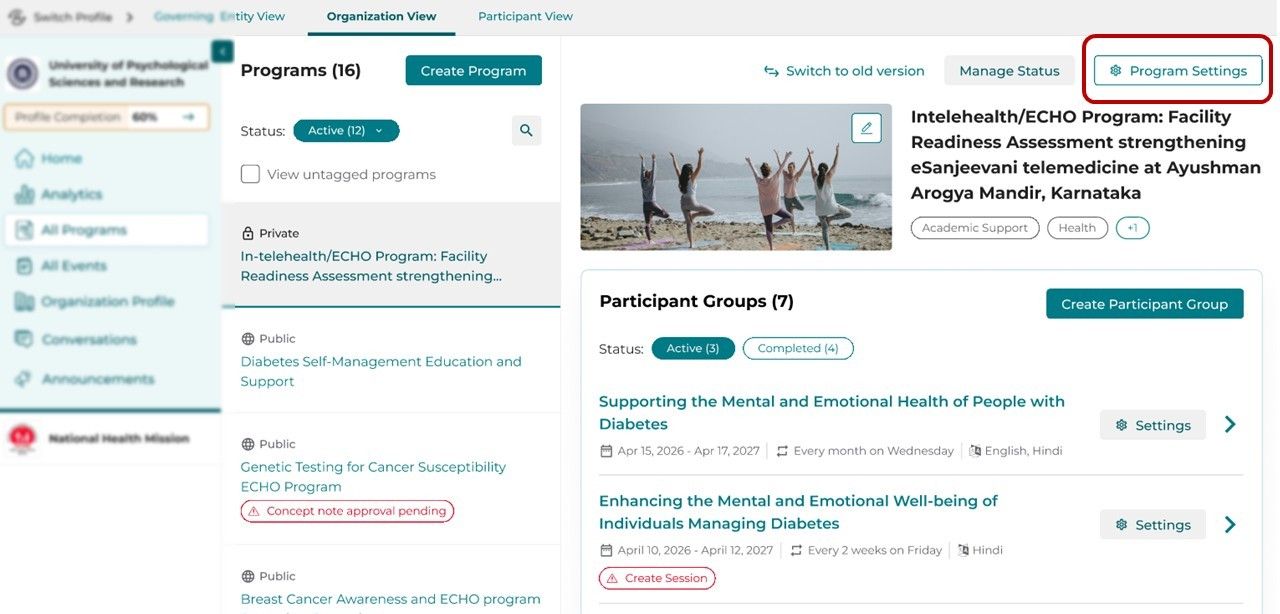
- In the program list on the left, select the program you want to manage.
- At the top right of the page, above the program name, click Program Settings.
Accessing Participant Group Settings
Participant group settings are now integrated within Program Settings, and you can reach them in two ways.
From the Participant Group
- From your iECHO homepage, open the left navigation panel and click All Programs.
- In the program list on the left, select the program you want. Its participant groups appear on the right.
- Click Settings next to the participant group you want. This opens that group’s settings directly.
From Program Settings
From your iECHO homepage, open the left navigation panel and click All Programs.
In the program list on the left, select the program you want to manage.
- At the top right of the page, above the program name, click Program Settings.
- In the window that opens, click Participant Group at the bottom of the left menu to see the list of participant groups.
- Select the participant group you want to edit and its settings open..
Switching To The Old Version
NOTE : Currently, you also still have access to the old version of the page.
Click on Switch to old version at the top right of the All Programs page, next to Manage Status.