Your guide to navigating the core of your iECHO experience
Navigate through the iECHO homepage to access programs, track updates, and build a community of practice. Your iECHO homepage is designed to give you direct access to key tools, analytics, and updates.
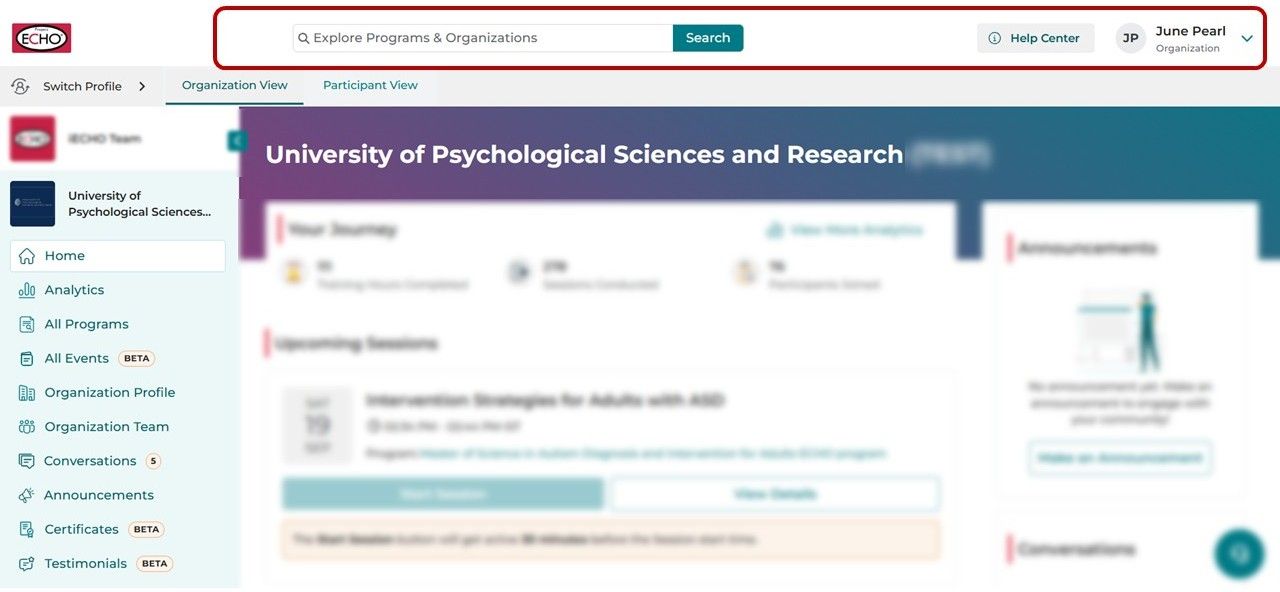
Top navigation bar
Quickly access key tools from the top of your homepage:
| Search bar | Search and access publicly listed programs and organizations. |
|---|---|
| Help Center | Access to support articles, guides, and FAQs about features and functionality of iECHO. |
| Profile menu | Manage your account settings, update preferences, or log out. |
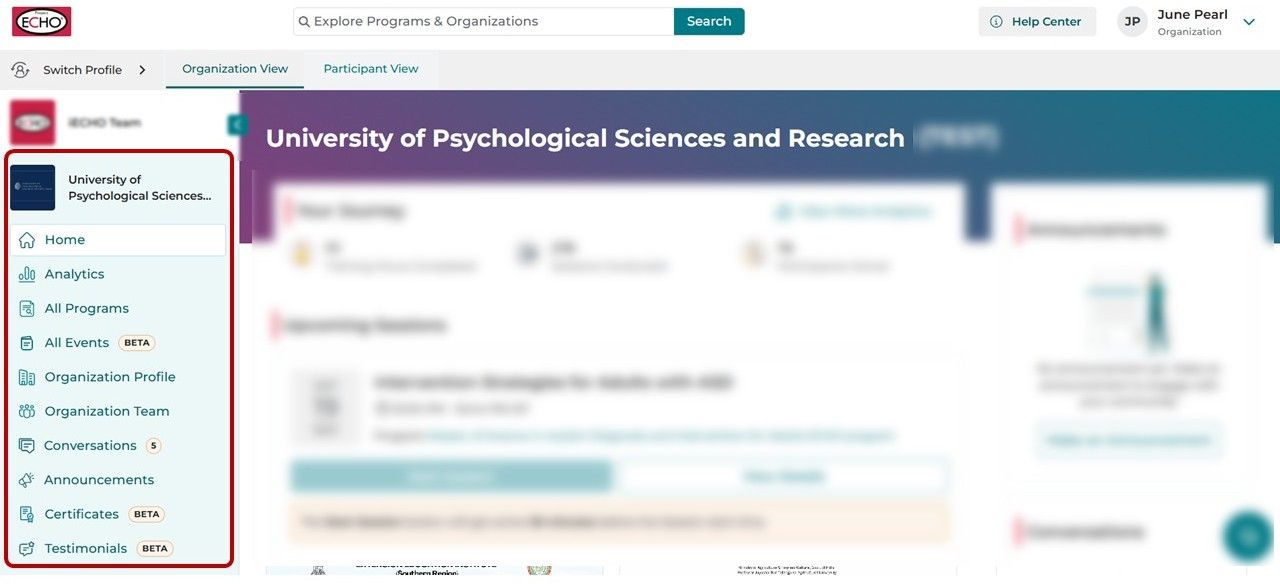
Left panel: Manage your organization
Use the left panel to navigate organizational tools and settings:
| Home | Provides a quick access to the iECHO Homepage. |
|---|---|
| Analytics | Explore detailed views of your program data, surveys, and participant engagement. |
| All Programs | View and manage all your programs in one place. |
| All Events: | Create, view and manage events or event series |
| Organization Profile | Review and edit your organization’s general information and details anytime. |
| Organization Team | View the list of team members, manage roles, and adjust access permissions.. |
| Conversations | Connect to share insights, and discuss session topics in an open and collaborative space. |
| Announcements | Post schedule changes, and other important program updates to keep participants informed. |
| Certificates | Create and issue new certificates or reuse previous certificate templates. |
| Testimonials | Review and manage participant testimonials. |
Tip: Click the Project ECHO logo in the top-left corner anytime to instantly return to your homepage.
Main panel: Insights and activities
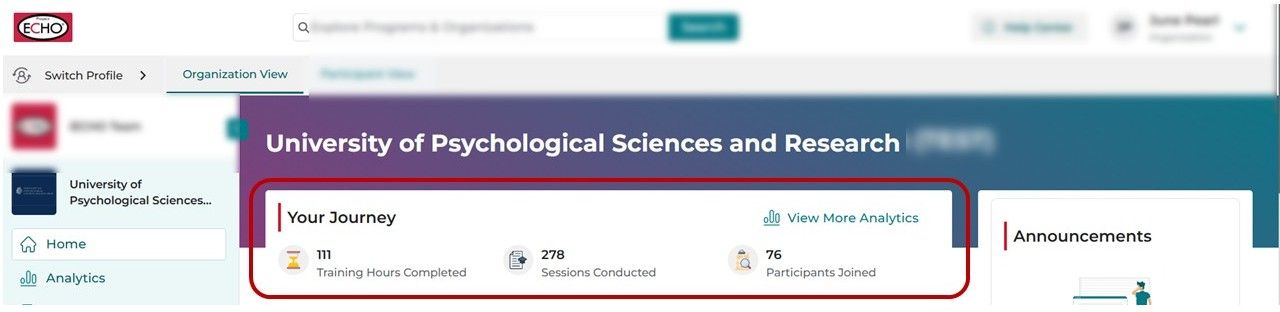
Your Journey
Track your organization's impact through key metrics:
- Training hours completed
- Sessions conducted
- Participants joined
These numbers help you track performance and progress at a glance.
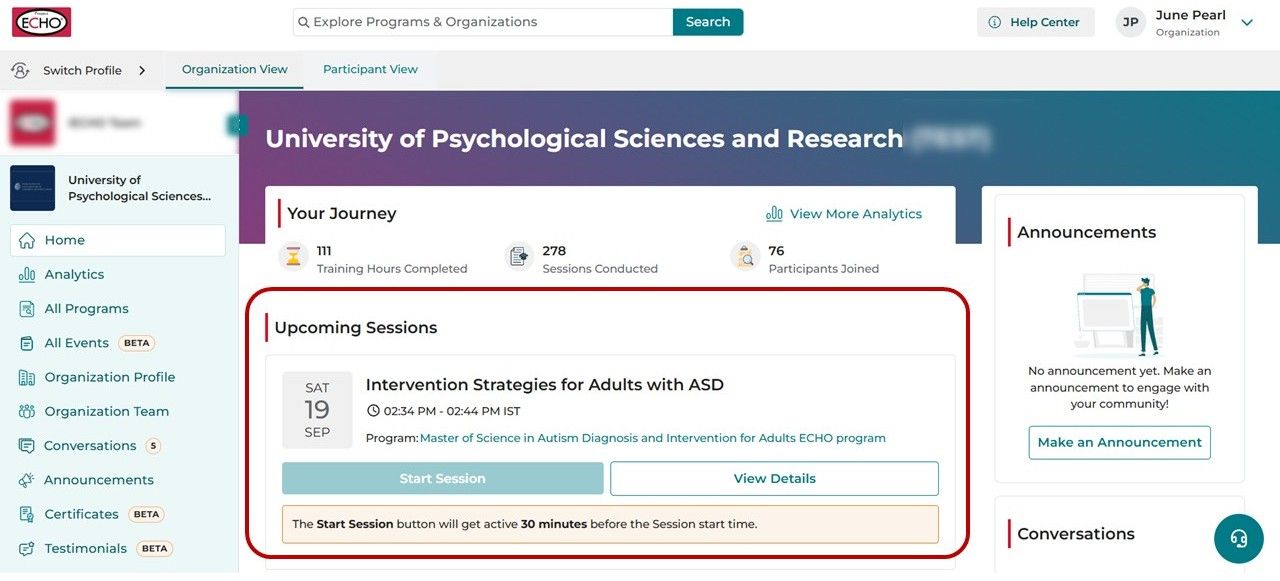
Upcoming Sessions
Stay up to date with all sessions scheduled in the next 24 hours. Each entry shows:
- Session name
- Session Date and Time
- Program name
- Start Session button that gets activated 30 minutes before the scheduled time
Click View Details to explore:
- Program and session details
- Content and resources
- Manage Participants
- Reports and Data export
- Announcements and Conversations
- Manage Forms
Right panel: Communications & Community Highlights
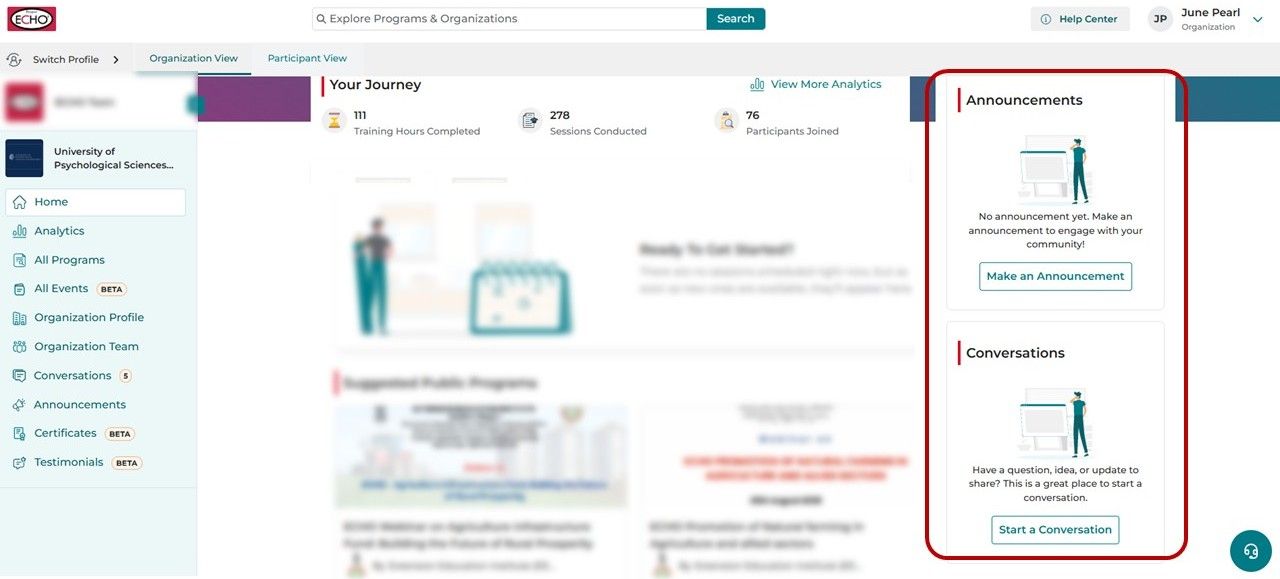
Use the upper half of the right panel for communications and real-time updates:
- Announcements
View updates of your programs or share new announcements directly from the homepage.
- Conversations
Engage with your teams and participants through active discussions. Start new conversations anytime to collaborate or share ideas.
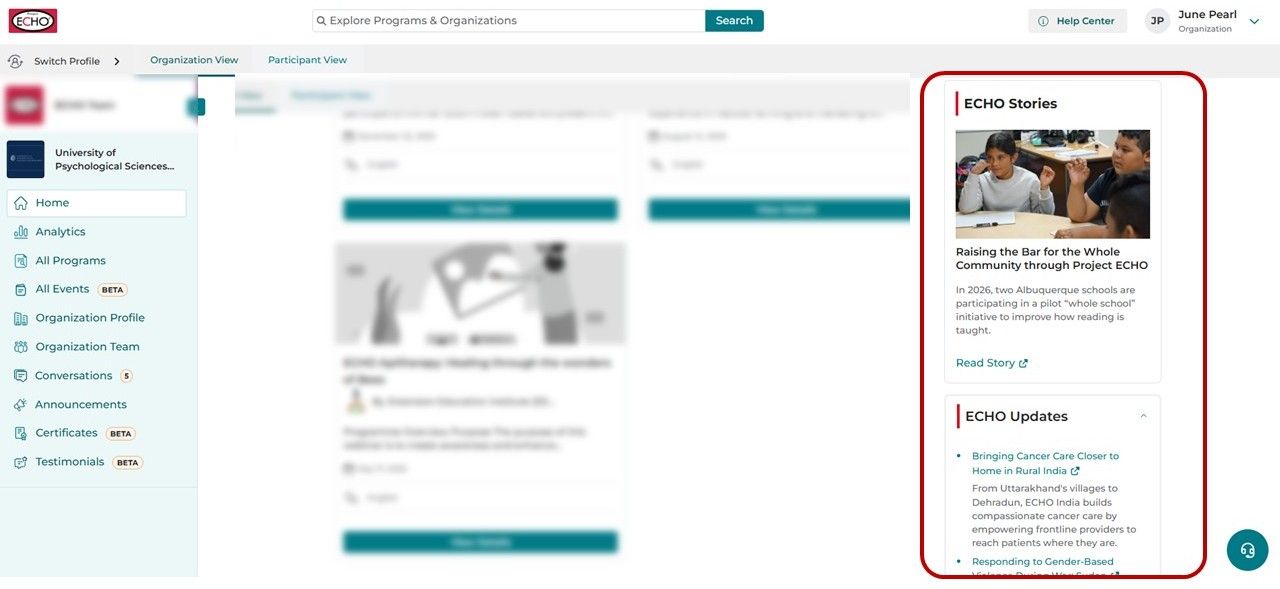
Use the bottom half of the right panel to stay connected with the larger ECHO network:
- ECHO Stories: Read inspiring stories and real-world impact from participants and programs across the global network.
- ECHO Updates: Highlights of success stories, and upcoming events.