
Welcome to iECHO! This guide will help you navigate all the essential steps for managing your account effortlessly.
What’s New?
iECHO uses WhatsApp to send verification codes and other communications. WhatsApp-based signup and login ensures:
- Instant verification.
- Encrypted, secure communication.
- Reliable delivery.
Login with Mobile
Is your registered number on WhatsApp?
- Select Continue with Mobile.
- Enter your registered Mobile number.
- If your number is on WhatsApp, select WhatsApp as the login mode and click Confirm.
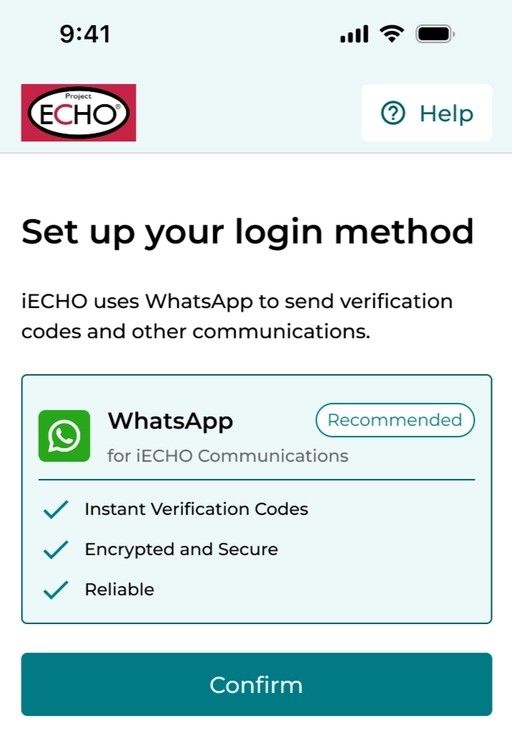
- Enter the 6-digit verification code you receive on WhatsApp and select Confirm.

Registered number doesn’t exist on WhatsApp?
Even if your registered number isn’t on WhatsApp, you can still log in to iECHO.
- Select Continue with Mobile.
- Enter your registered mobile number.
- Select SMS as the login mode and click Confirm.

- Enter the 6-digit verification code you receive via SMS and select Confirm.

- After logging in, iECHO asks you to choose one of the following:
- Update your WhatsApp number: Add a number that exists on WhatsApp. Next time you log in, use that WhatsApp number. iECHO will replace the current number with your WhatsApp number.- Verify Existing Number: If you haven’t verified that your existing number is on WhatsApp, choose this option and verify it using the code sent to WhatsApp.
- Register Email: If you don’t have a WhatsApp number, register your email as the primary login method. Next time you log in, use your email ID.

- Verify your selection using the 6-digit code sent to the respective phone number or email.
Signup with Mobile
- Select Continue with Mobile.
- Enter the mobile number linked with WhatsApp.
- Select WhatsApp as the login method and click Confirm.
- iECHO confirms that your phone number does not exist on the platform yet. Select Create a new account.
- Enter the 6-digit verification code you receive on WhatsApp and select Confirm.
- Enter your personal and professional details.
- Choose a profile visibility option:
- Private – iECHO hides your profile from others. Choose Only Me.
- Public – iECHO shows your profile and impact to the ECHO community (recommended). Choose Anyone on iECHO.
Click Confirm to complete registration.
Frequently Asked Questions (FAQs)
- Is the WhatsApp login and signup option available in all countries?
- This option is available in all countries where SMS is supported by iECHO.
- What happens if I don’t select WhatsApp as my mode of login? Will I be logged out of my iECHO account if I log in with another device?
- No, you won’t be logged out of your iECHO account. You can log in with SMS verification codes.
Setting up your account
Here’s how you can complete setting up your account:
There are three ways to register in iECHO.
- Self Registration - Register directly on iecho.org without needing an invitation to join a program.
- Invite-based registration - Register on iecho.org through an invitation from your Organization or program coordinator. Registrations may be sent via email or SMS (SMS only available in select countries).

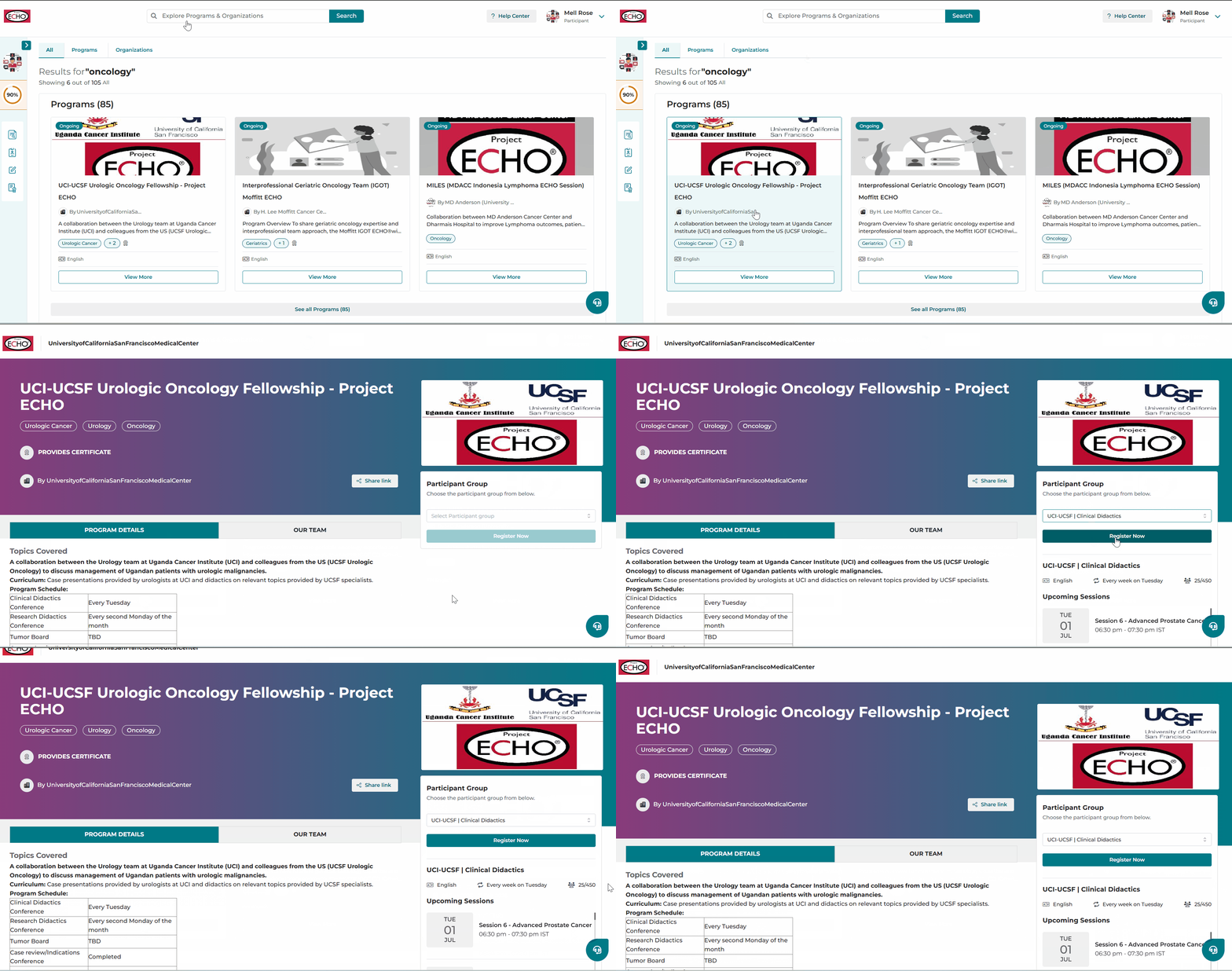
- Public Program Link - Search for publicly listed programs or register with the link received from the program coordinator (available in case of public programs), through which you can directly register: Select the participant group and click Register Now.
-
Registering on iECHO
You can register on the platform using your Email or Mobile
When joining a program, relevant professions now appear upfront during sign-up based on the program you’re enrolling in for invite based programs. This makes it quicker to find and select your profession, helping you complete registration smoothly with fewer steps.
Using Email
- Check email for an invitation from no-reply@iecho.org. The email will include the organization name and a link to click Join program.
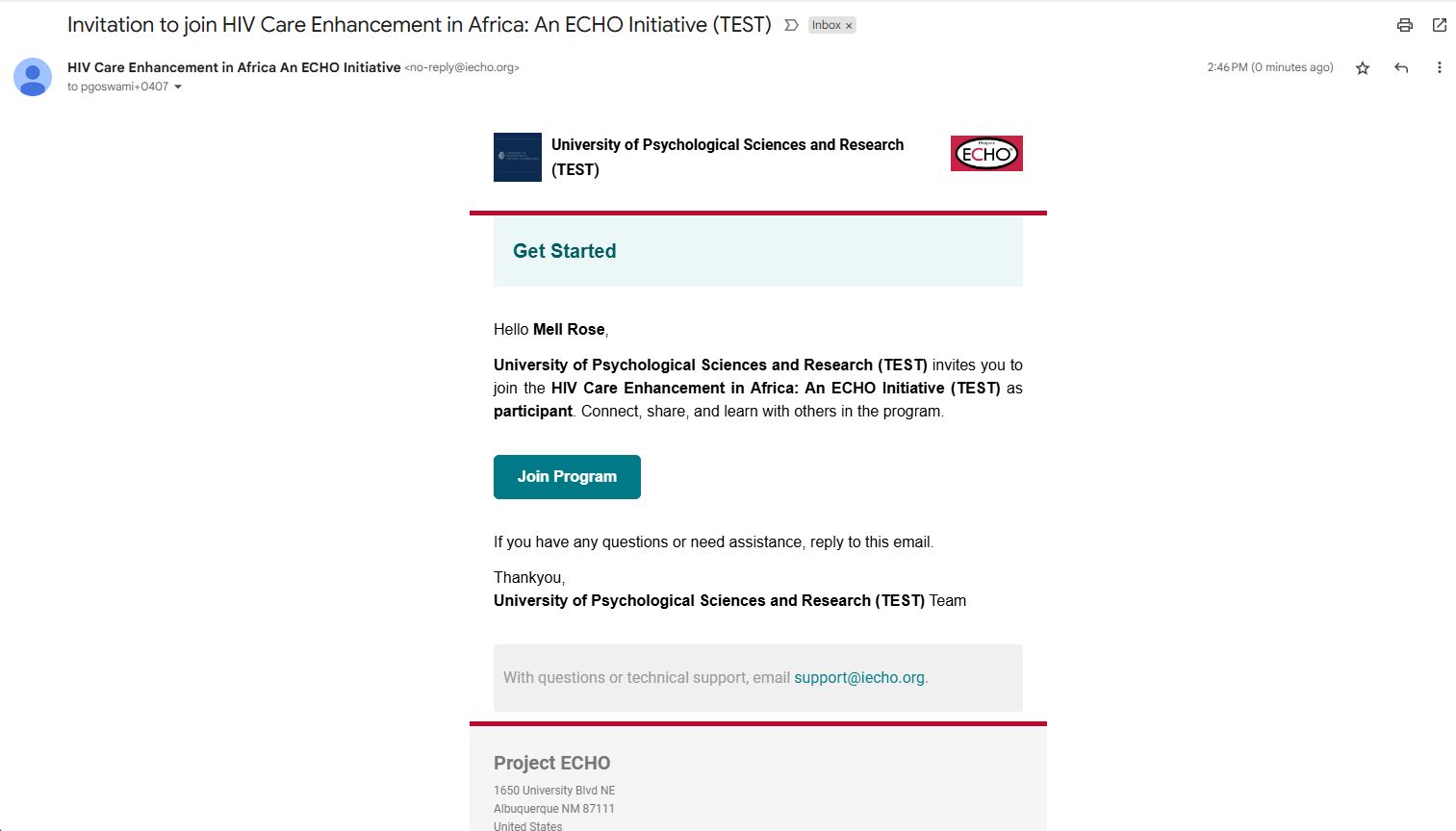
If you haven’t received the email invitation, check your spam folder. If it is in your spam folder, add the email address ‘no-reply@iecho.org’ to your safe sender list.
- You will be redirected to iecho.org to follow the registration steps.
- The video tutorials below will guide you through registration:


Using Mobile (Select countries only)
- Check your mobile SMS inbox for an invite message from iECHO.
- Clicking the link in the SMS will redirect you to the iECHO platform.
- Click on Continue; a 6-digit code will be sent to your phone to verify the mobile number.
- Enter the 6-digit code received through SMS to verify your mobile number. The OTP (one-time password) is valid for 10 minutes.
- Follow the registration steps.
- The video tutorials below will guide you through registration:
Please note: SMS and WhatsApp services are only available in select countries. A list of supported countries can be found here.
To log in via mobile, you do not need to remember a password. Your mobile number and 6-digit code serve as a secure way of identifying yourself.


Complete Registration
Once you have received your invitation, follow these steps to add your details:
Personal Details Section
- Input your First name, Last name, Gender, and Create Password (applicable for email registration).
Entering a Mobile Number (if using email registration) or Email address (if using mobile registration) is optional.
Creating a secure password is important to help ensure your account stays safe and protected. Your password is stored in an encrypted format. ECHO employees cannot view your password, and we will never ask you for your password or one-time password (OTP). If you are contacted by anyone asking for your iECHO password or OTP, please contact iECHO support immediately at support@iecho.org.
🔒Password Requirements
Your new password must include:
- Minimum 10 characters
- At least one uppercase letter (e.g., A, B, C, ... Z)
- At least one number (e.g., 0–9)
- To proceed, check the box to confirm that you’ve read and agree to the Terms of Use and Privacy Policy.
- Click on Agree & Continue.
Professional Details Section
- Enter your Profession (your job or field of work) and Institute/Workplace (the center or site where you are employed).
If your institute or workplace name is not on the list, you can add your organization by clicking Add Institute. Scroll down on the displayed list to add a new institute:
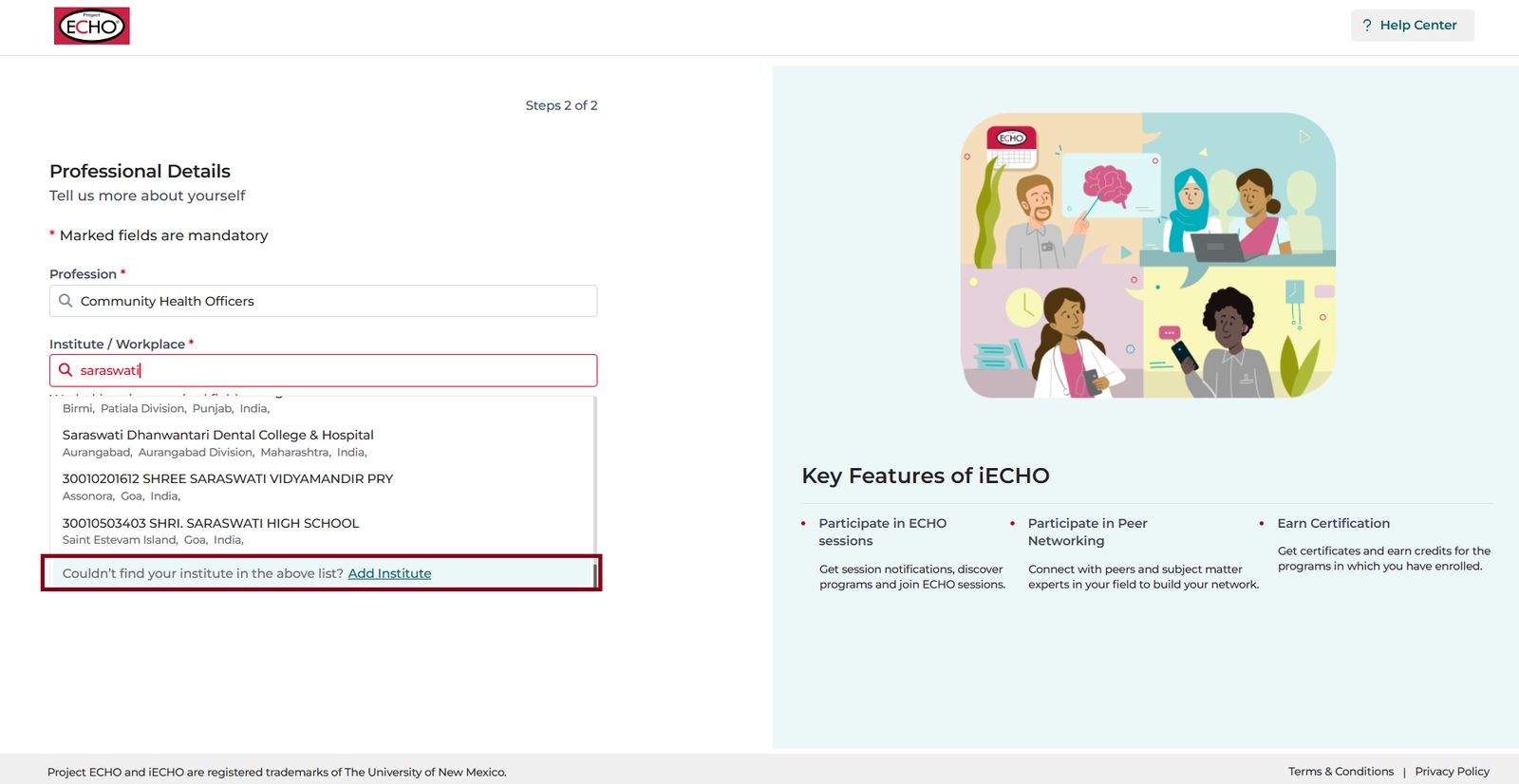
- Click on Add Institute.
- Add the name of the institute or workplace.
- Include the location (search by name, state, or city).
- Click Add.
- Click Save.
Best Practices for Adding a New Institute or Organization:
- Do not use acronyms for your organization’s name (for example, enter University of New Mexico, not UNM).
- Please enter the full name of your organization.
Confirm your Time Zone in the next step. iECHO automatically detects this based on your location to ensure accurate notifications and updates.
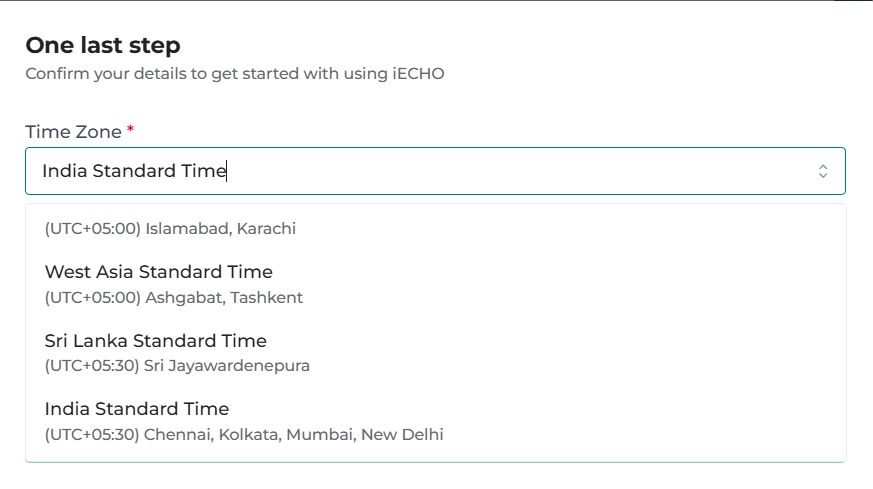
Enter the requested details and click on Confirm.
iECHO gives you options for Profile Visibility:
| Private | iECHO hides your profile from others. Choose Only Me |
| Public | iECHO shows your profile and impact to the ECHO community (recommended). Choose Anyone on iECHO |
Click on Confirm to complete the registration.
Last Minute Registration?
Need Immediate Assistance? Read here for more information!
Quick access for joining sessions
If the session has begun, and you are in the process of registering on the
platform. Simply, Click on Join Now and iECHO will redirect you to join the session. Post attending the session, iECHO will prompt you to complete your registration.
Login to iECHO
- Visit https://iecho.org from your preferred browser.
- Log in using your registered Email, Mobile, or Google account.
Login with Email
- Select Continue with Email.
- Enter your Email ID and click on Continue.
- Enter your Password and click on Submit.
⚠️ If you have forgotten your password, please follow the steps to Reset Your Profile Password.

Login with Mobile
- Select Continue with Mobile.
- Enter your registered Mobile number.
- Enter the 6-digit code received via SMS and click on Confirm Code.

If you have not received the code, please click on Resend.
Login with Google
- Select Continue with Google.
- Select the Google account linked to your iECHO account.
If an error occurs when logging in via Google, try logging in via email or SMS instead.

ℹ️ Login with Google will only work if you have been invited and registered with the same email address.
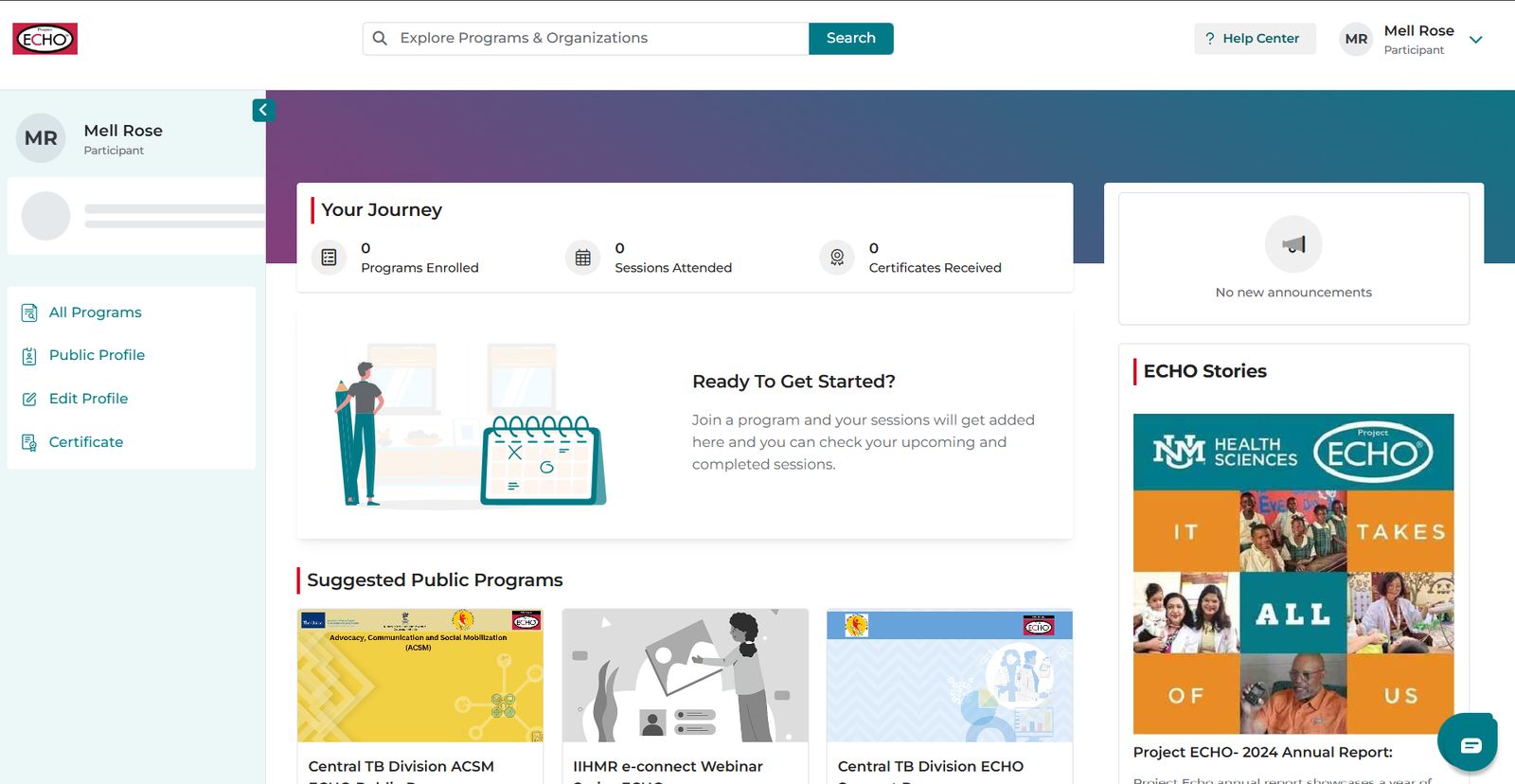
🆘Please note: If a user registers directly through iecho.org, they may not see any programs listed on their home screen initially.
iECHO allows users to join publicly listed ECHO programs or to register through an invitation to a specific program. Learn more here.
Your password is stored in an encrypted format. ECHO employees cannot view your password, and we will never ask you for your password or one-time-passwords (6-digit code). If you are contacted by an individual asking you for your iECHO password or OTP, please contact iECHO support immediately at support@iecho.org.
Data breaches and identity theft are on the rise, and the cause is often compromised passwords. After stealing credentials, cybercriminals can use passwords to conduct various malicious activities against you or your organization.
Although we follow best-in-class security measures, iECHO cannot protect your account against an attacker getting access to your password. You can use this tool to gauge your password security: https://www.security.org/how-secure-is-my-password