
iECHO lets you manage your profile by uploading a profile picture,, updating your personal and professional details, and controlling privacy settings , giving you control over your profile visibility.
🚀 Complete your profile to boost your visibility in the ECHO community and share your expertise to connect, collaborate, and grow.
How to Edit Your Profile ? NEW
iECHO allows you to customize how your professional background, credentials, and achievements appear to other community members on the platform.
To access your Public Profile, choose one of the following options:
- On your iECHO homepage, select Public Profile from the left navigation panel.
- Click the drop-down menu next to your name or profile picture in the top-right corner, and select View Public Profile.
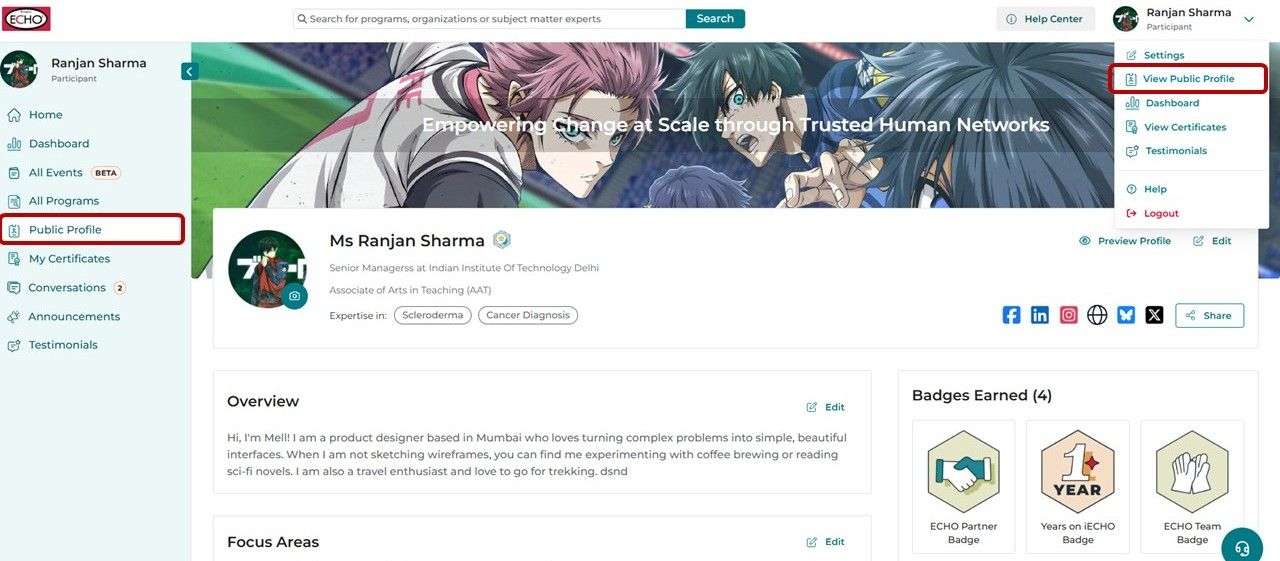
NOTE : To update any section of your profile, click the Edit option available on the right side of that specific section.
Custom Banner NEW
Personalize your profile by adding a custom Cover Heading and Cover Image to showcase your identity and highlights your mission, vision, or values.
- Locate the banner image at the top of your profile and click Edit in the top-right corner.
- Enter your preferred Cover Heading (e.g., a statement, aim, or tagline). You may leave this blank if you prefer no text overlay.
- Select a banner from the available defaults, or click Custom Cover Image.
Note: For optimal display, use the recommended dimensions of 1920×480 px and a 4:1 aspect ratio.
- Upload and adjust the image as needed.
- Click Save.
Edit Details
Click Edit next to your name to update your primary profile details:
- Salutation
- First name & last name
- Title
- Academic qualifications
- Institute/Workplace
Add an Institute or Workplace
To update your organization, search for your organization in the Institute/Workplace field. If your organization is not listed:
- Click Add Institute.
- Enter the full name of your organization. Do not use acronyms (for example, use "University of New Mexico" instead of "UNM").
- Search for and select the location by city, state, or country.
- Click Submit.
- City
- Profession
- Professional ID Details
Edit Professional ID Details NEW
Adding your professional ID verifies your identity and strengthens your credibility across the platform.
To add a Professional ID:
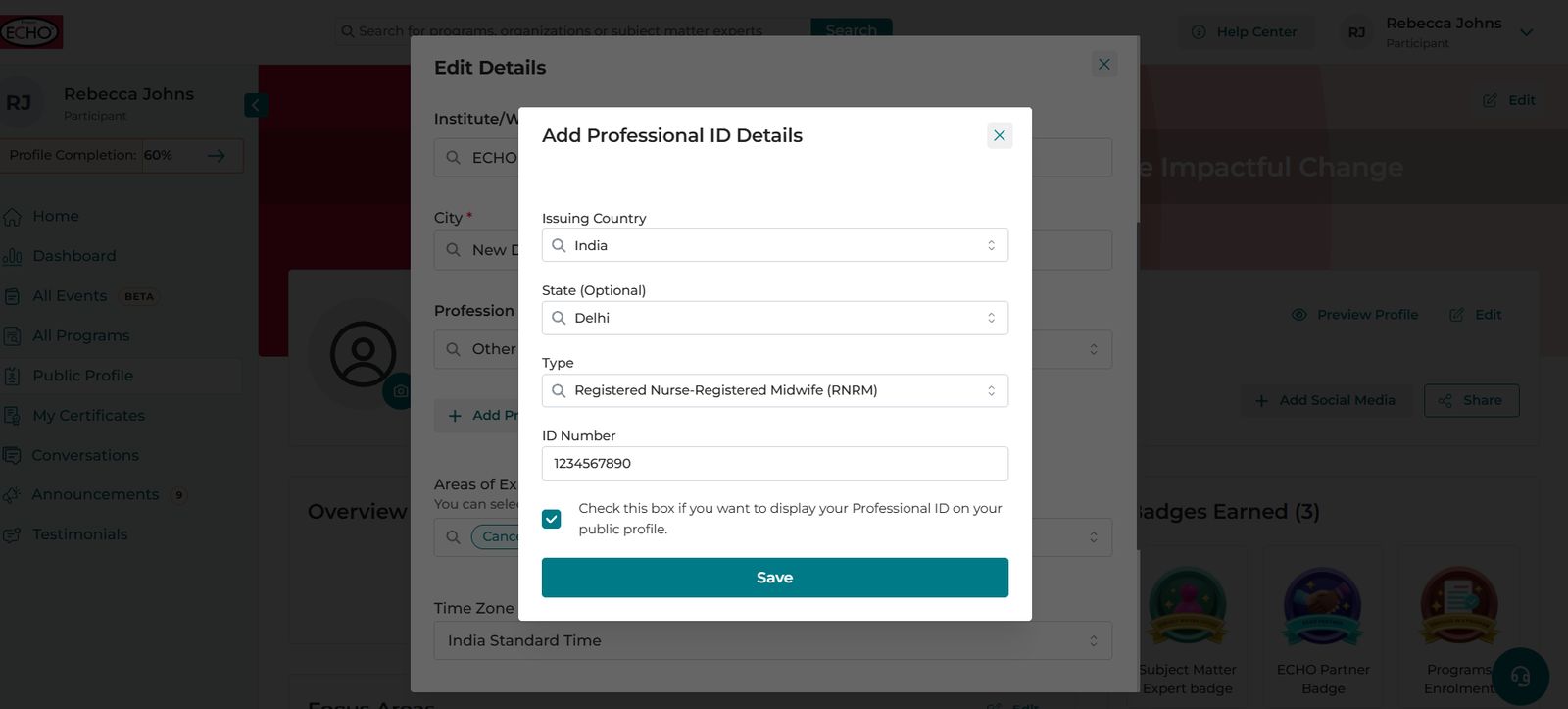
- Click Add Professional ID Details.
- Fill in the required fields: Issuing Country, State (optional), Professional ID Type, and ID Number.
- Choose whether to display your Professional ID details on your public profile.
- Click Save.
Note: If your Professional ID type is not listed (currently supporting India and USA), click the link provided here to submit a request for a new ID type.
Note: Your Professional ID details will appear on your Public Profile, in CSV reports, and on feedback-based automated certificates (if configured by the organization).
To delete a Professional ID:
- Select Delete located next to Professional ID Details.
- Click Delete in the confirmation dialog box.
- Areas of Expertise
- Time Zone
- Social Media
Add Social Media Links
Scroll to the bottom of the edit section to add links to your LinkedIn, X (Twitter), organization website, Bluesky, Instagram, and Facebook profiles, which will display at the top of your profile.
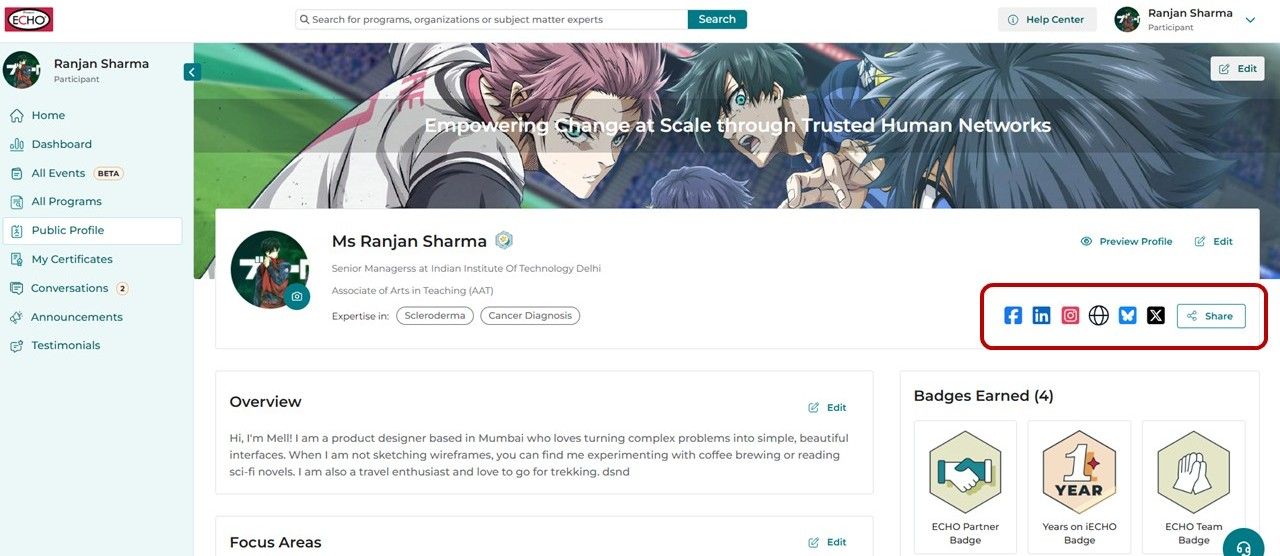
Note: The Save button will only activate after you make changes to your profile.
Preview Profile NEW
Click Preview Profile at any time to view how your public profile appears to other users across the platform.
Overview
Use the Overview field to share your background and professional interests with community members.
Note: The text limit for this section is 3,000 characters. The Save button will remain disabled until your entry meets this limit.
Other Profile Sections
Focus Area:
Edit your key thematic areas of specialization, such as healthcare, education, public health, or social development, etc.
Programs Enrolled In:
Displays a list of programs you are enrolled in along with their status (e.g., Ongoing or Upcoming) listed next to the program name.
Publications NEW:
How to add Publication Links?
Scroll down to the bottom section of the profile page to find the Publications section
Select Add New.
Enter the publication details, including Title, Focus Area, and Publication Link.
Click Save.
Link your published works (e.g., research papers in your field of specialization) to build credibility on your profile page.
Badges Earned:
Displays badges that have been awarded to you based on participation, engagement, or contributions.
(For more detailed information , view Badges on iECHO)
Impact:
Displays key engagement metrics on iECHO, including hours of mentorship, programs enrolled in, and questions answered.
SDGs:
Displays the Sustainable Development Goals related to your background and engagement.
Spoken Languages:
Edit your spoken languages from this section.
Personal Details
To update personal information on your profile:
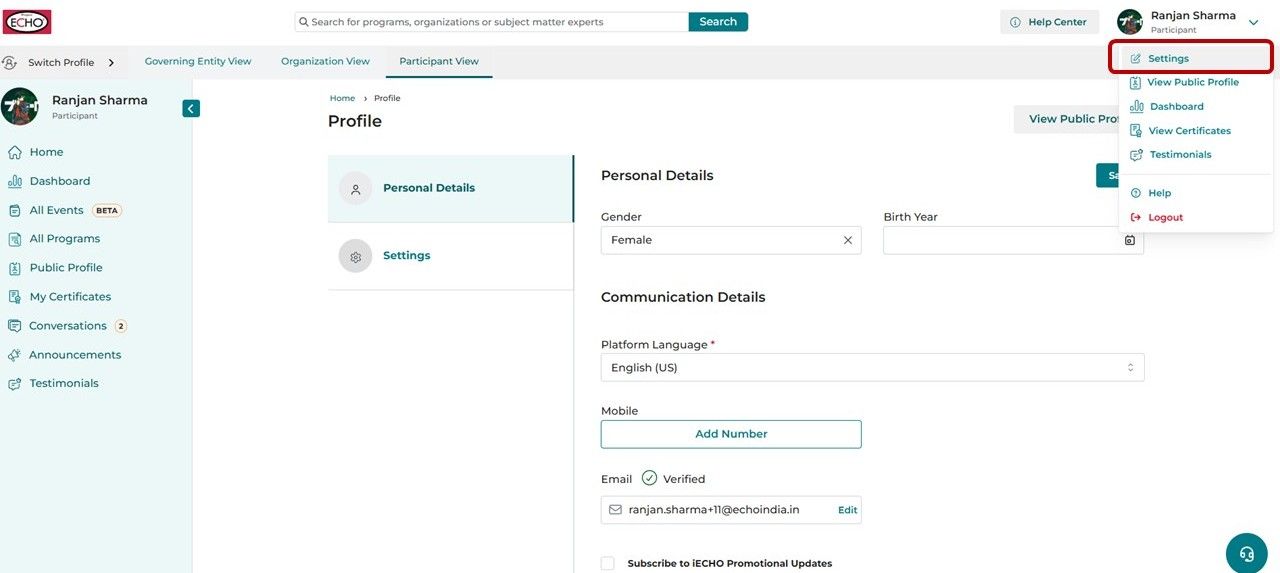
- Log in to iECHO and click your profile picture or name in the top-right corner of the screen.
- Select Settings from the dropdown menu.
Under Personal Details, you can edit:
- Gender
- Birth Year
- Communication Details (For more information, see Manage Communication Settings.)
Settings
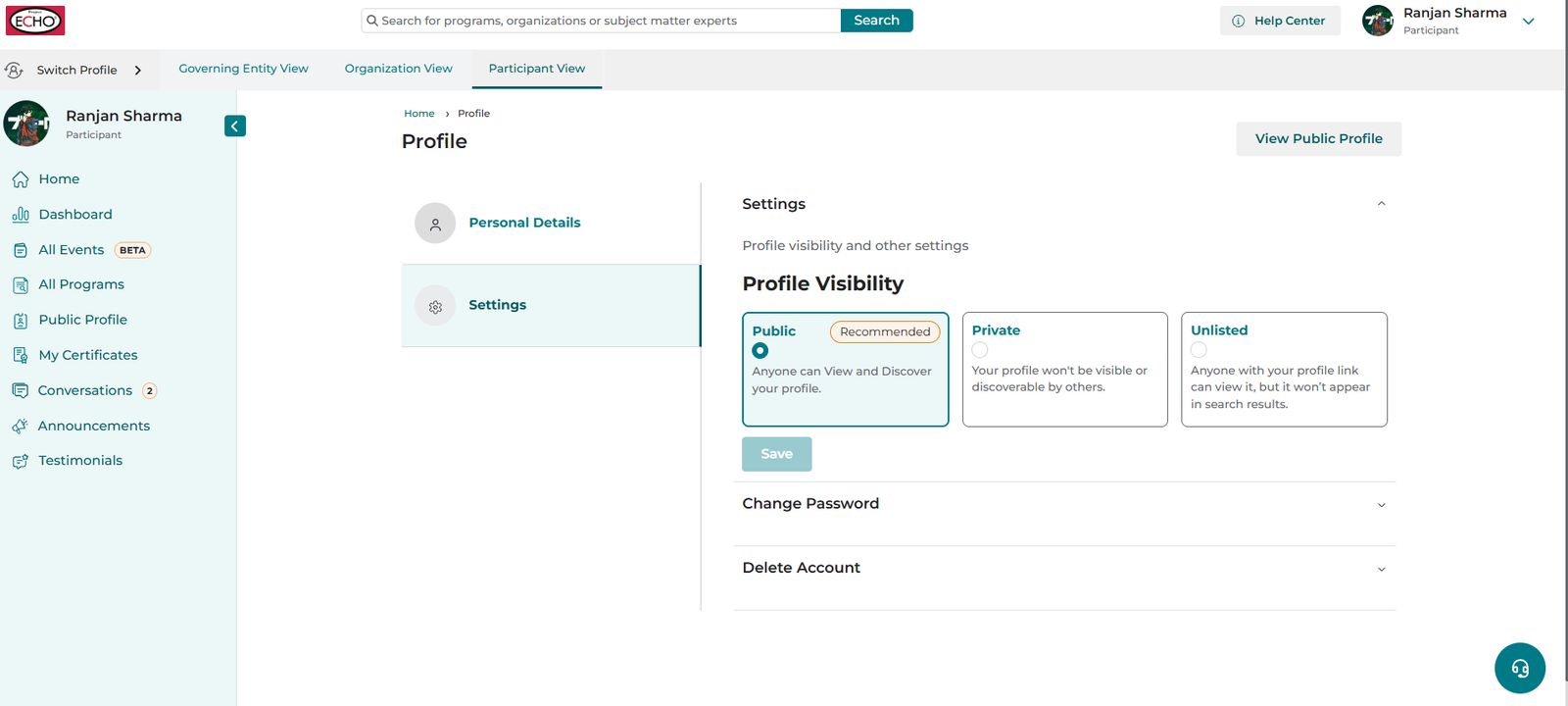
iECHO lets you control your profile visibility on the platform.
To update your profile visibility:
- Click your profile picture or name in the top-right corner of the screen.
- Select the Settings, the first option in the drop down menu that appears.
- Under the profile setting that open up, select Settings from the left panel.
- Under Profile Visibility, select one of three options:
| Public (Recommended) | iECHO makes your profile visible to the ECHO community, allowing others to learn about your profile and connect with you. | |
| Private | iECHO restricts access to your profile, keeping it hidden from the ECHO community. | |
| Unlisted NEW | iECHO limits your profile visibility so it is accessible only to users with your direct profile link. |
Change Password
Enter your current password, type and confirm your new password, and click Save. For more detailed instructions.
Delete Account
For instructions on deleting your account, see Delete your iECHO Account.