
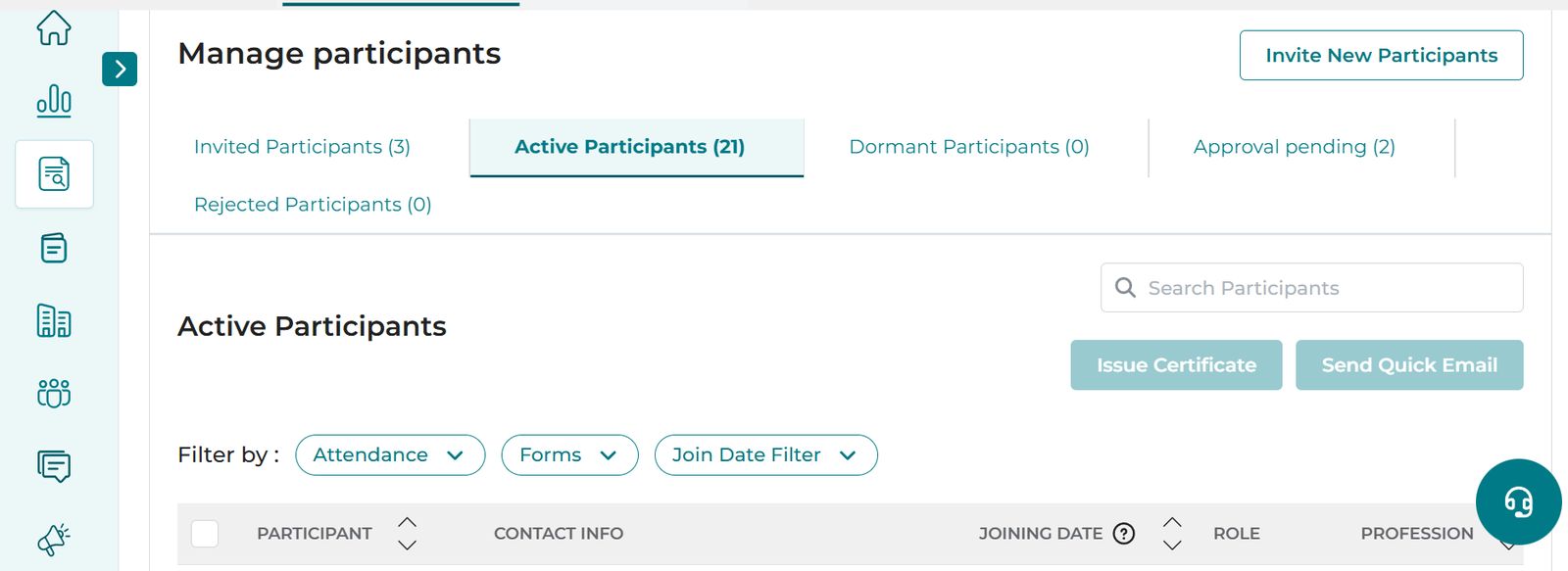
Advanced filters in the Active Participants tab allow you to issue certificates, send quick emails, and conduct assessments more effectively. These filters help you sort participants based on different criteria.
There are various filters available for iECHO organizations. You can filter participants based on:
1. Session Attendance
2. Program Join Date
3. Form Submissions
Accessing Advanced Filters
- Log in to iecho.org.
- From the left panel, select All Programs.
- Choose the relevant program, then select the participant group where you want to apply filters.
- Go to the Participants tab and open Active Participants.
Attendance Filters
You can filter attendance based on Sessions, Participant Groups, or Forms.
Filter by Session
- Select Session.
- By default, the last conducted session in the group is pre-selected.
- Use the dropdown to choose a different session.
- Choose Attendance Status.
- Show participants who:
- Attended the session.
- Did not attend the session.
- Show participants who:
- Set Attendance Duration.
- Define how long (in minutes) a participant attended.
- Enter a range (e.g., 5–80 minutes) or adjust the slider.
- Click Apply to view results.
- Click Apply to view results.
Filter by Participant Group
- Choose Attendance Status.
- Show participants who:
- Attended sessions.
- Did not attend sessions.
- Show participants who:
- Set Number of Sessions.
- Enter the number of sessions you would like to filter by.
- Click Apply to view results.
- Click Apply to view results.
Join Date Filter
The Join Date is when a participant registered in the group and moved from the invited state to the active state. You can filter by:
- Previous 7 Days – Recently registered participants.
- Previous Month – Participants who joined in the last month.
- Custom Range – Define your own start and end dates.
Select Apply to view results.
Forms Filter
- Select Forms and use the dropdown to select the type of form (e.g., Pre-Assessment, Post-Assessment, or General Survey).
- Select Form list and check the form from the list. You can select one or more forms at once.
- Select one of the following options:
- Submitted: Filter participants who have submitted the selected form(s).
- Not Submitted: Filter participants who have not submitted the selected form(s).
- If the form has scoring enabled, set the score range if desired.
- Click Apply to view results.