
A participant group consists of individuals who learn together, attending multiple sessions to complete the program’s curriculum. These groups are similar to cohorts within the same program, moving through the material at the same pace.
Participant groups can be created based on:
- Different levels of understanding: For example, you might separate cohorts for physicians, nurse practitioners, and physician assistants, each with tailored content according to their expertise.
- Session timings: Groups can be organized according to when sessions are scheduled. For instance, one cohort might meet every Monday from 9:00 AM to 10:00 AM, while another might meet on Saturday and Sunday from 9:00 AM to 10:00 AM. Each schedule requires a distinct learner group.
- Creating a Participant Group
- Creating a Participant Group for an Existing Program
- Editing a Participant Group
- Reopening a Participant Group

Here is how to create a participant group:
Creating your first participant group (cohort)
Participant groups are how you organize your ECHO program into participants and sessions. You may have one or multiple participant groups active at any time.
Participant Groups (Cohorts) help you organize a large program into a smaller, manageable structure. For example, you could have one participant group that meets every Wednesday and another that meets every Friday.
You could also have a program where only one participant group/cohort is active at a time, and every few months, the participant group completes the curriculum and new participants join a new cohort.
iECHO provides a simple and flexible way to structure the program in the most effective way possible. If you need advice or suggestions on how to structure your program, contact your account representative.
iECHO will prompt you to create a participant group after you create your program.
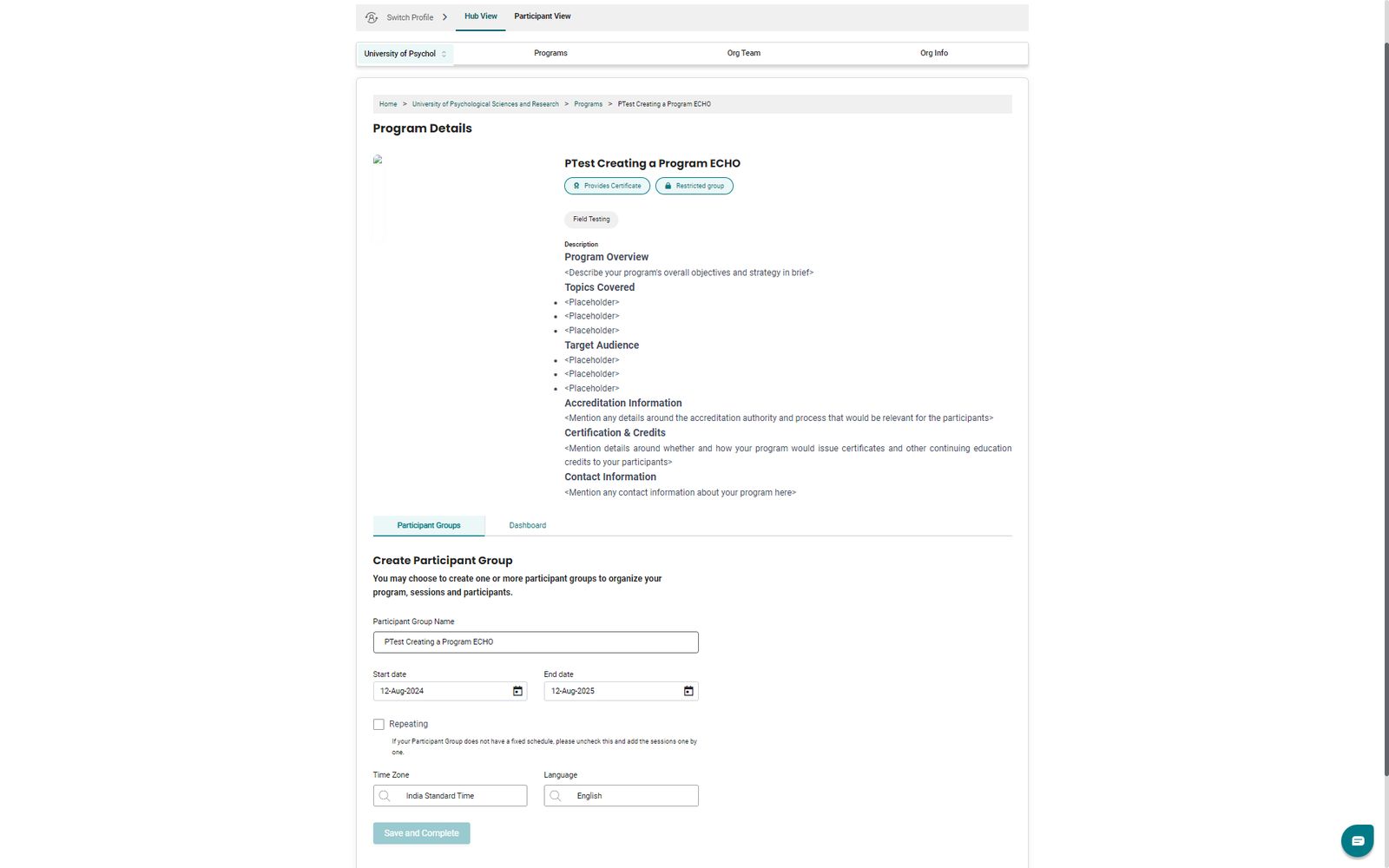
- Enter the information for the participant group:
- Participant group name: A descriptive name for your cohort, such as a numerical convention like Cohort 1, Cohort 2, etc.
Please do not use special characters (such as "-", "/", or ";") when naming a participant group.
- Start date: The date of the first ECHO session in this participant group.
- End date: The date of the last planned ECHO session in the participant group. A participant group can be created for up to 3 years in advance.
- Repeating: If your participant group has a fixed schedule, you can schedule multiple recurring sessions between the start date and end date of the group.
Example: If a session is scheduled every two weeks for the next 2 years on Mondays from 9:00 AM to 11:00 AM, select the repeating feature to automatically generate sessions.
You can also schedule monthly repeating sessions on iECHO by selecting Monthly and choosing the week of occurrence (first, second, third, or fourth week).
- Language: The language in which the cohort will be conducted.
What language does the participant receive the program invitation in?
- Registered iECHO users participating in other programs will receive invitations in their preferred language.
- New users who have not yet registered on iECHO will receive invitations in the language set for the participant group.
Creating a participant group for an existing program
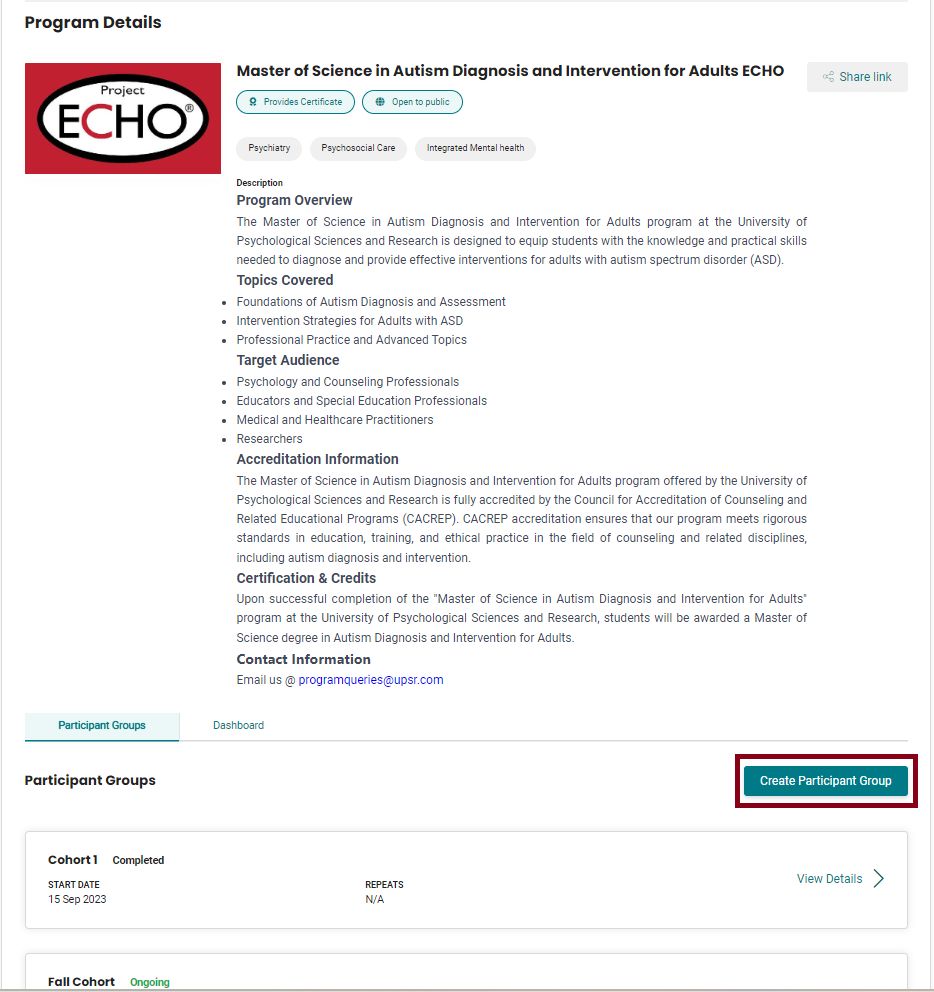
- From your iECHO homepage, open the left panel and select All Programs.
- Select the program under which you want to create a new participant group.
- Click Create Participant Group.
- Enter the information for the participant group.
Note: The default limit for inviting participants to a participant group is 450. To request an increase to this limit, contact support@iecho.org.
Watch this video tutorial on how to create a participant group:

Editing a participant group
Hub owners and hub admins can edit participant group details:
- Click Settings on the participant group card.
- Make the necessary changes.
- Click Save.
Please note:
1. Once you click Mark this Participant Group as completed, all future sessions under the group will automatically be deleted and new sessions cannot be created in the group.
2. Once a participant group is marked completed, you must reopen the group to make any further edits.

Reopening a participant group
Participant groups can be reopened after being marked as completed by following these steps:
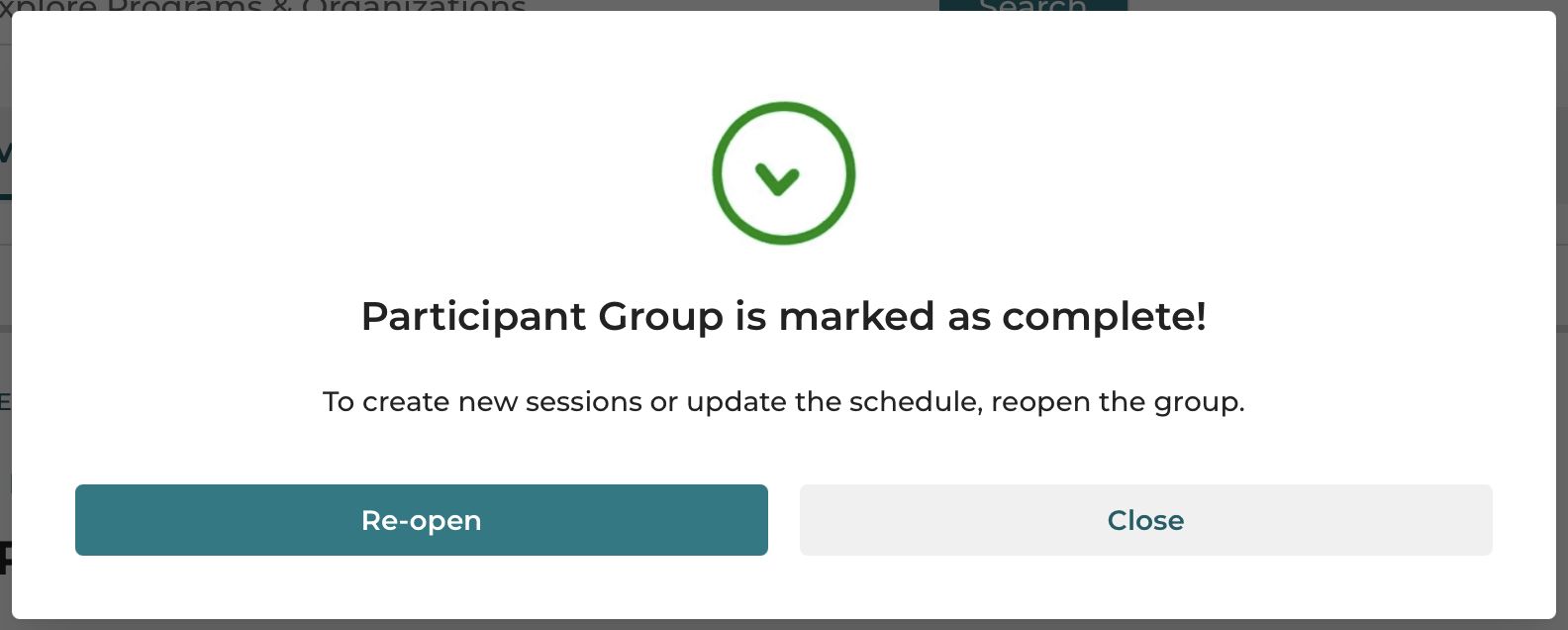
- Select the participant group you want to reopen and click Re-open.
- If you would like to create new sessions or update the schedule, click Re-open. Once reopened, the status will change to "Ongoing," and the end date will be extended by one year by default (up to a maximum of 3 years).
- Select a repeating schedule to automatically create multiple sessions, or create ad-hoc sessions as needed.
Custom Videoconferencing When Reopening a Participant Group
If a participant group you are reopening previously used custom videoconferencing, iECHO will automatically switch it to Zoom by default. To continue using your custom setup, go to the participant group settings and re-enter your videoconferencing details.
- Participant groups were previously marked as completed 6 months after their end date passed.
- Groups are now marked Completed automatically on their end date.
- Program admins will receive reminders 1 month and 1 week before a group ends.
- To ensure data consistency, all expired groups will be marked as Completed on July 31, 2025.
Having trouble? Check out the Troubleshooting Guidelines for quick solutions to common issues.
Related Articles: