
The iECHO platform facilitates reliable communication between organizations and participants through email, ensuring effective information sharing about organizations and programs. Organizations can manage settings and customize templates to meet their specific needs.
- Pre-loaded templates: iECHO has pre-formatted and pre-written emails that can be automatically sent to users. These templates automatically populate program and session information based on the sender.
- Customized emails: Organization members can create emails with custom content to meet their requirements. You can write up to 1,000 words, insert links to share attachments (such as documents or PDFs), or copy and paste images or brand logos, then send them to the entire participant list with one click.
🆕 Enhancement: Insert Images in Quick Emails
You can now insert images directly into your Quick Email.
Click the image icon in the toolbar to open the insert menu. Choose from two options:
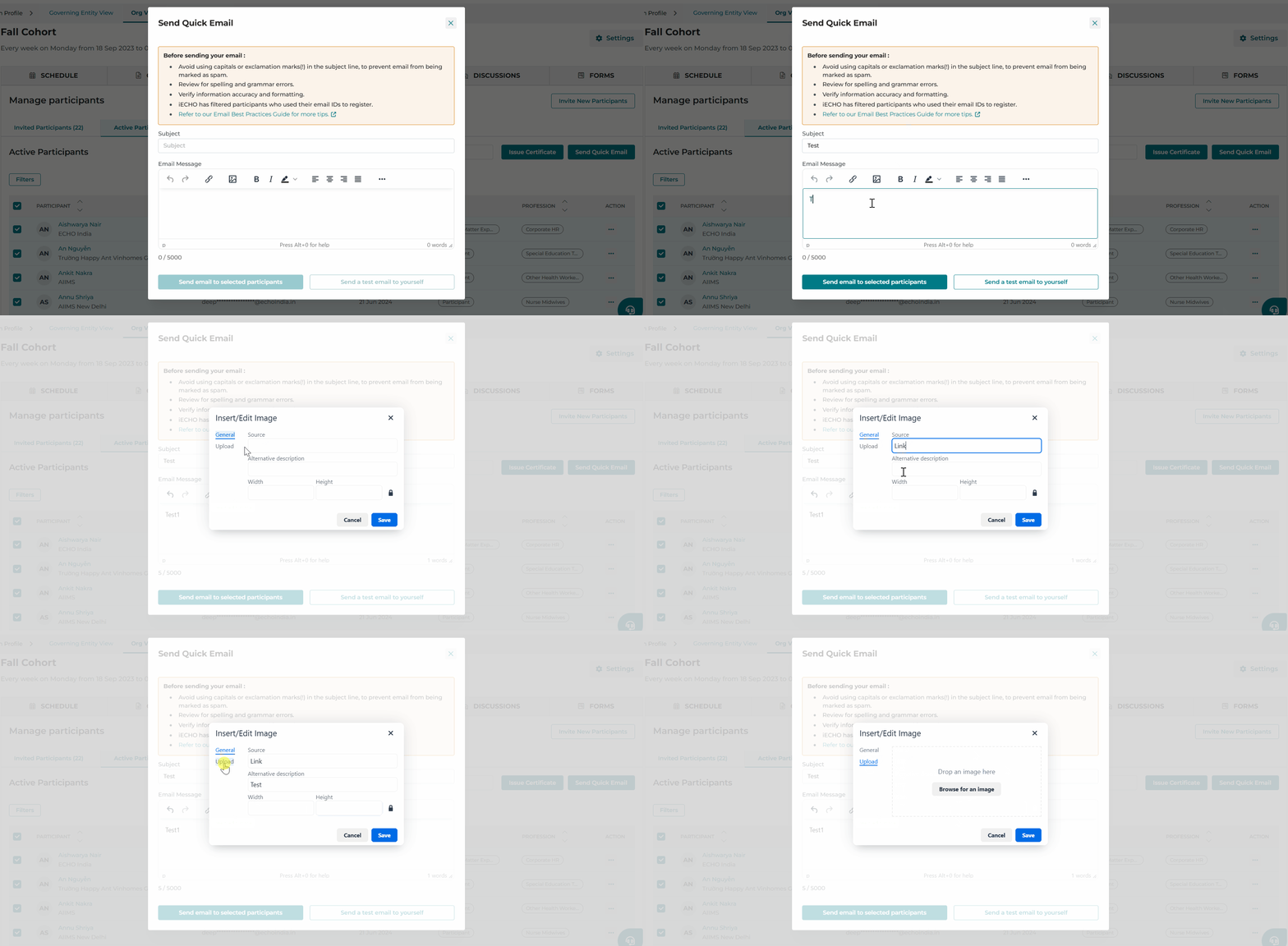
- General: Add an image using a web link, set alt text, and adjust width or height if needed.
- Upload: Upload an image directly from your device.
✨ Enhance your emails with banners, posters, or visual content.
Here are the types of emails you can send to participants:
- Quick Emails: Program-related communications sent by organizations, such as schedule changes, meeting minutes from previous sessions, or updates to session times. These emails are sent to active participants in a participant group.
- Customized Program Invite Emails: Program invite emails customized by the organization team to include additional information and links. Example: These personalized emails are sent to invite potential participants to join your ECHO program. By including details about program offerings, organizations can better engage and attract interested participants.
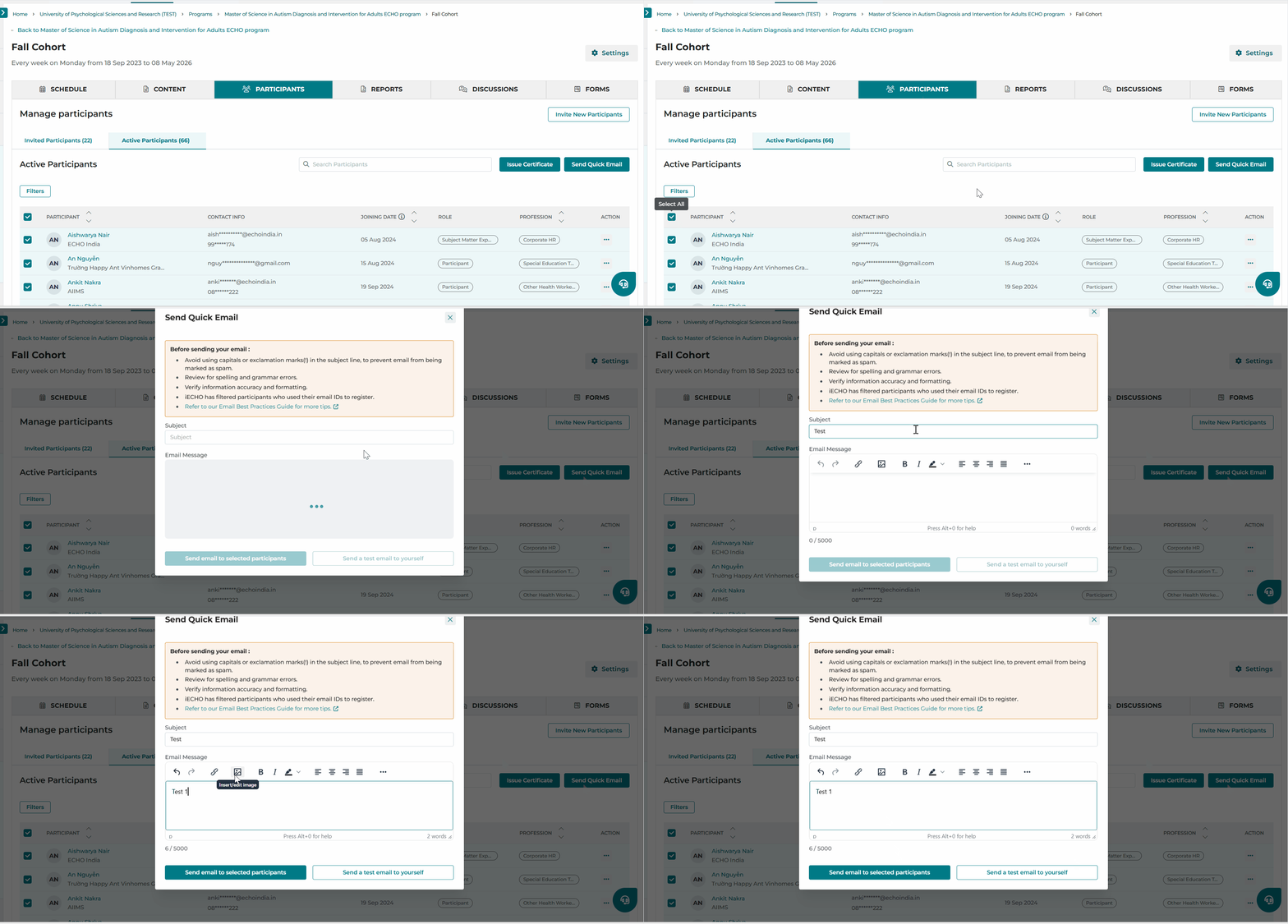
- From your iECHO homepage, open the left panel and select All Programs.
- Select the program and participant group for which you want to send the email.
- In the Participants section, click Active Participants.
- Select all participants or choose individual recipients.
- Click Send Quick Email.
- Enter the subject and content of the email.
- Click Send email to selected participants.
Please review our guidelines for email messaging to optimize email delivery.
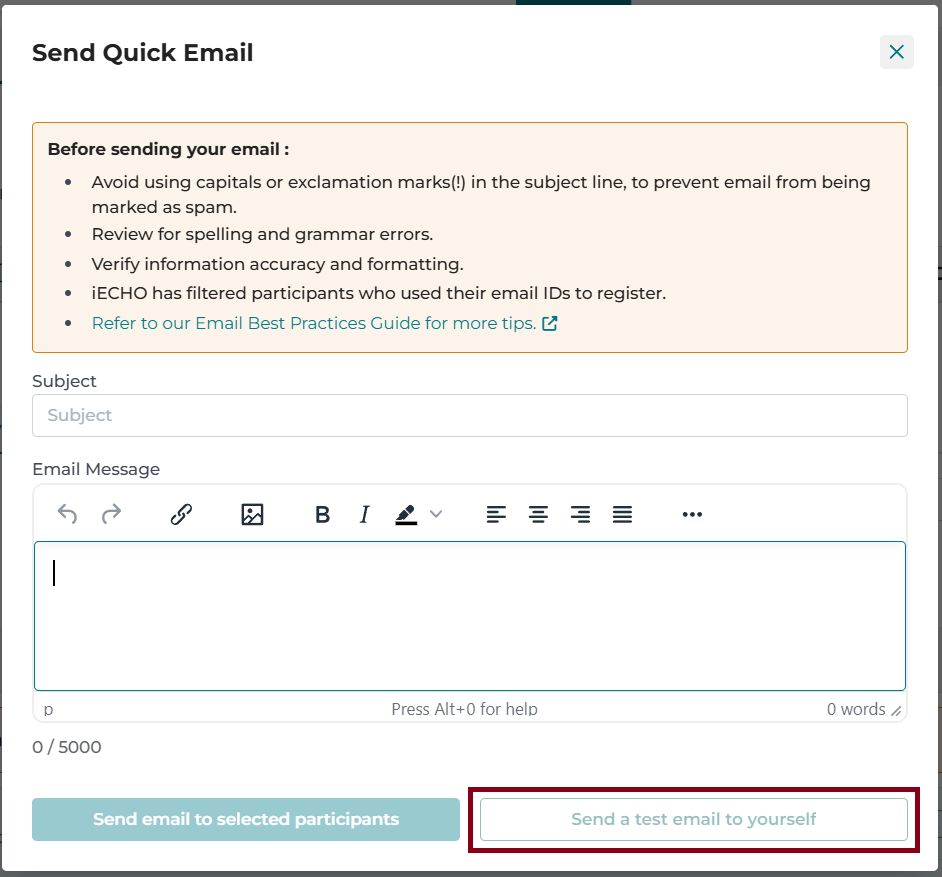
After creating a Quick Email, you can review it by sending a test email to yourself. Click Send a test email to yourself to receive the test email in the inbox associated with your iECHO account.
Watch this tutorial on how to send a Quick Email:
When to use Quick Email vs. Announcements
Quick Emails
- Why use it? Perfect for sending urgent messages that need a fast response.
- Who gets it? Specific people registered on the platform with updated email addresses.
- What can you send? Personalized and detailed information, such as instructions for a case presenter.
- Who can send it? Only the organization team.
Announcements
- Why use it? Great for sharing general updates, news, or information with everyone.
- Who sees it? All participants in the group.
- What can you send? General updates (session reminders, schedule changes), routine notifications (resources or reading materials), and important news.
- Who can post it? The organization team; participants can react with emojis.
Note: You do not need to include salutations or closing greetings in these emails. iECHO adds them automatically.
Organization admins, organization members, and organization owners will not receive Quick Emails sent to participants.
Related articles you may find helpful: