
iECHO enables organizations to add case presenters directly on the session page. This allows organizations to assign presenters, review submissions, and ensure content is prepared and free of PHI and PII.
Here is how to add a case presenter to a session:
- From your iECHO homepage, open the left navigation panel and select All Programs.
- Select the program where you want to add a case presenter.
- In the Schedule section, go to the session where the case presenter needs to be added.
- Click Add Case Presenter.
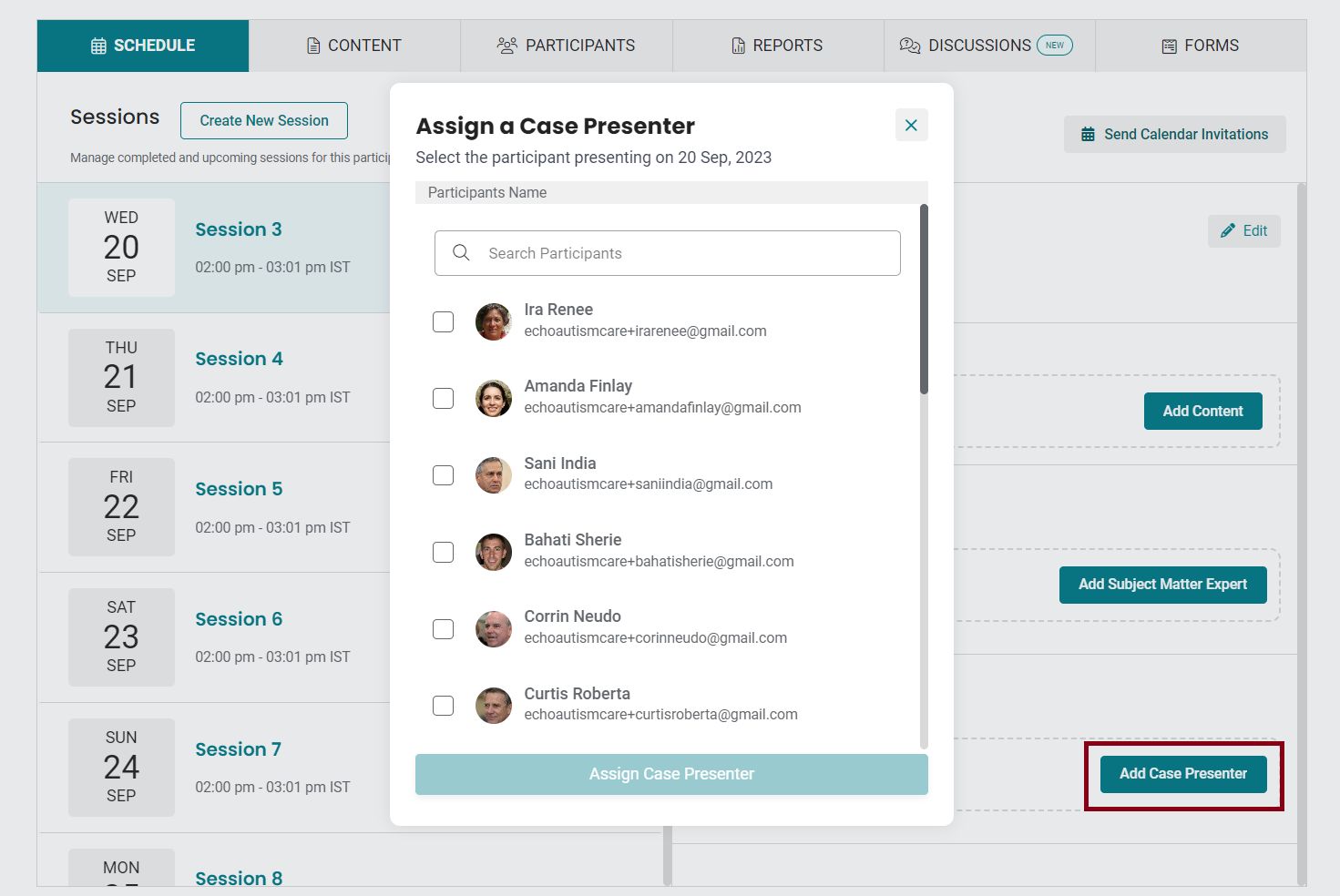
- In the active participants list, select the checkbox next to the participant's name.
- Click Assign Case Presenter. iECHO will send an email or SMS notification to the participant prompting them to upload their case.
- The assigned case presenter can now upload relevant content for the session. If changes are needed, they can re-upload updated content.
iECHO allows you to add multiple case presenters to a single session by repeating these steps.
We recommend that your team reviews all uploaded content to ensure no Protected Health Information (PHI) or Personally Identifiable Information (PII) is included.
Review case content
Here is how to review files uploaded by case presenters before making them available to all participants:
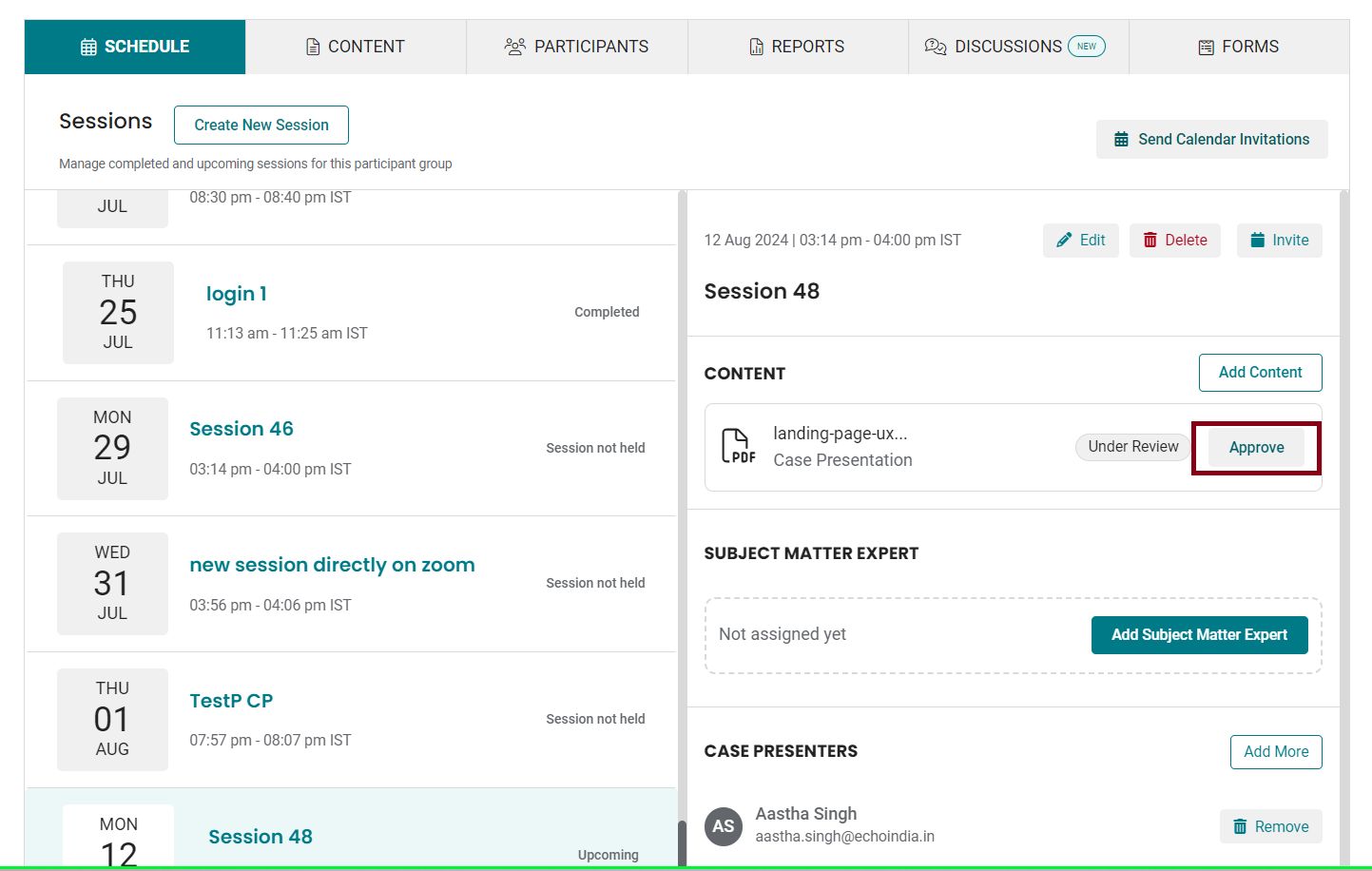
- When a case presenter uploads a file, its status will show as Under Review until approved or rejected by your team.
- Click Approve to open the submission for review.
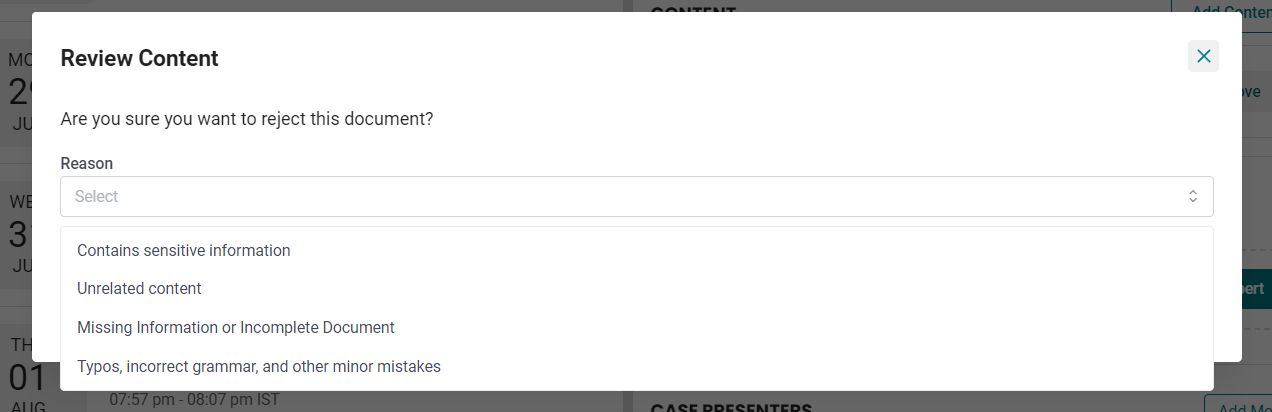
- Click Download to view the file. If the content is accurate and clean, click Approve. If corrections are required, click Reject.
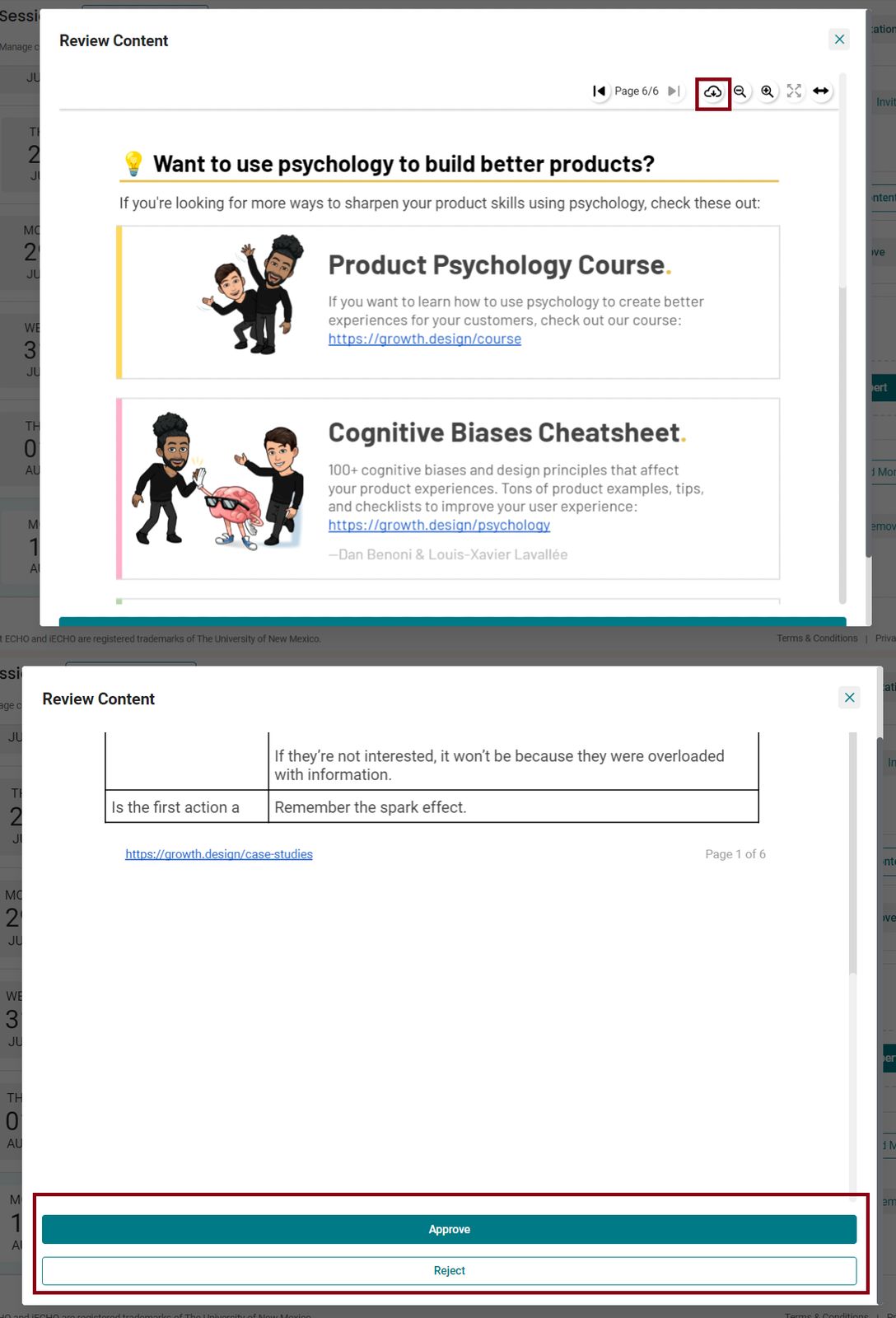
- If you select Reject, select a reason for rejection. The participant will be notified by email or SMS to re-upload the content.
- Once the corrected file is received, review it again and click Approve to make it available to all participants.
Watch the video tutorial below to learn how to add a case presenter to a session:
