Testimonials on iECHO are text- or video-based program reviews provided by participants. These appear on the Public Program and Organizations profile pages, once the organization team publishes them.
- Helps build credibility
- Helps with participant acquisition
Note: Only participants who have attended at least two sessions in a program can provide a testimonial.
Managing Testimonials
- Log in to iECHO.org.
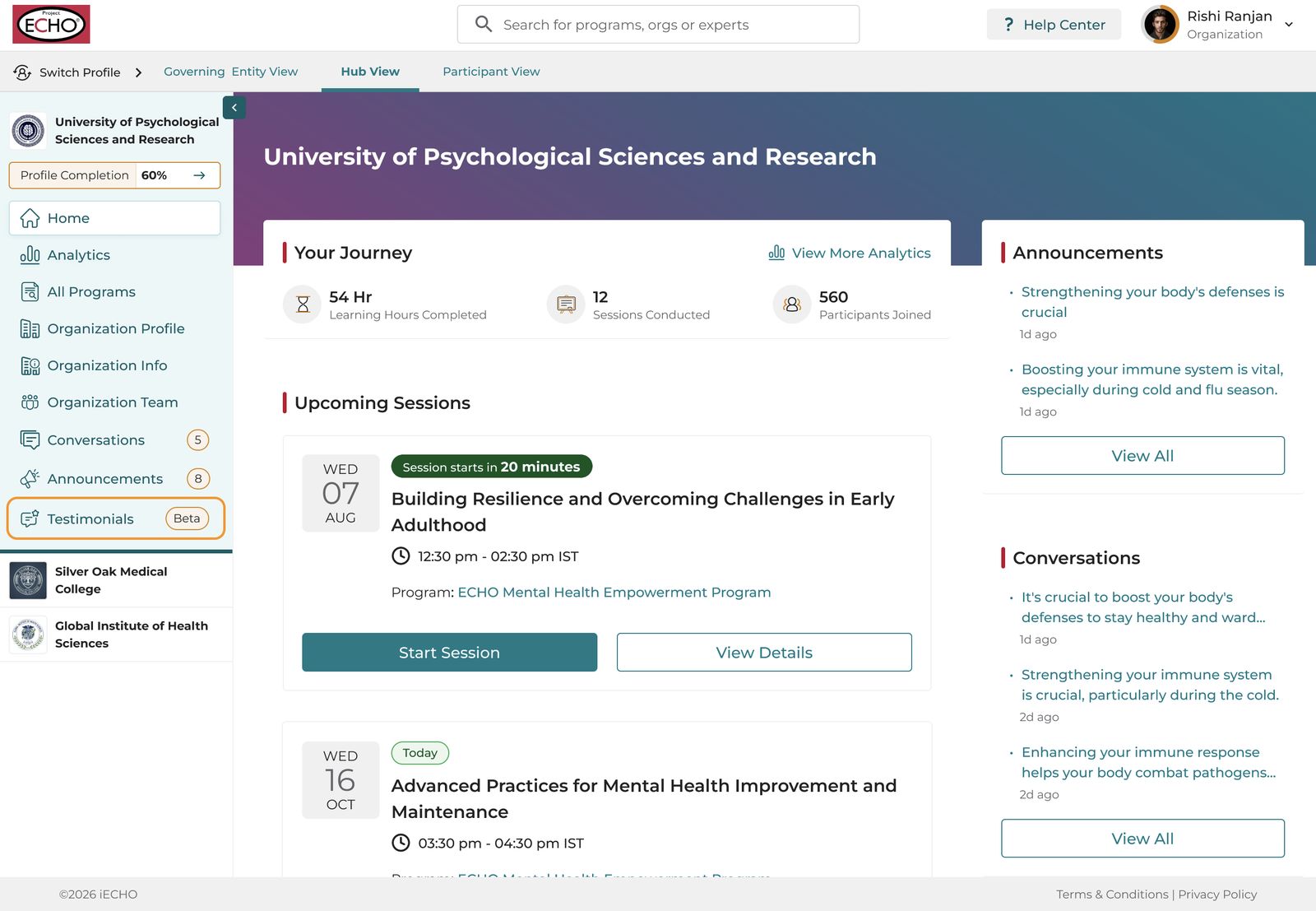
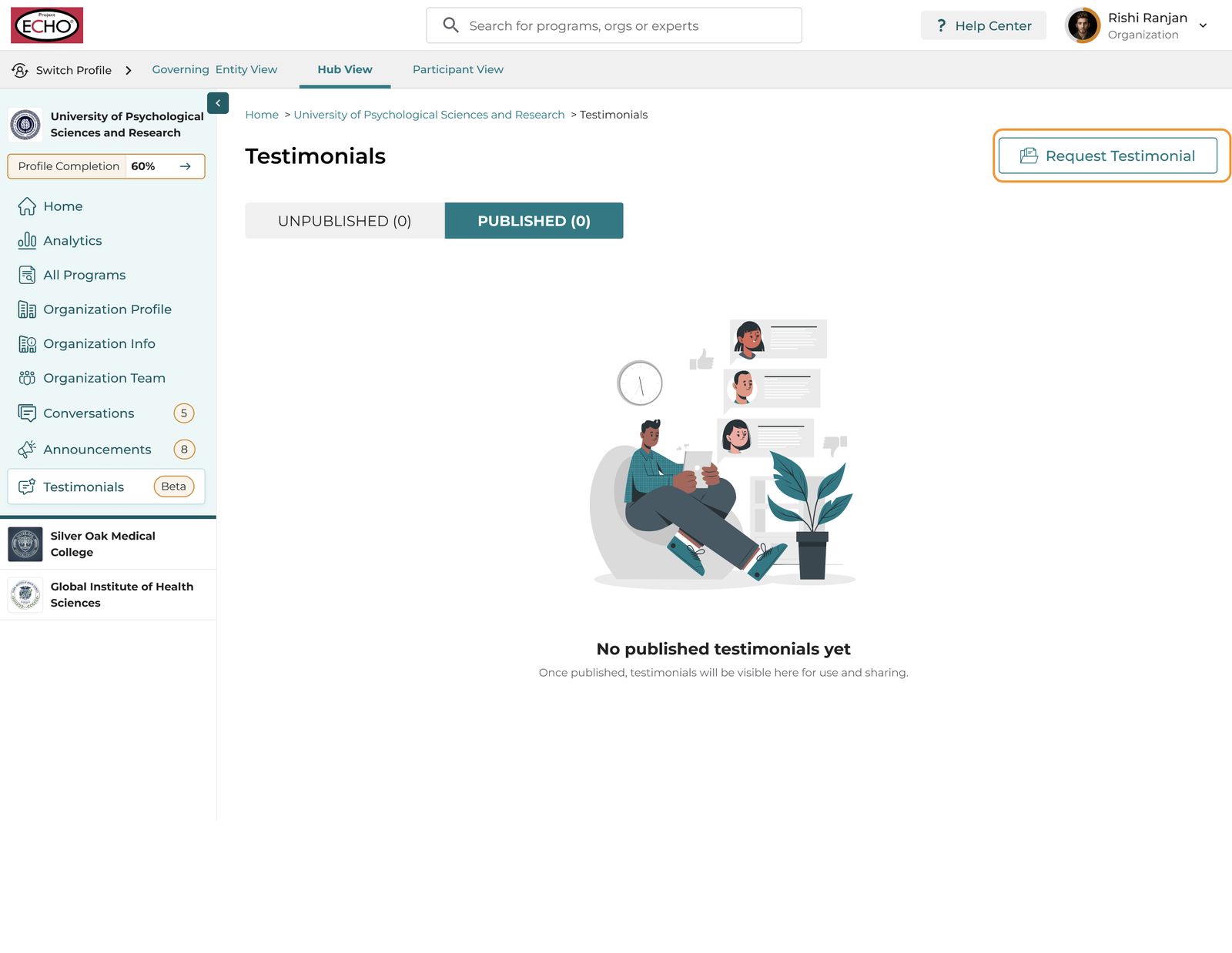
- From the left panel, select Testimonials.
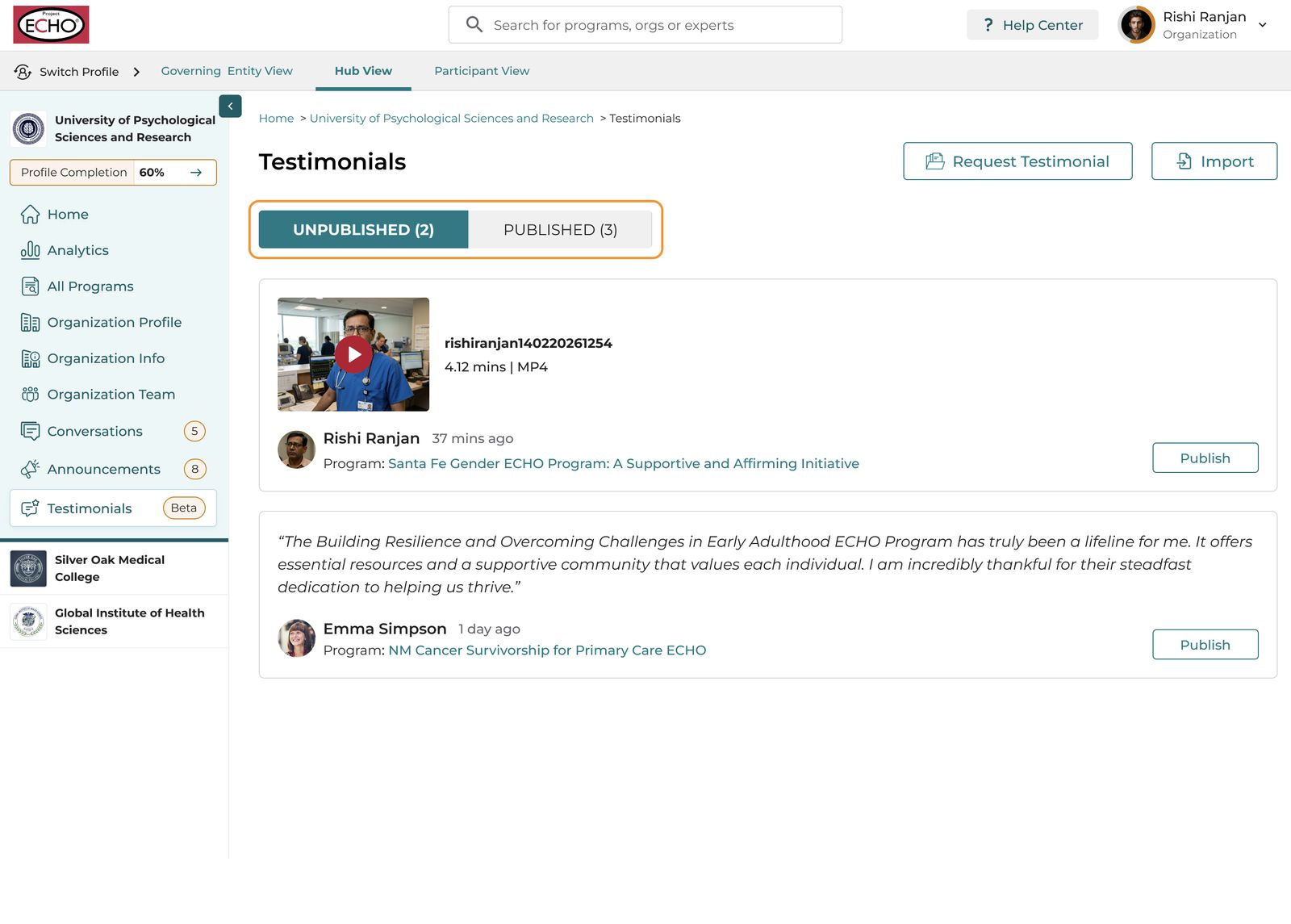
- There are two tabs under testimonials Unpublished or Published
Unpublished: All testimonials are listed here upon submission.
Published: All published testimonials are listed here. The organization team can choose to publish these to the program and organization pages.
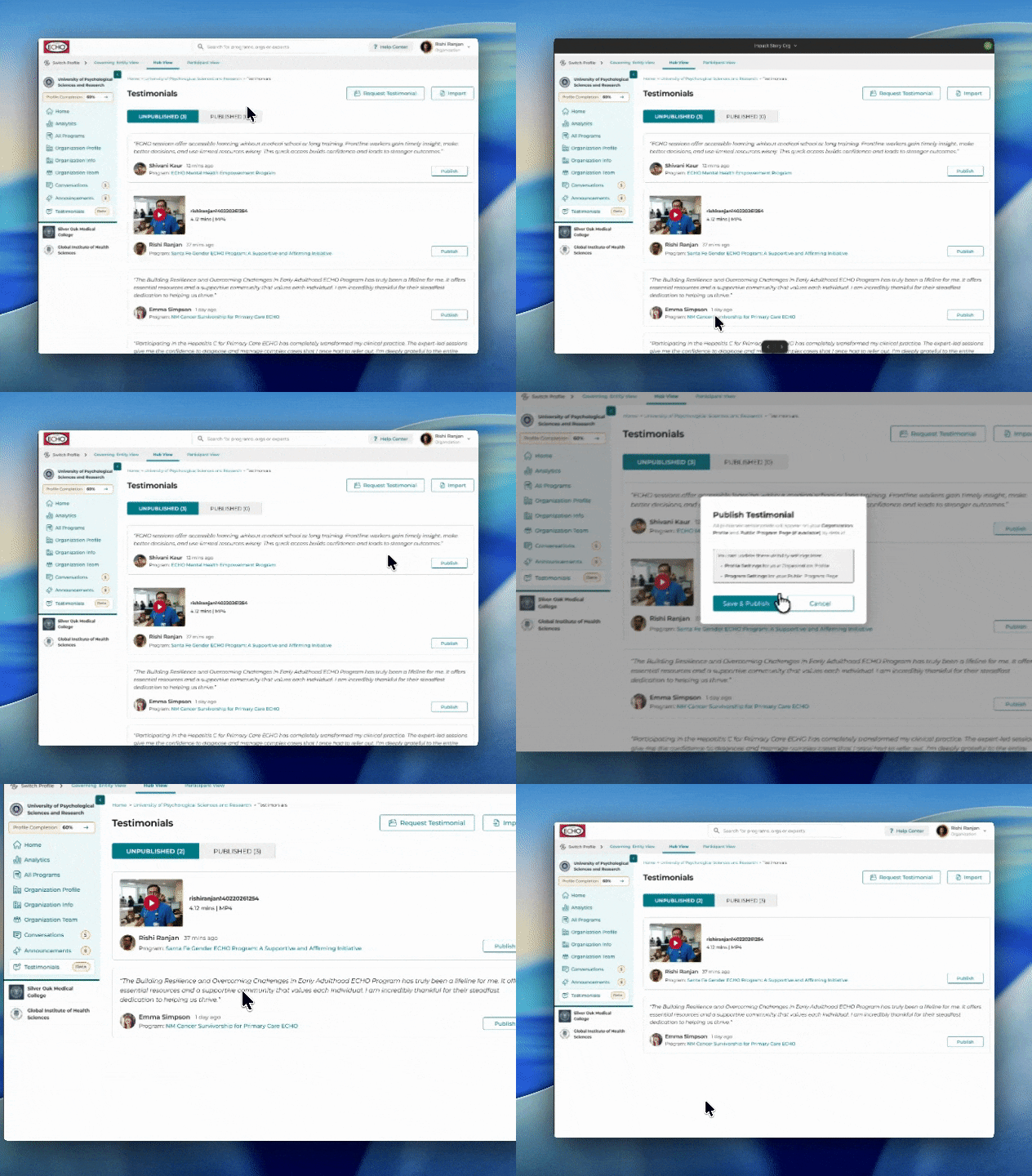
- Identify the testimonial you’d like to publish, then select Publish.
- A modal will appear, mentioning that the testimonial will be posted on the organization and public program pages (if available). Select Save & Publish to confirm.
Note:
- If you’d like to remove the testimonial from the organization profile or program page you can do the same from their respective settings.
- Once you have published a testimonial, it moves to the published tab.
Sharing Testimonials
- Navigate to the Published tab
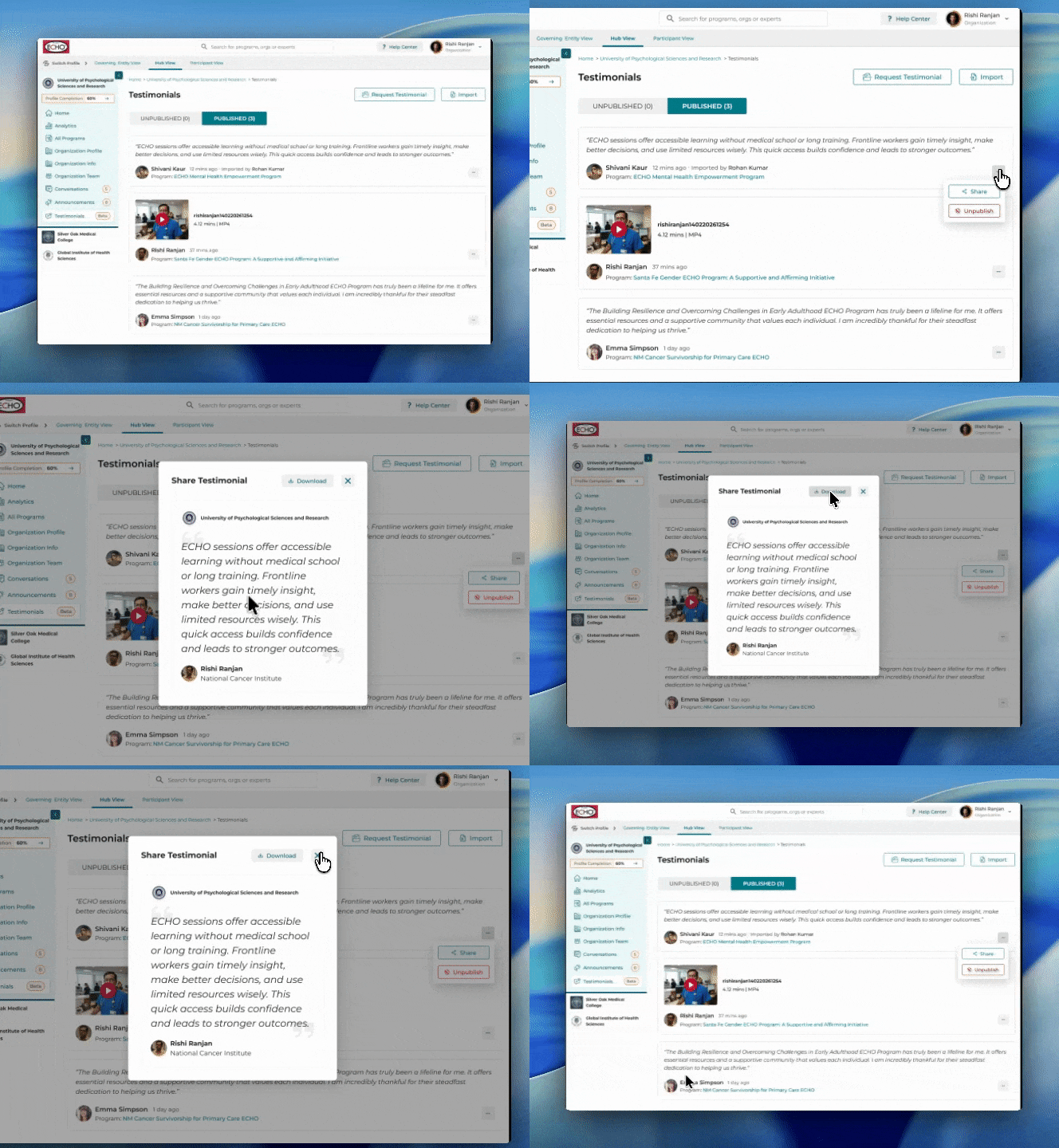
- Identify the testimonial you’d like to share and click on the three-dot menu provided right next to it.
- Select Share, then click on Download to save the image or video. Feel free to share it on your social media channels.
Unpublish a Testimonial
- Navigate to the Published tab.
- Identify the testimonial you’d like to unpublish and click on the three-dot menu provided right next to it.
- Select Unpublished ,and the testimonial will move to the Unpublished tab.
Hide Testimonials from public program page
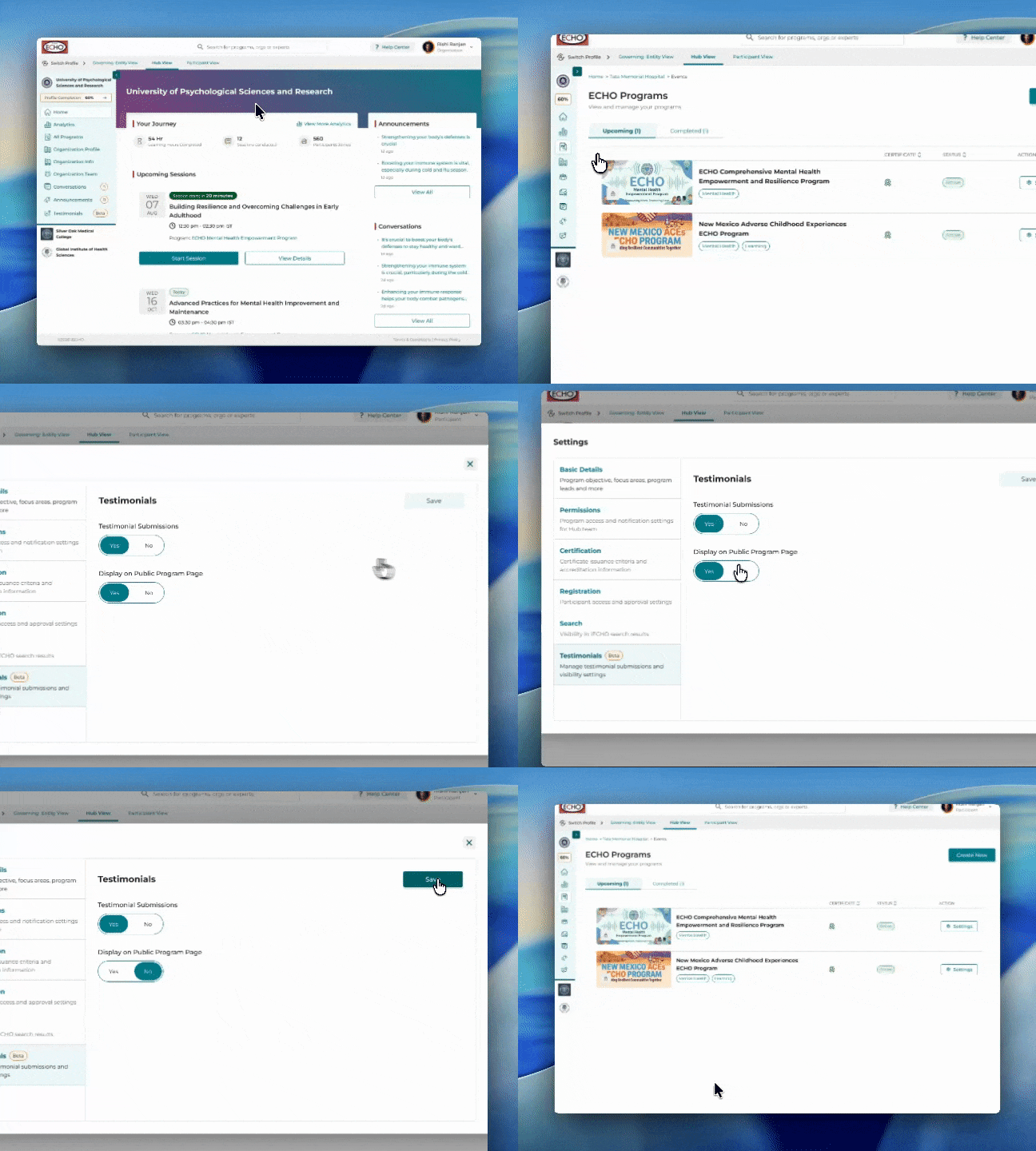
- From the left panel, select All Programs.
- Identify the public program where you don’t want to publish any testimonials, then select Settings.
- Select Testimonial from the left panel in the modal.
- Switch off the Testimonial Submissions toggle to disable participants from submitting a testimonial for this program.
- Switch off the Display on public program page toggle to hide the testimonials submitted for this program from the public program page.
- Click on Save.
Hide Testimonials from Organization Profile page
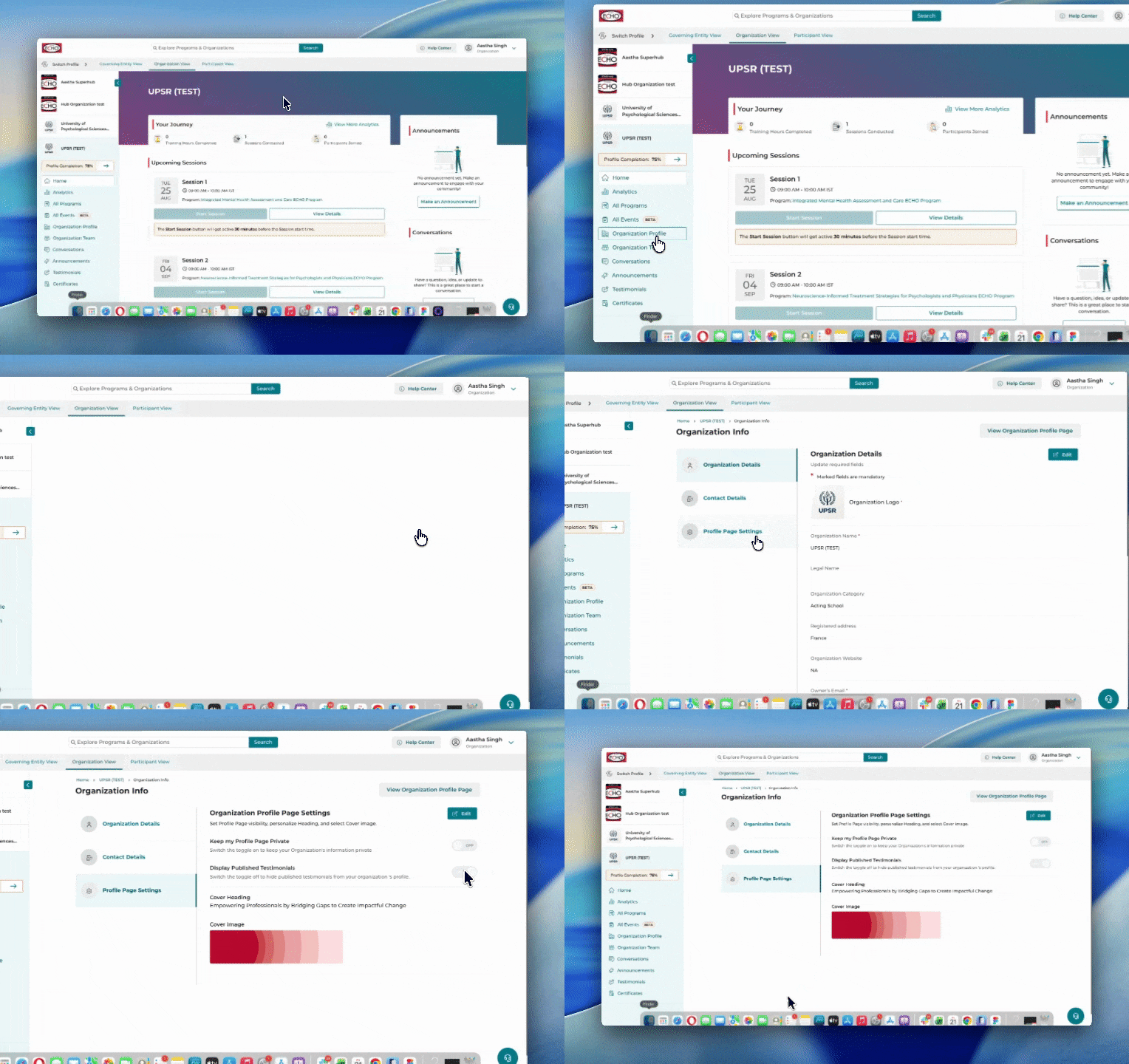
- From the left panel, select Organization Profile.
- Click on Edit.
- Select Profile Settings from the left panel.
- Switch off Display Published Testimonials toggle to hide the testimonials from the Organisation Profile page.
- Click on Save.
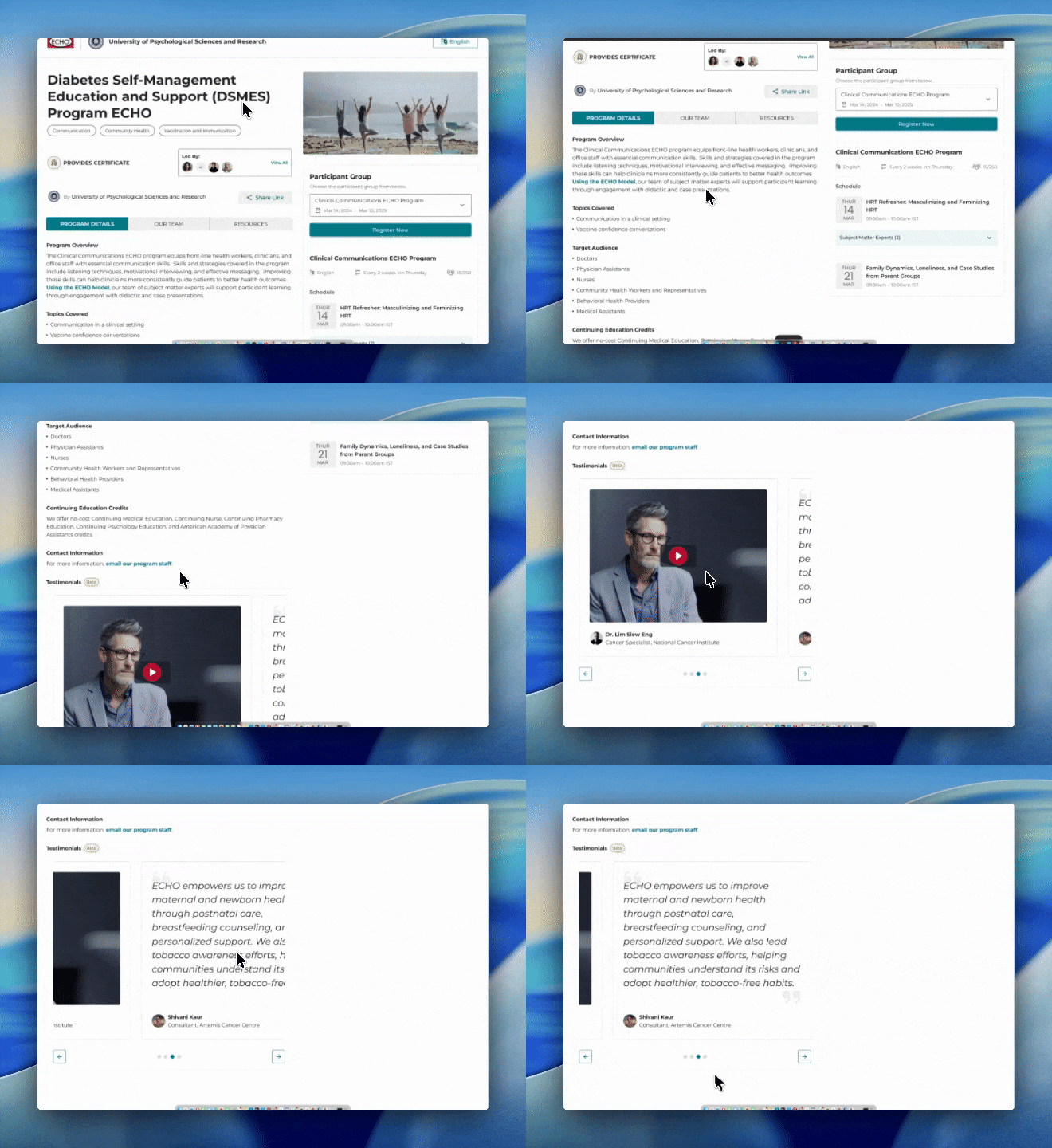
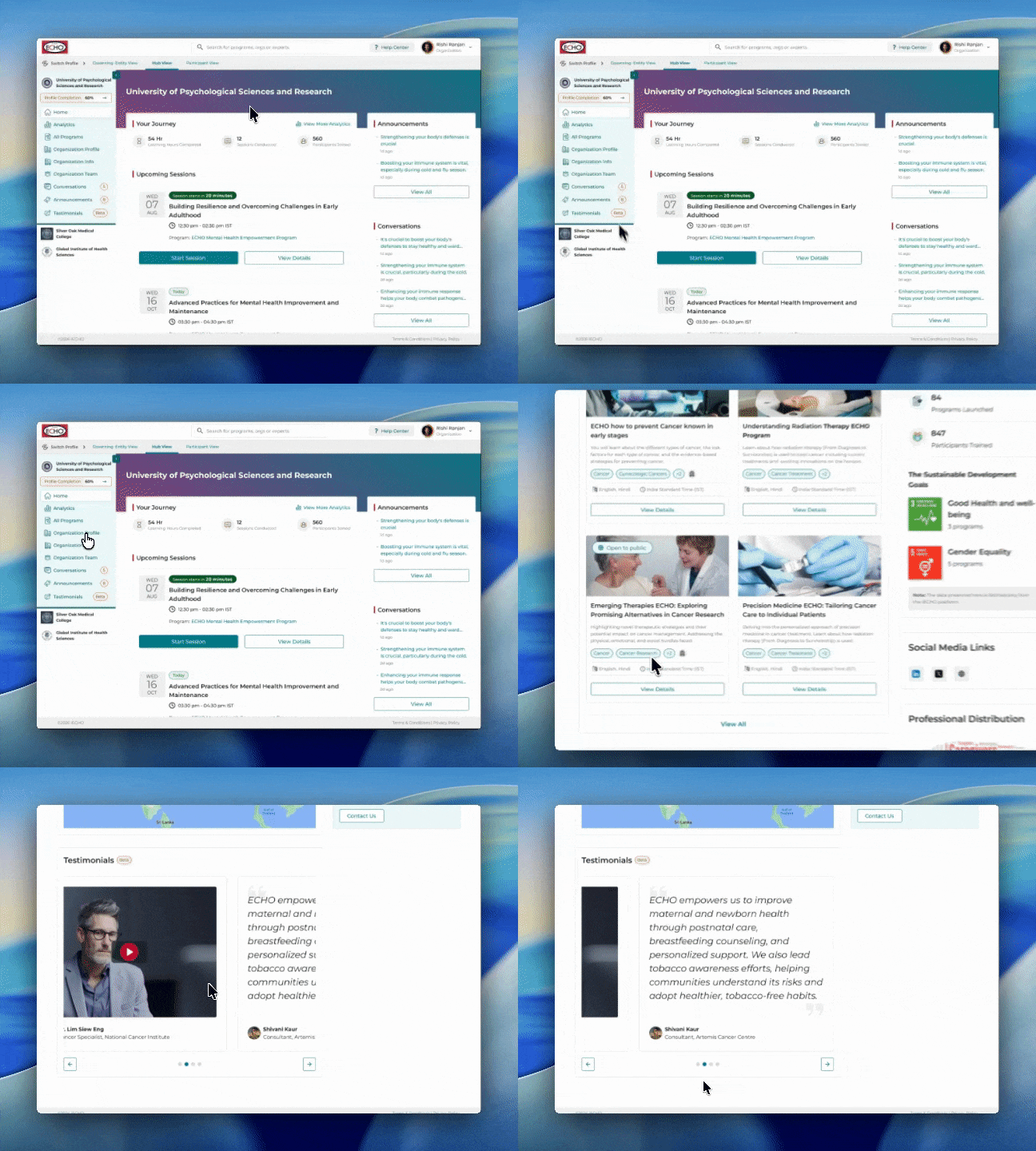
Where do Testimonials appear on the Public Program and Organization Profile Pages?
Requesting Testimonials
Organizations can request for testimonials using this submission link provided in the testimonials section.
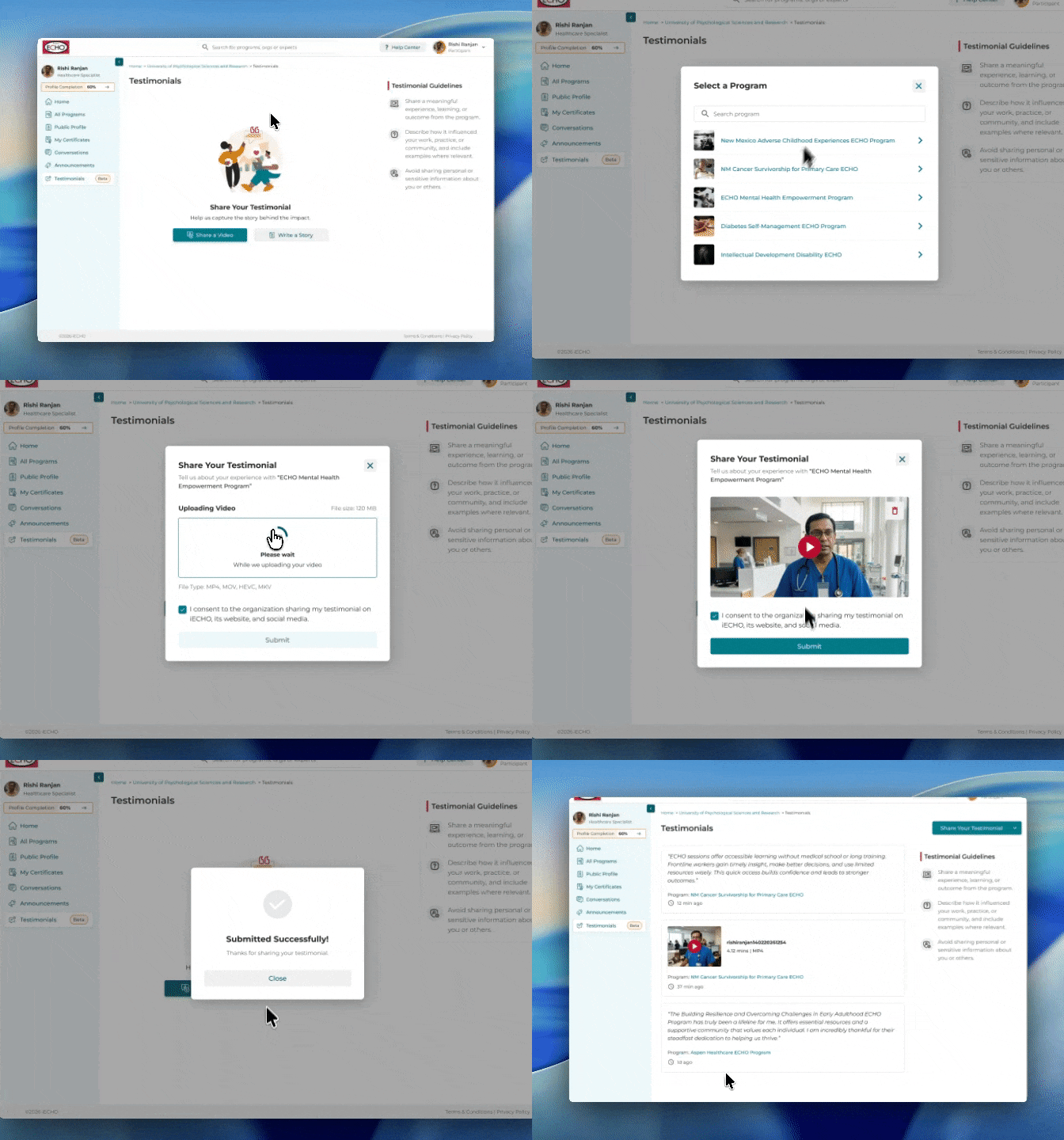
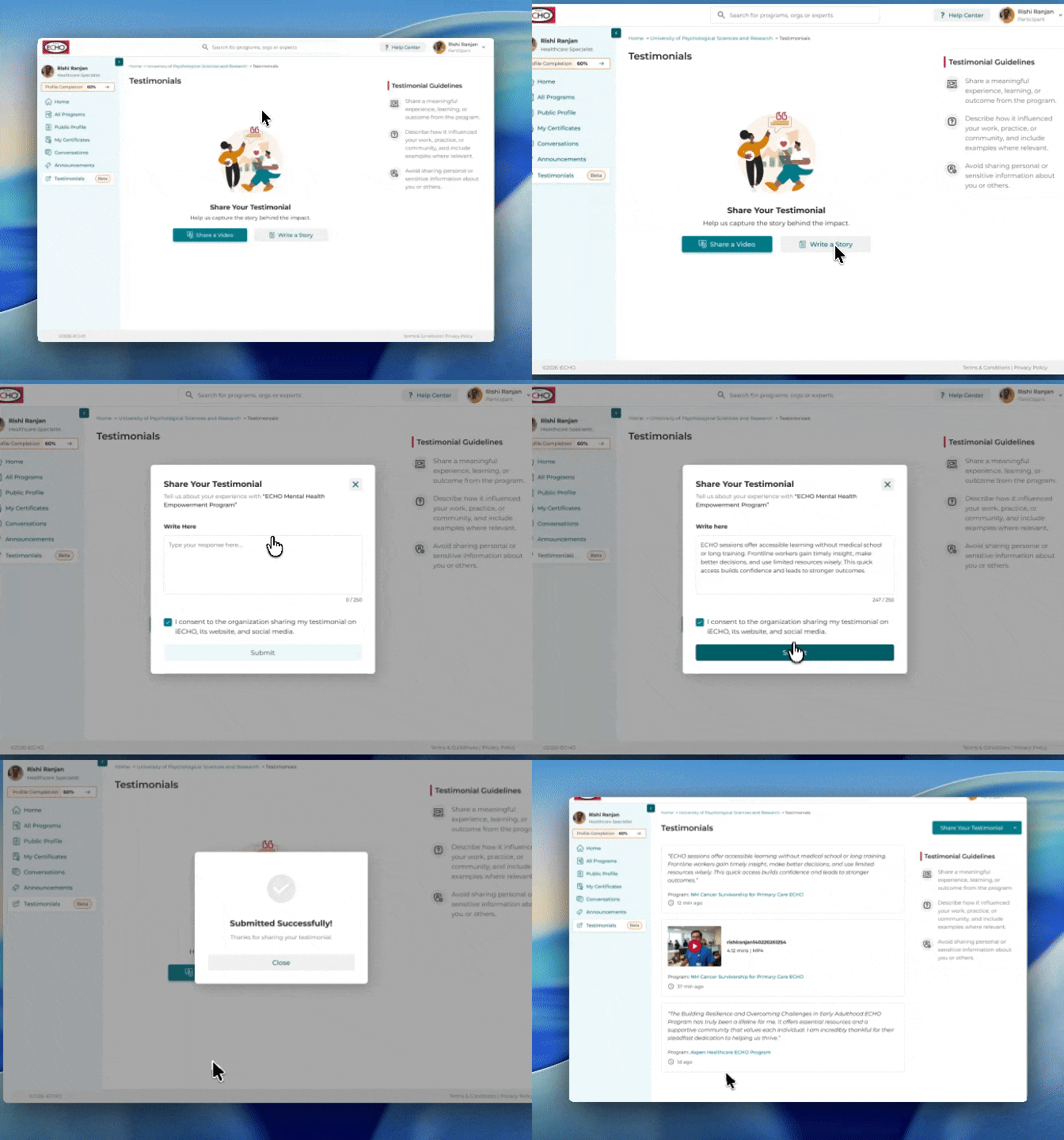
How do participants submit a testimonial?
- If a participant has attended at least two sessions in the program, they’re eligible to submit a testimonial and they see the Testimonial tab in the left navigation
- They can either submit a testimonial using either the Share a Video or Share a story options.
- If they are registered in more than one program, they need to choose the program they’re submitting a testimonial for.
- Now, if the participant has decided to submit a video testimonial, they can either upload a pre-recorded video or record it directly and upload it.
If they selected text-based testimonials, the character limit is 250 characters - Check the Consent checkbox and click on Submit.

Prerequisites
Video submissions
- Max file size: 500 MB
- Make sure that the speech is audible in the audio and the video is well lit
- Acceptable file types- MP4, MOV, HEVC, MKV
Text submissions
- Character limit: 250 characters