
iECHO makes it easy to join your ECHO session easily, without any need to remember meeting IDs or passwords. There are 3 ways to join a session:
- Directly from the Homepage on the iECHO website or app
- Through a session reminder message.
- From a session reminder email.
Read more below to understand each option.
Please Note: Registration on iECHO is mandatory to join an ECHO session.
Join Sessions Faster from the Homepage
Participants can now join upcoming sessions directly from the iECHO homepage, without navigating to the session page.
Here’s how you can join a session:
- Go to your iECHO Homepage.
- From the list of upcoming sessions, Click on
Join Session. - Select how you want to join:
- Only Me (join individually)
- Join with Others (join and mark attendance for your peers)
- You will be redirected to join the session using the integrated Zoom App.

For an optimal experience make sure you have the Zoom app installed on your device beforehand. Download Zoom from here →
- If you are new to Zoom, you can learn more from the Zoom Basics Guide →
Ensure you disable any pop-up blocker in your browser to ensure that the Zoom session launches correctly. Learn how to disable a pop-up blocker in the Chrome browser →
- In case the program team has not yet started the Zoom session, you may see the message "Please wait for the host to start this meeting". Please wait patiently, and contact your program coordinator in case the session does not start on time
2. Joining a session from a reminder SMS
This option is only available in selected countries. Check here if this feature is available in your region.
- You will receive a reminder SMS / Whatsapp 30 minutes prior to the scheduled session start time, depending on your communication settings
Make sure your communication settings are updated to ensure you receive the reminder e-mail, SMS or WhatsApp notification. Learn how to set your communication settings 👉
- Click on the link in the notification message. You will be redirected to iECHO to select the participants in your group
- Join the session as per the steps above
3. Joining a session from a reminder SMS
You will receive a reminder e-mail 30 minutes prior to the scheduled session start time, depending on your communication settings.
- Join the session through iECHO
If you’d like to join through iECHO then :
- Click on the link ‘Join the session through iECHO’ you will be redirected to iECHO.
- Click on Join session
- In case you are joining individually:
- Select Only Me
- Click on Join Session
- In case you are joining as group (more than one person using a single device to join session):
- Select Me + Others
- Select the other participants in your group from the active list of participants
- Click on Join Session
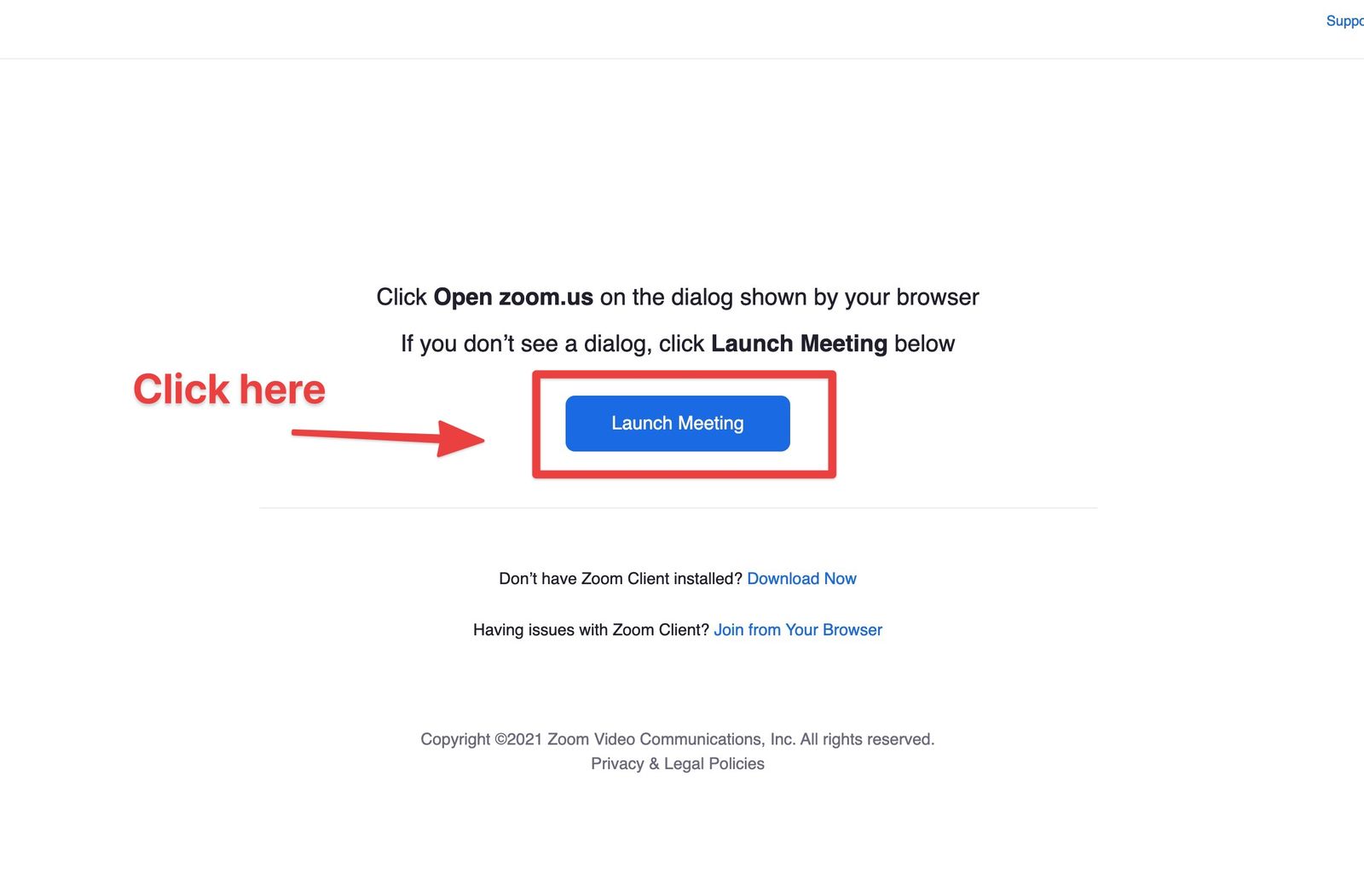
- Click on the "Launch Meeting" button to enter the Zoom session
- Join the session directly via Zoom
- Click on ‘Join session directly on Zoom’
- Click on the “Launch Meeting’ button to enter the Zoom session
Please note:
- If you are joining with your fellow participants opt for ‘Join session with iECHO’ to mark their attendance as well.
- In case you are joining alone, you can select the ‘Join session directly on Zoom’ option and your attendance will be marked automatically.
- To perform any other function on iECHO such as filling out the feedback form, accessing certificates and accessing content etc, you’ll have to login to iECHO.
Please remember to click on the "Launch Meeting" (Blue colour) button to open the zoom application, after completing all join session steps.
Related Articles You may find helpful:
Having trouble? Check out the Troubleshooting Guidelines for quick solutions to common issues.