
iECHO streamlines your experience by allowing you to start ECHO sessions directly from the platform—no need to log in to Zoom or share meeting IDs and passwords. We have made the connection between iECHO and Zoom as seamless as possible.
Note: Before starting, make sure you have the Zoom app downloaded. Download Zoom here
Start a Session from the Homepage
Program admins can start sessions directly from the Homepage.
- Log in to your iECHO account.
- Go to the Homepage.
- In the list of upcoming sessions, locate your session.
- Click Start Session.
- Choose how to start:
- Only Me – Start individually.
- Join with Others – Start and mark attendance for participants joining with you.
iECHO will automatically launch the Zoom app.
Start a Session from the Program Schedule
You can also start sessions from within a participant group.
- Open the left panel from the Homepage and select All Programs.
- Open the relevant program, followed by the specific participant group.
- Go to the Schedule section, scroll down, and select the session.
- Click Start Session.
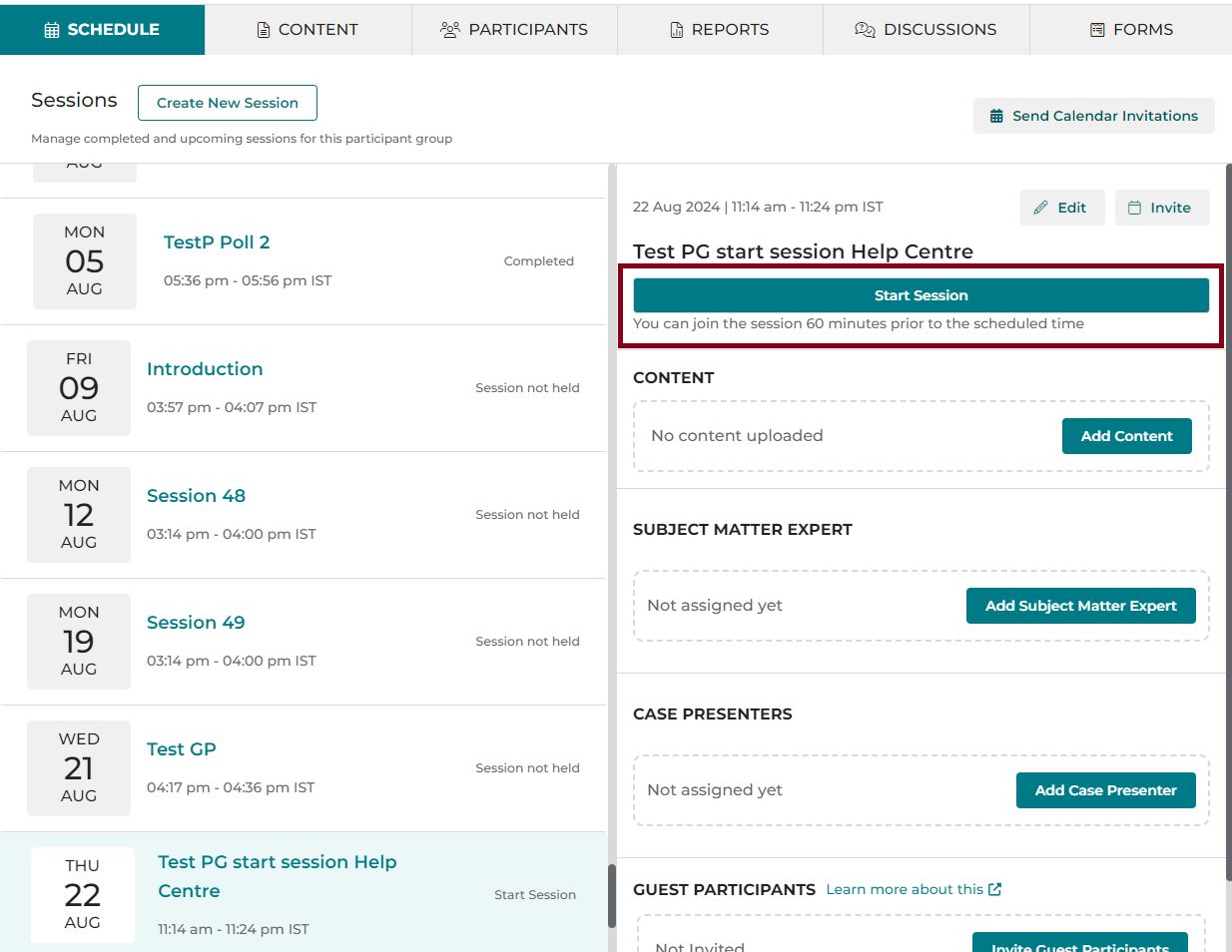
Once a program admin has started the session, the other program admins on the team will see the option Join Session to enter the session as co-host.
Request host/co-host permissions on Zoom if needed. Enable pop-ups for iECHO in your browser to ensure the Zoom session launches without interruption.
Example: The "Chronic Disease Management" session is scheduled for 2:00 PM – 3:00 PM. If another program admin has already started it, click Join Session to enter the discussion. You will be added as an attendee in the session. If you need to host on Zoom, message the host on Zoom to request host or co-host permissions.
Resuming a Session
If the program admin who started the session is no longer available or was disconnected, click Start Session to resume.
Example: The "Mental Health Support" session was in progress, but the program admin who began the session was disconnected. Click Start Session to resume and continue facilitating. You will become the host in the session.
Session Features and Guidelines
- Sessions can be joined up to 60 minutes before the scheduled time.
- iECHO automatically tracks admin participation duration.
- iECHO uses your registered name for the session without needing to rename yourself.
- You can mark attendance for others when starting with Join with Others.
- This feature is not compatible with custom video conferencing.
Switch and Join Sessions Across Organizations
If you are part of multiple organizations and a session is about to start in the next 10 minutes, iECHO will prompt you with a reminder.
You can stay on any page within iECHO; no need to navigate manually.
When the reminder appears:
- Review the session details.
- If the session belongs to another program, select Switch Organization.
- iECHO automatically switches to the relevant organization and opens the session for you.
This helps you quickly move across programs and join sessions on time.
iECHO sends a session reminder email to participants 30 minutes before the session start time, containing the link to join the session.
If a program registration form is required and has not been filled out before joining, participants will not receive a direct Zoom link in the reminder email. Instead, they must join through iECHO to ensure all required information is submitted.
Video tutorials for starting sessions:
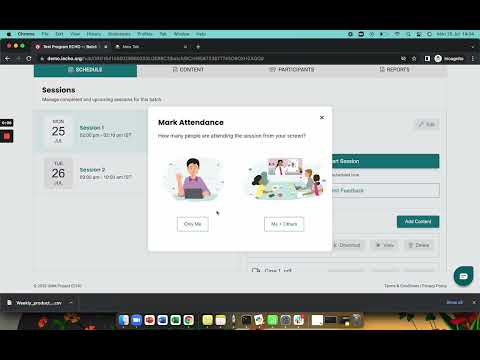
Only Me

Join with Others
Having trouble? Check out the Troubleshooting Guidelines for quick solutions to common issues.