iECHO streamlines the management of your ECHO sessions by providing two convenient scheduling options when creating a participant group:
| Repeating (Fixed Schedule) | Sessions that occur on a consistent, regular basis, such as weekly or monthly. |
| Ad-hoc (No Fixed Schedule) | Sessions that are scheduled on an ad-hoc basis, allowing for flexibility and spontaneity. |
Here is how you can create a schedule in a participant group depending on your program:
Create a repeating schedule
iECHO enables organizations to schedule repeating sessions while creating a participant group.
Input the following details:
- Participant group name: It is recommended to have a unique, identifiable name for individuals attending ECHO sessions together. It should be clear and descriptive, reflecting the group's purpose, such as "Diabetes Care Team" or "Mental Health Professionals."
- Start date: The date of the first planned ECHO session of the participant group.
- End date: The date of the last planned ECHO session of the participant group.
The end date can only be up to 3 years after the start date. In case of ongoing programs without an end date, you can update this after 3 years.
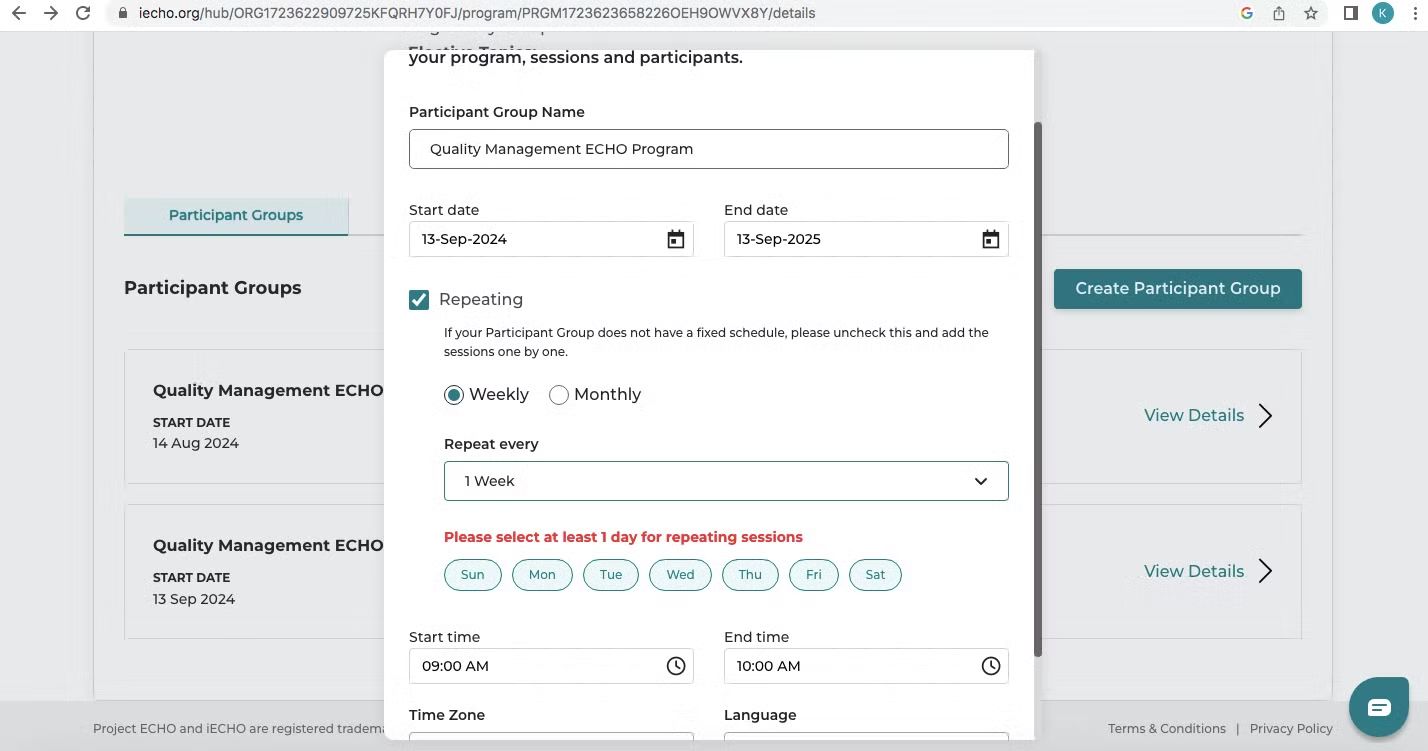
- Repeating: If your participant group has a fixed schedule, check the box next to Repeating and select Weekly or Monthly as required.
- For Weekly, choose from the Repeat every drop-down menu (ranging between 1–3 weeks).
- For Monthly, choose from the Repeat every drop-down menu (ranging between 1–6 months). Choose Repeats On from the drop-down menu for the week of the month.
- Start time: The expected time of session start.
- End time: The expected time of session end.
- Language: The language the cohort will be run in.
Watch this video to learn how to create a repeating schedule:

Create an ad-hoc schedule
iECHO also enables creating a single session when required on an ad-hoc basis with no fixed schedule.
- Navigate to your iECHO homepage.
- Navigate to the Programs page by clicking View more.
- Select the program for which you want to create a session for a particular participant group.
- In the Schedule section, click Create New Session.
- Input the details of the session to be created, such as Topic, Start date, Start time, End time, and Description.
- Click Submit. The session will be available in the chronological list of sessions.

Edit or delete a session
iECHO allows you to edit or delete a session if the schedule changes or if it was created by mistake:
- From your iECHO homepage, open the left panel and select All Programs.
- Select the program for which you want to edit or delete a session for a particular participant group.
- In the Schedule section, select the session you need to edit or delete using the Edit or Delete button.
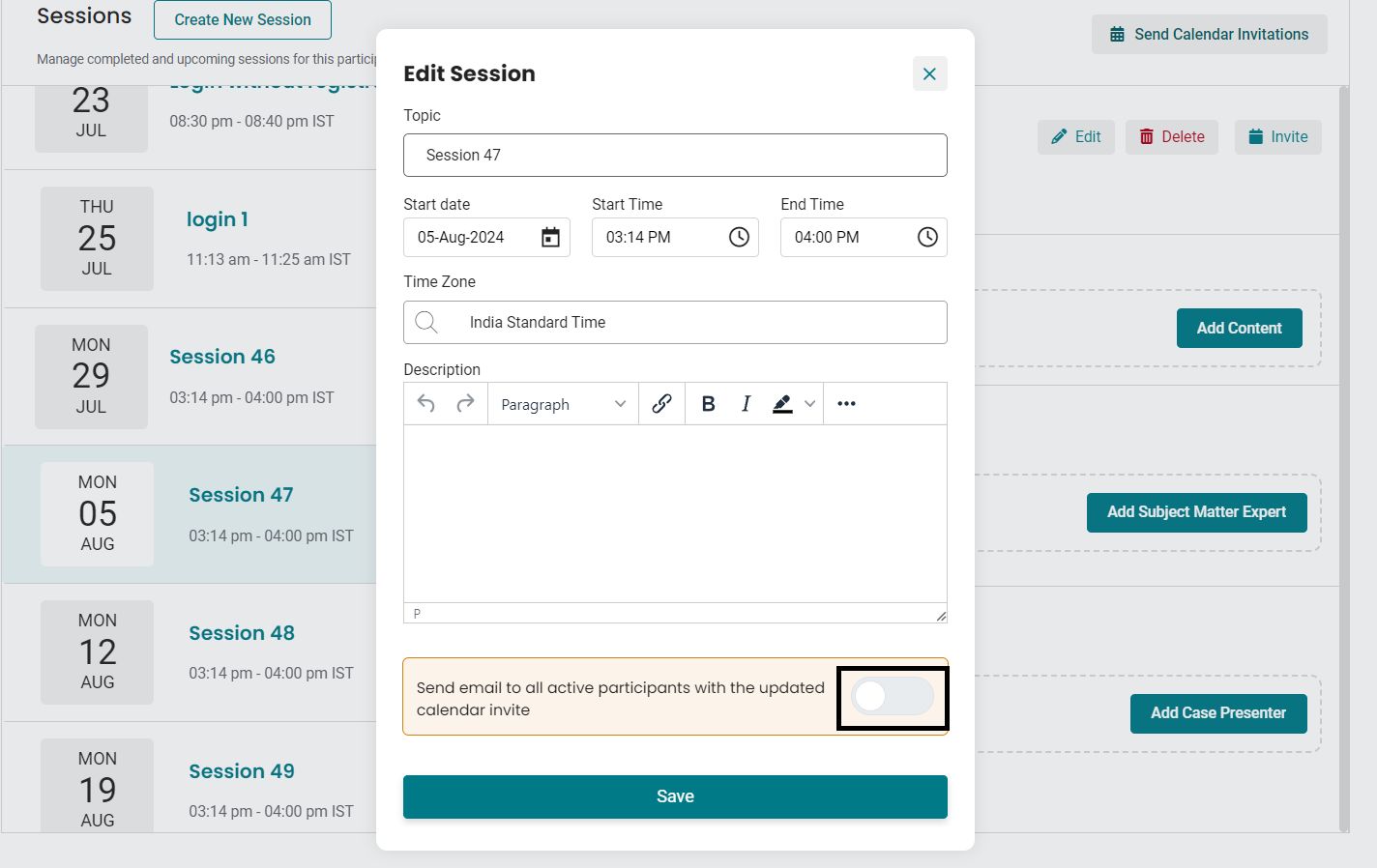
- Using Edit Session, you can update session details, including Topic, Date & Time, and Description. You can also notify participants via email with an updated calendar invite by switching on the toggle button.
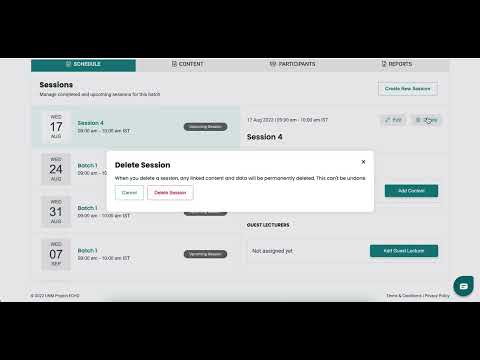
- Using Delete, you can remove sessions that are no longer required.
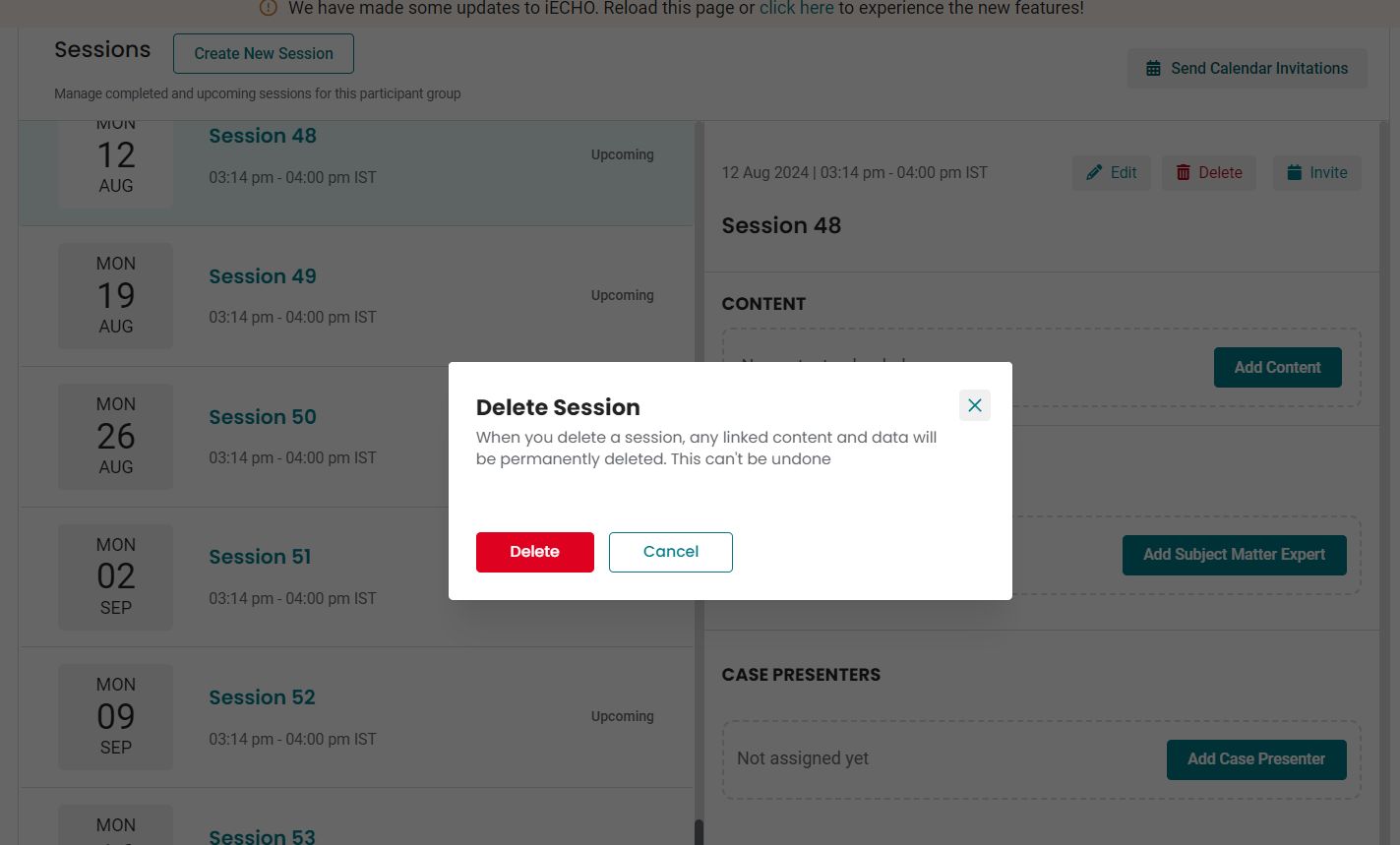
Note: A session cannot be deleted 30 minutes before the scheduled start time once the edit session button is deactivated and the platform triggers session reminders to participants.