
iECHO provides organization with a quick settings menu to manage participant group names, schedules, communication preferences, session reminders, and video conferencing customization. This interface allows organizations to organize and coordinate activities, ensuring smooth interaction and engagement with participants.
- General – Edit participant group name, language, and activity status.
- Date & Time – Set or update session schedules.
- Registration – Enable or disable participant registration for public programs.
- Communication and Reminders – Configure session reminder timing and reply-to email address.
- Session and Videoconferencing – Set up custom video conferencing links.
To access group settings:
- From your iECHO homepage, open the left navigation menu and select All Programs.
- Select the program and participant group you want to update.
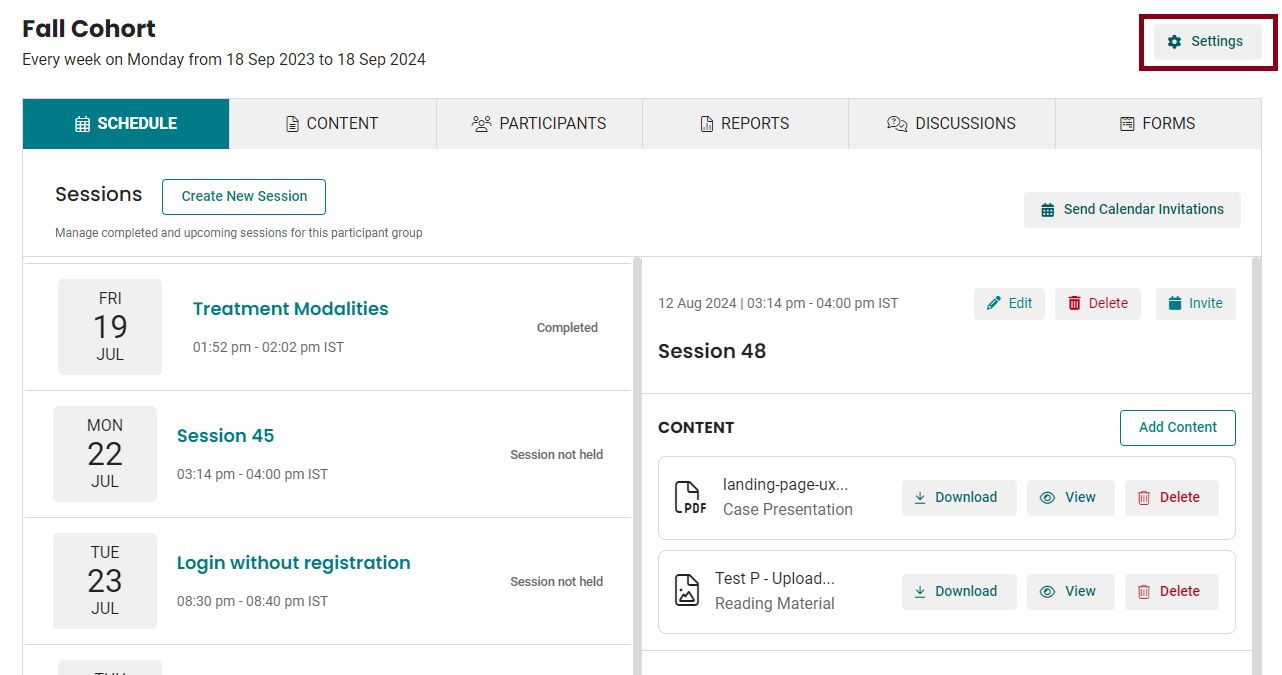
- Click Settings in the top-right corner of the participant group view.
General
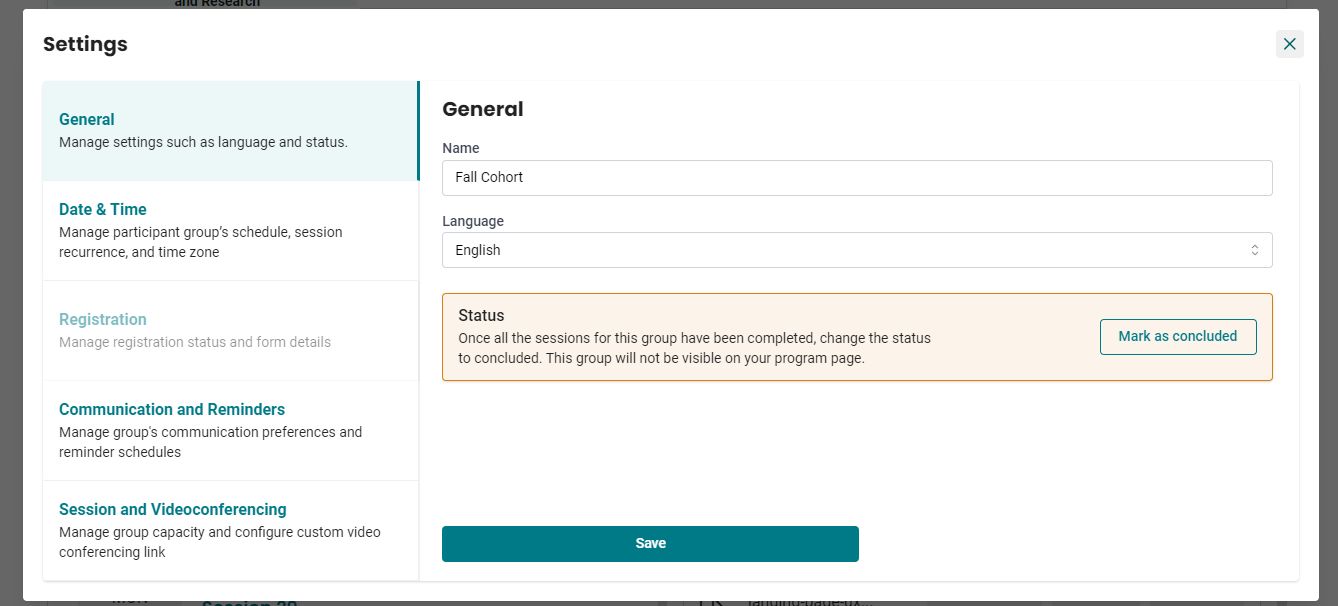
General settings allow organizations to edit the name and language of participant groups. This ensures that groups are correctly identified and can communicate in their preferred language.
- Enter the Name.
- Select the Language.
To conclude a group after all sessions are finished, click Mark as Concluded under Status.
Note: Once a participant group is marked as completed, it will no longer be visible on your program page.
- Click Save to apply your changes.
Date & Time
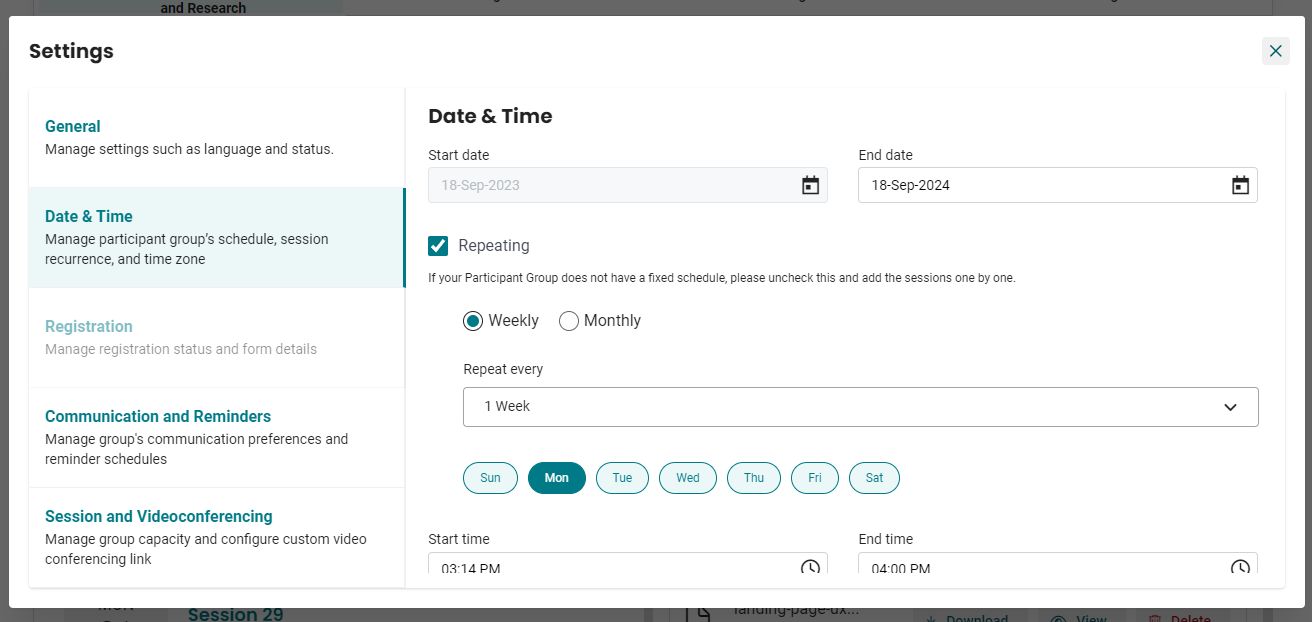
Date & Time settings allow organizations to manage session schedules, set up recurring sessions, and adjust for time zones. This ensures all participants receive accurate session timing information.
- Set or update the participant group End Date using the calendar picker.
- Set group recurrence to Weekly or Monthly, and specify the Repeat every interval as required.
- Scroll down to set the day, Start Time, and End Time for sessions.
- Select the preferred Time Zone and Language for the participant group.
- Click Save to apply your changes.
Registration
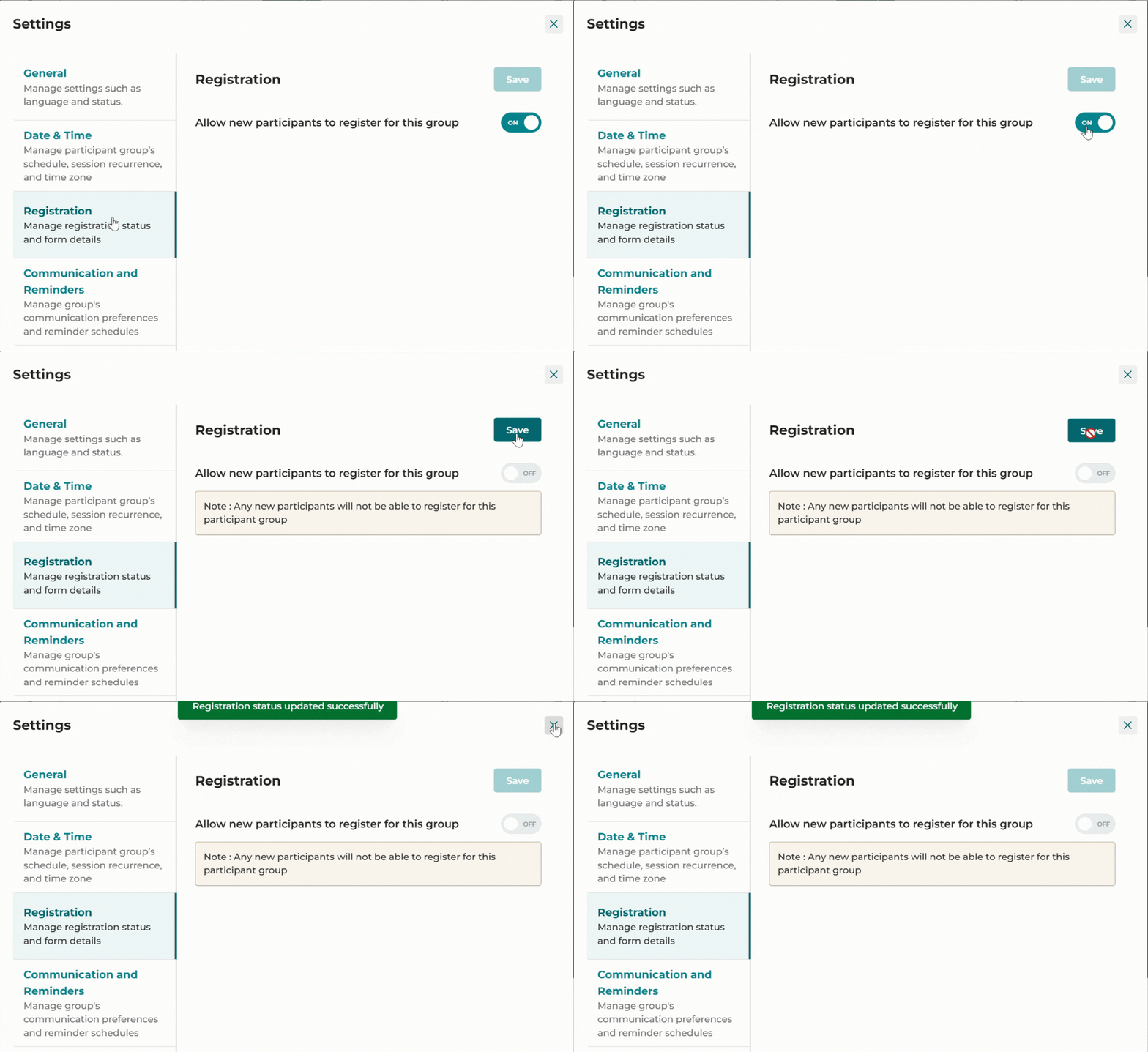
For public programs, you can open or close registration to control whether new participants can register for the selected group.
- Toggle the registration switch off.
- Click Save to stop accepting new registrations.
Communication and Reminders
Communication preferences allow organizations to set a designated email address for participant interactions. The reminder schedule feature sends automated session reminders to keep participants informed and prepared.
Note: Participants who miss five consecutive sessions in a group will stop receiving automated session reminders for that group. However, they can still log in to join sessions and access group content.
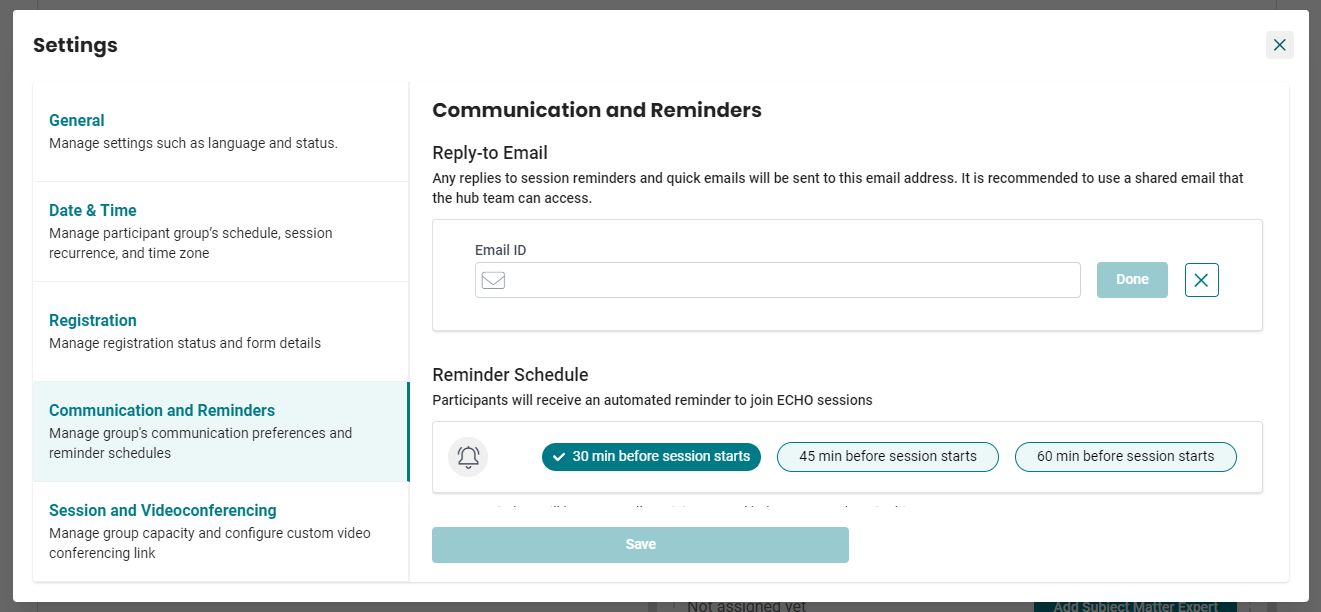
Reply-to Email
The reply-to email address receives participant responses to session reminders and quick emails. It is recommended to use a shared team email address.
- Click Change.
- Enter the required email address and click Done.
Reminder Schedule
Configure automated session reminder timing for your participants:
- Select 30 mins, 45 mins, or 60 mins depending on group needs.
- Click Save.
Note:
1. Only one reminder interval can be selected per participant group. Reminders are sent to all participants and hub team members.
2. If left unchanged, the default reminder setting sends notifications 30 minutes before the session starts.
Session and Videoconferencing
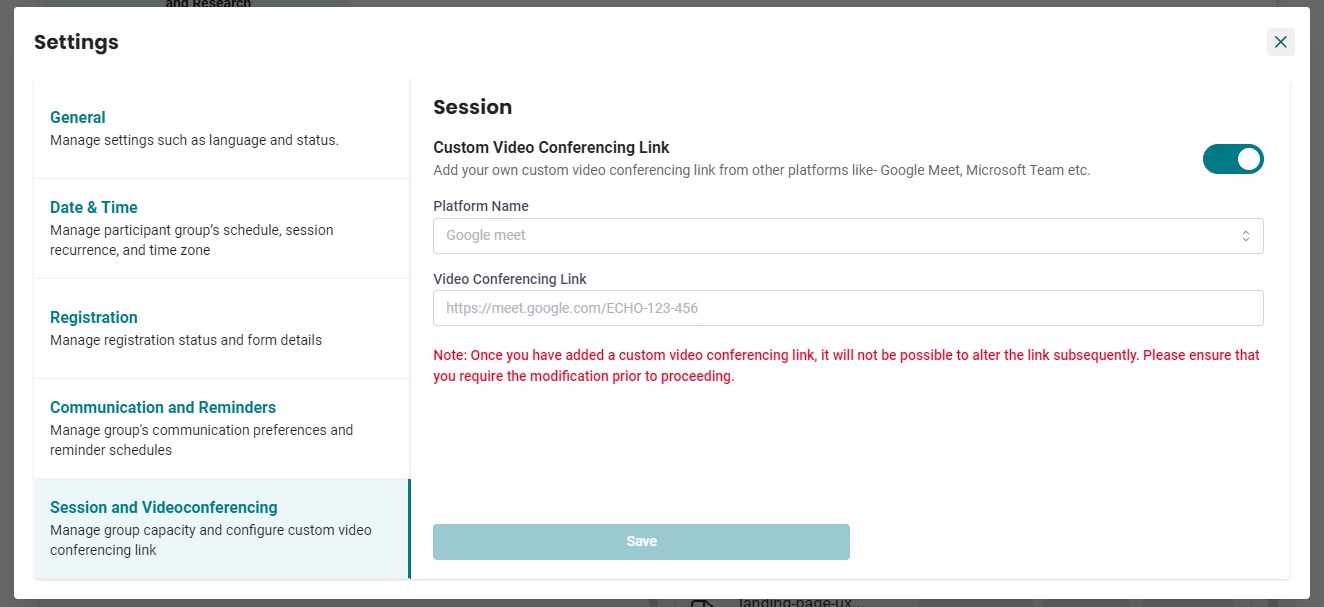
To use an external video conferencing platform (such as Google Meet or Microsoft Teams) instead of the default system, follow these steps:
- Enter the Platform Name (such as Google Meet or Microsoft Teams).
- Add the Video Conferencing Link.
Note :
1. Once added, a custom video conferencing link cannot be edited. Please ensure you enter the correct link.
2. Participants can join the session by logging into iECHO and clicking Join session.
3. iECHO does not provide technical support for external video conferencing platforms.
4. iECHO is not liable for outages on third-party video conferencing platforms.
5. Integration is supported for Zoom, Microsoft Teams, Google Meet, and other video conferencing systems.
6. Attendance reports will not be available on iECHO for participant groups using custom video conferencing links.
7. The link applies to the entire participant group, not individual sessions.