
iECHO now enables organizations to re-engage dormant participants in their participant groups. Organizations can take action as needed, reach out via email, mark a participant as active again to resume reminders, or remove them from the participant group to free up a spot for others.
When are participants marked dormant?
Participants are automatically marked dormant after they miss sessions based on the criteria below:
- Weekly run sessions (weekly sessions scheduled using the repeating schedule) – after 12 unattended sessions
- Monthly run sessions (monthly sessions scheduled using the repeating schedule) – after 10 unattended sessions
- Regular / Ad-hoc sessions (repeating feature is not selected while creating the participant group, ad hoc sessions are created) – after 15 unattended sessions
Note: Dormant participants stop receiving automated session reminders, though their access to the platform, its resources and sessions remains unaffected.
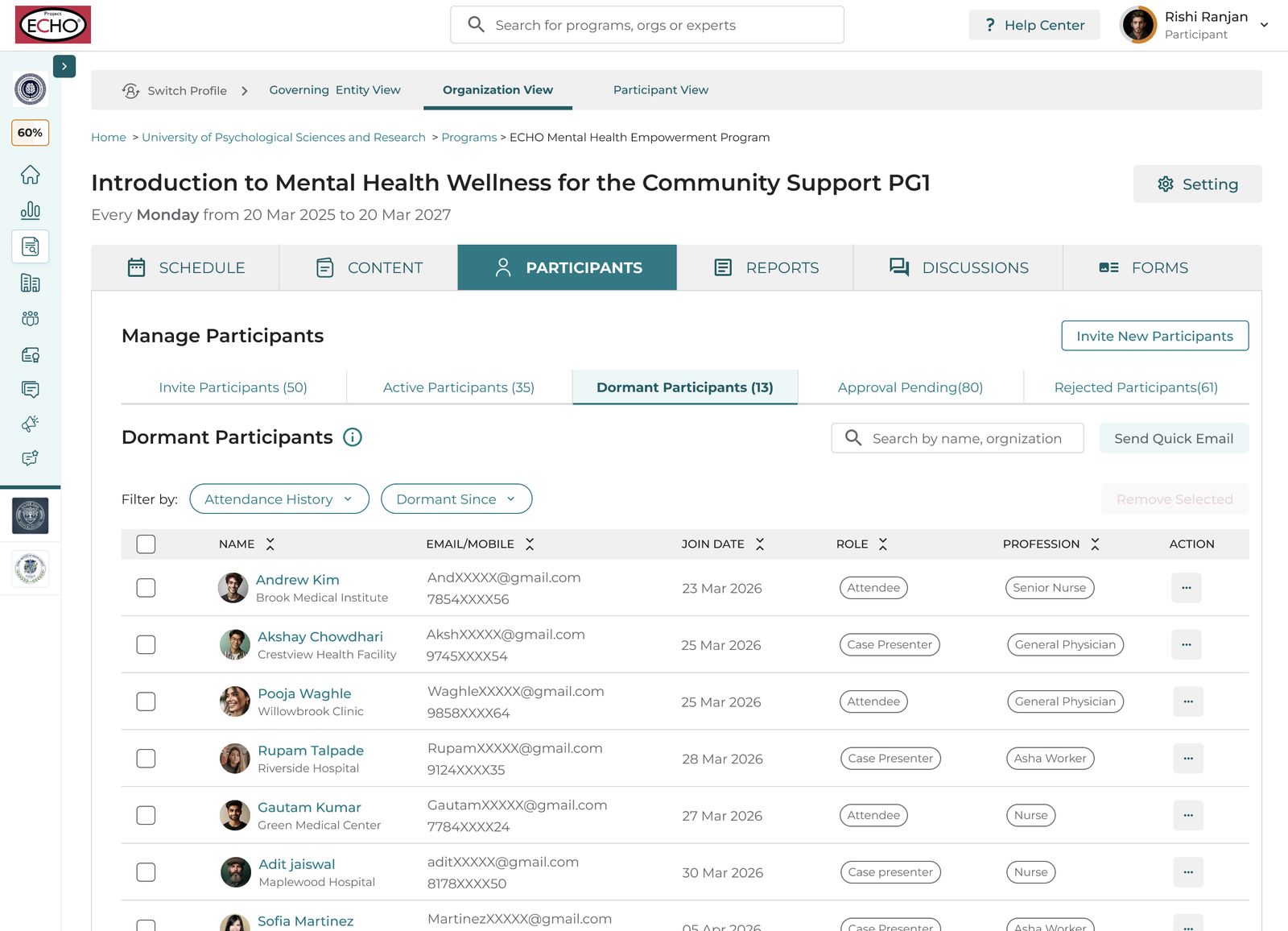
How to access dormant participants?
- Log in to iECHO.org
- From the left panel, select All Programs.
- Choose the relevant Program, then select the Participant Group where you want to access dormant participants.
- Go to the Participant tab and select Dormant Participants under it.
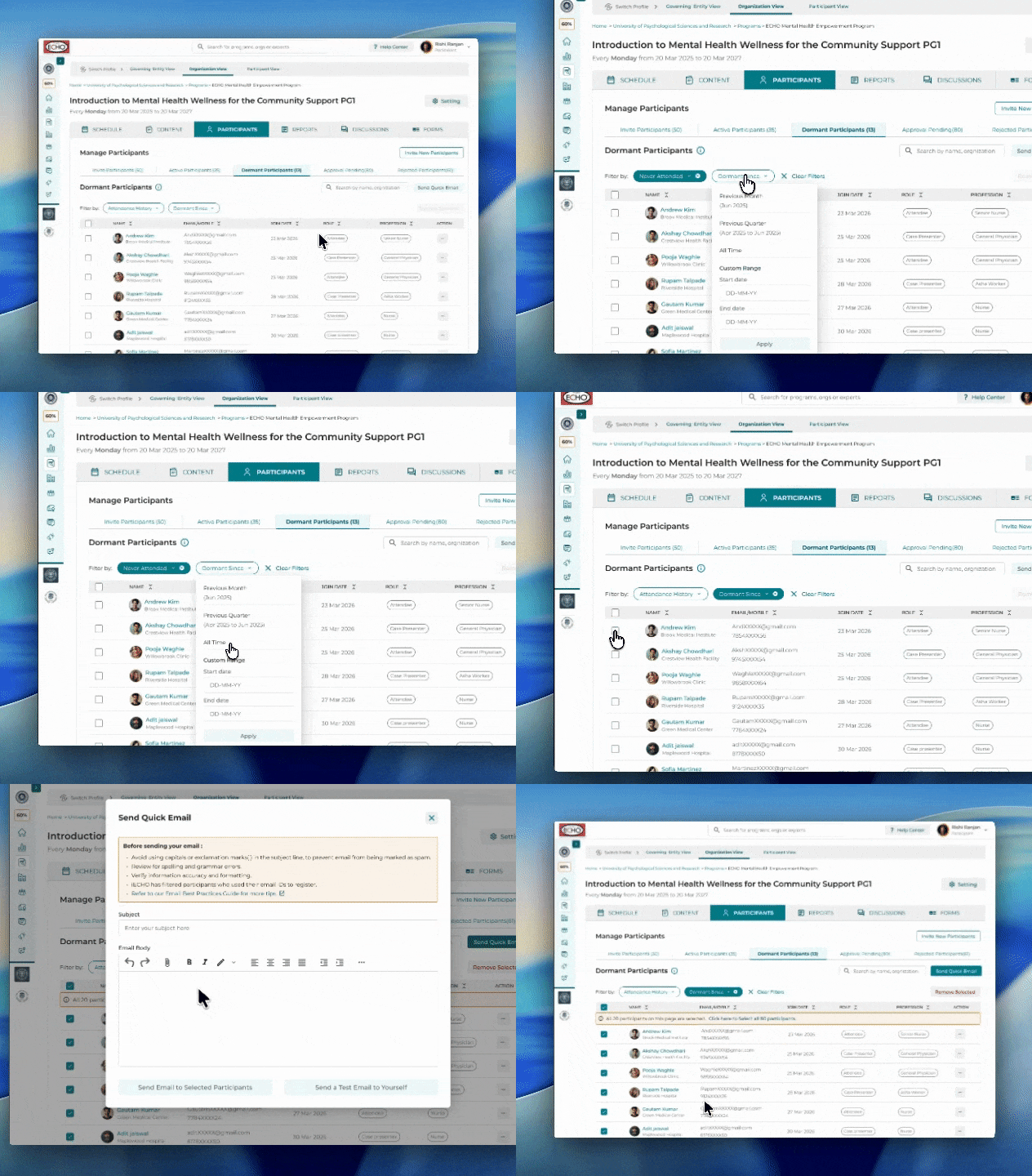
How to re-engage dormant participants?
- Once you have selected the participants you want to re-engage with, select Quick Email.
- Write a personalized email that highlights what they're missing from the sessions and shares highlights from past sessions to spark interest.
Note: Learn more about how to send quick emails.
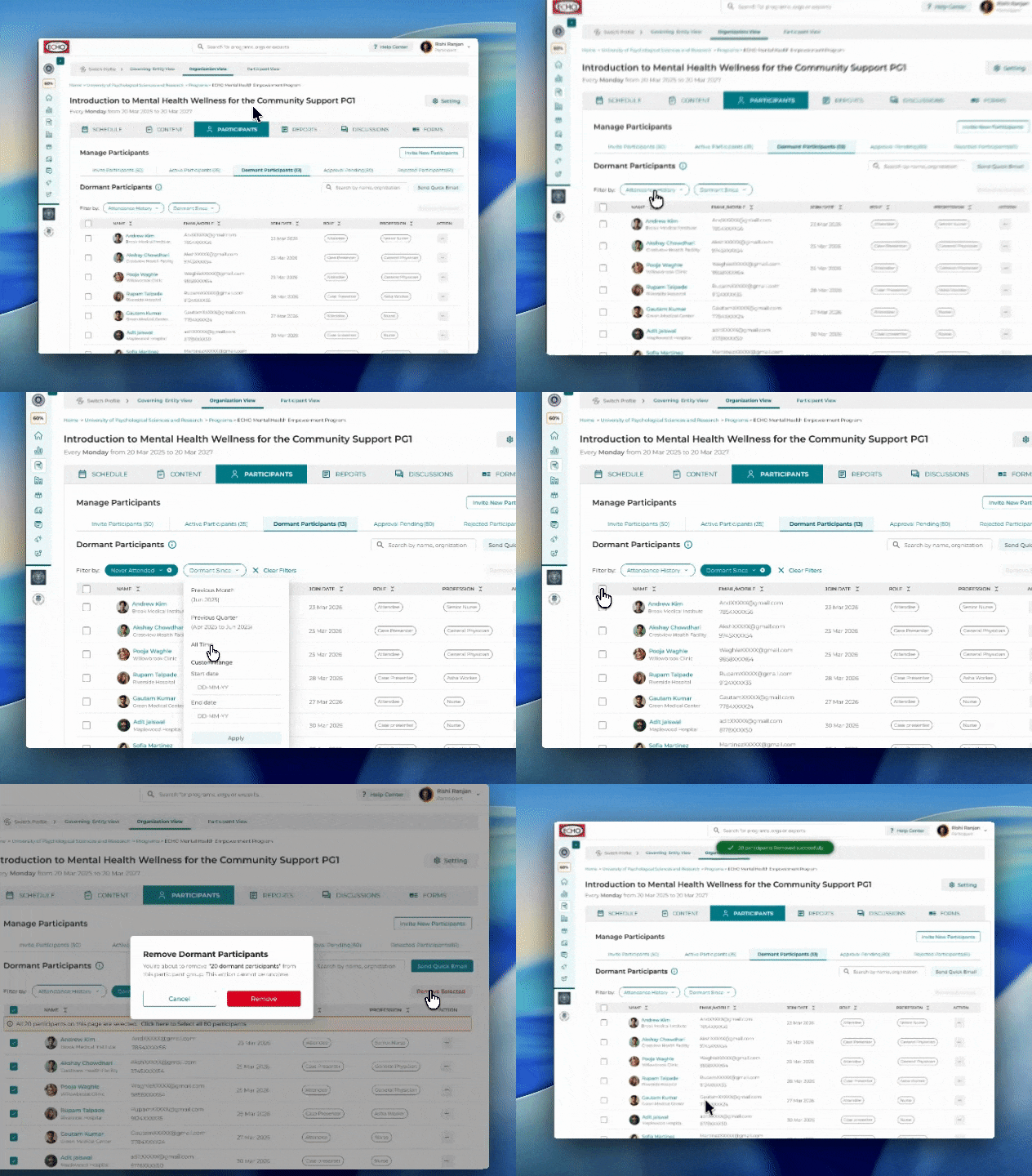
How to ensure data sanity (remove dormant participants)?
If you have tried re-engaging dormant participants multiple times, follow the steps below to keep your data clean:
- Select the list of participants that appears and select Remove Selected
- iECHO will reconfirm your action. Select Remove to delete inactive (dormant) participants from your participant group.
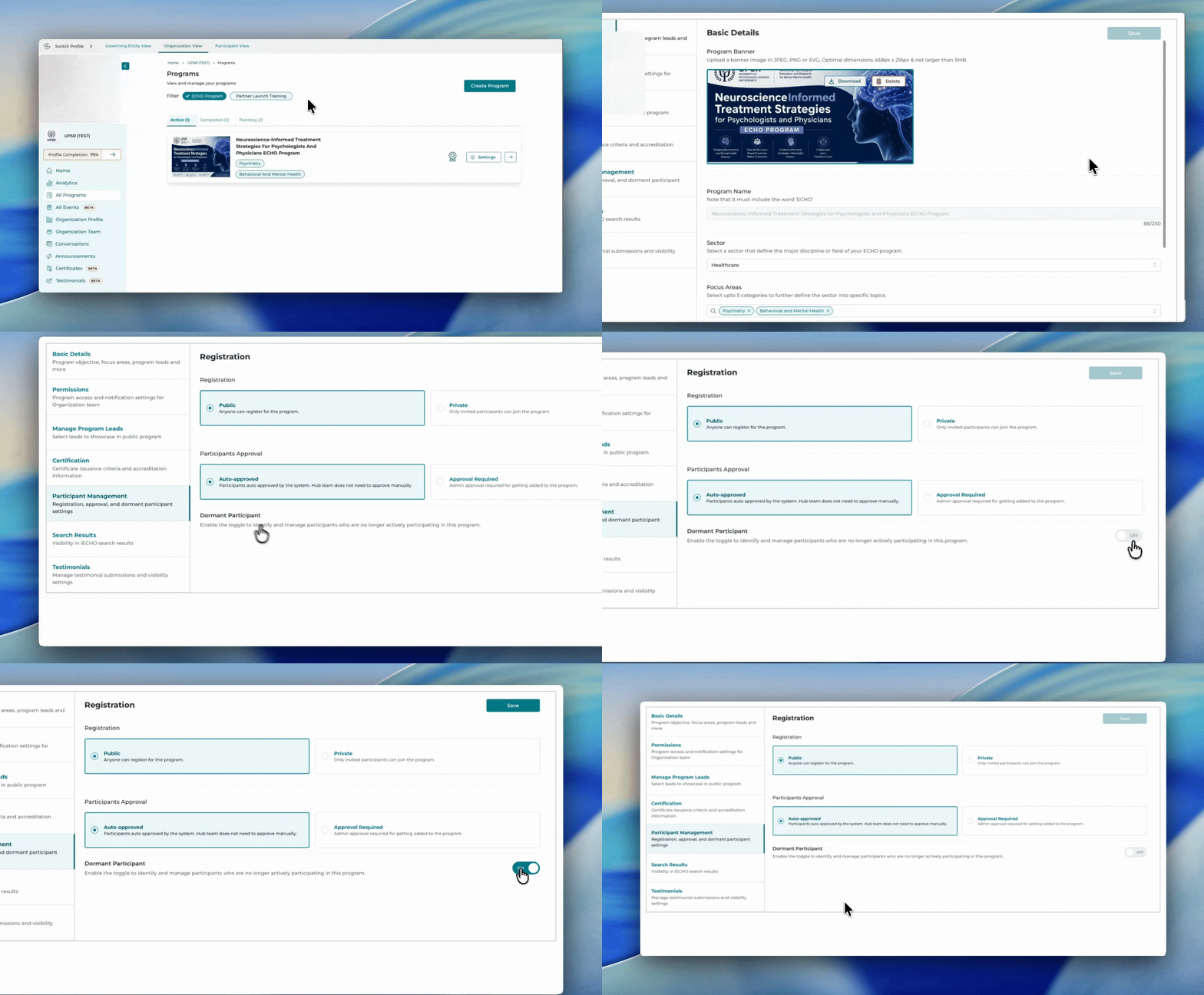
Can I switch off the dormant participant feature for a program?
Yes. You can switch off the Dormant Participant feature at the program level.
- Select All Programs from the left panel.
- Find the program where you want to switch off dormant participant classification, then select Settings.
- Select Participant Management.
- Switch off the Dormant Participant toggle.
- Click Save.
Notes
- The default state for Dormant Participant is Toggle on.
- If participants are already marked dormant in any participant group under the program, there will be no change to that data. You can manually mark them as active again.