
The Discussion Forum is a collaborative space for organizations and participants to interact, post updates, ask questions, and receive answers to foster knowledge sharing within participant groups.
Conversations: Conversations help organization teams, participants, and subject matter experts interact, ask questions, share insights, and discuss session topics in an open, collaborative space.
Announcements: Announcements let organization teams to share important program updates, such as schedule changes and policy updates, to keep participants informed and aligned.
What's new in Announcements & Conversations
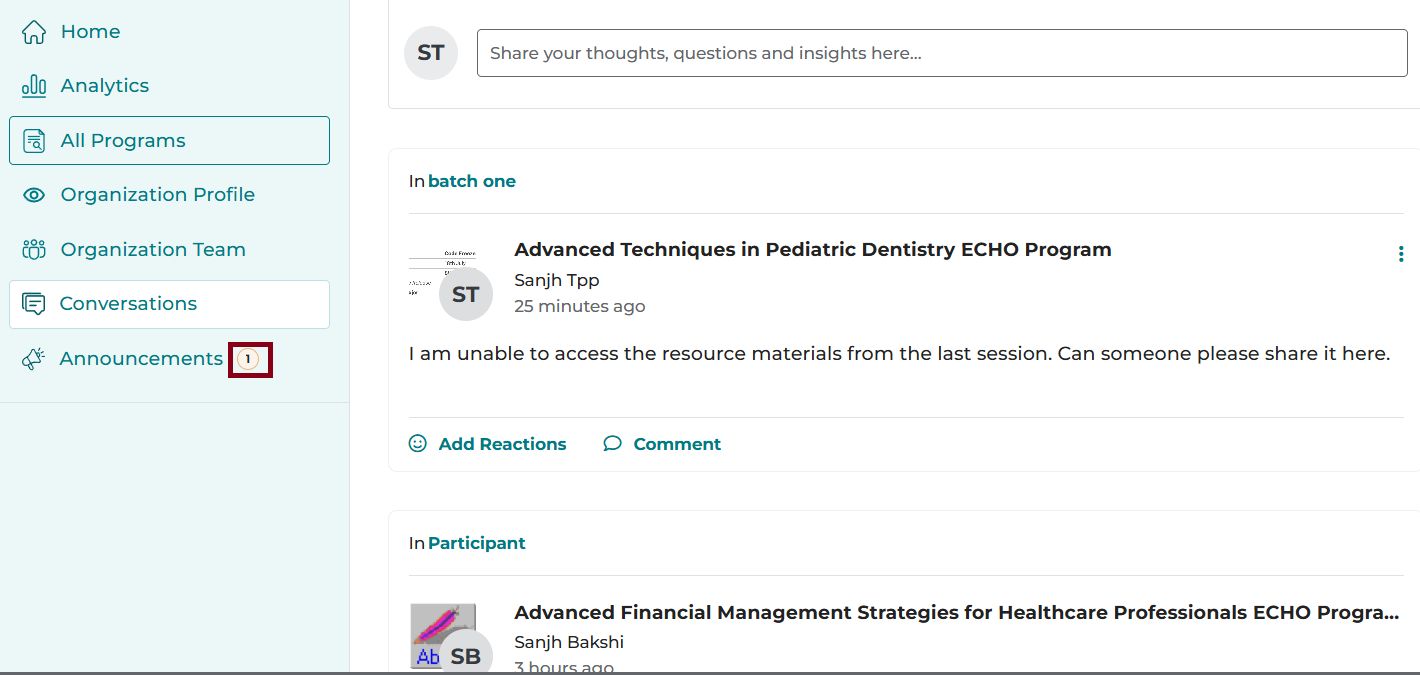
Access Conversations and Announcements directly from the left navigation panel on the iECHO homepage to view discussions across multiple programs in one place.
- The number of unread conversations and announcements is displayed.
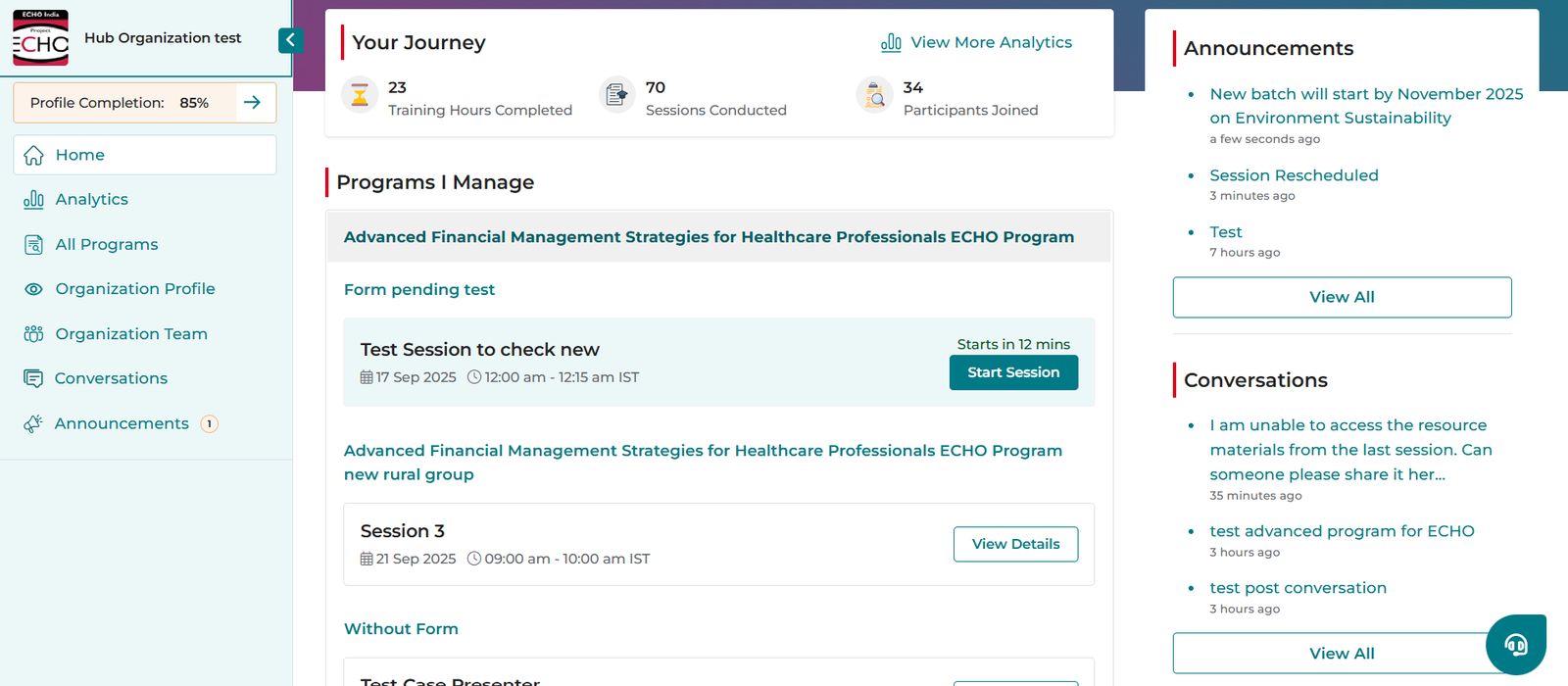
- Users can view the 3 latest posts from the past month on the right side of the homepage. Click View All to see more posts.
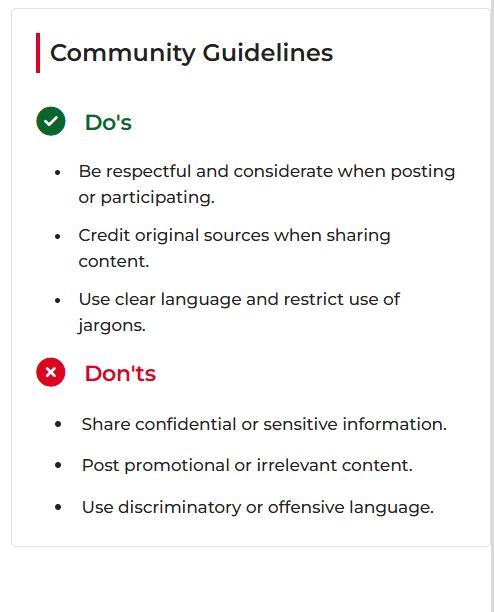
- When a user posts for the first time, Community Guidelines are displayed to ensure respectful and appropriate communication.
- Click the three-dot menu to edit or delete your post. Posts with at least one comment can no longer be edited and can only be deleted.
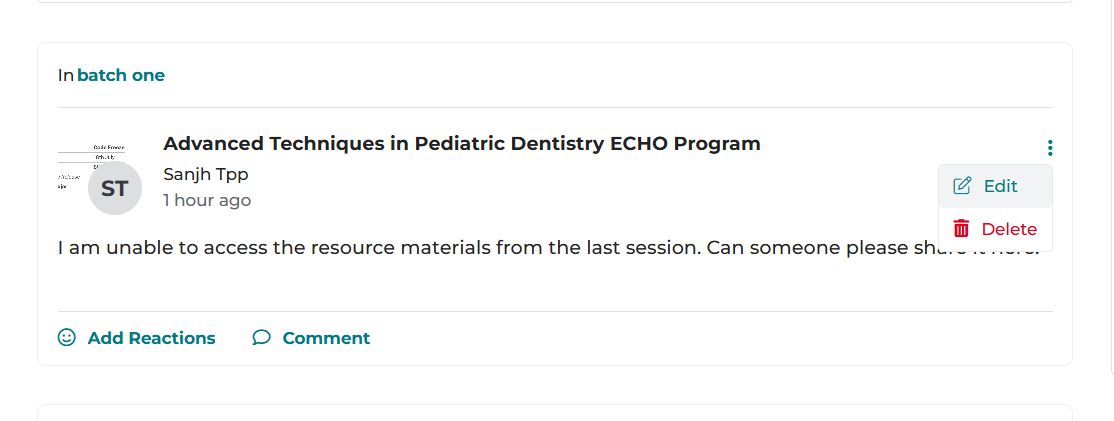
Alternatively, to view discussions for a specific participant group, click the group name to access all related discussions.
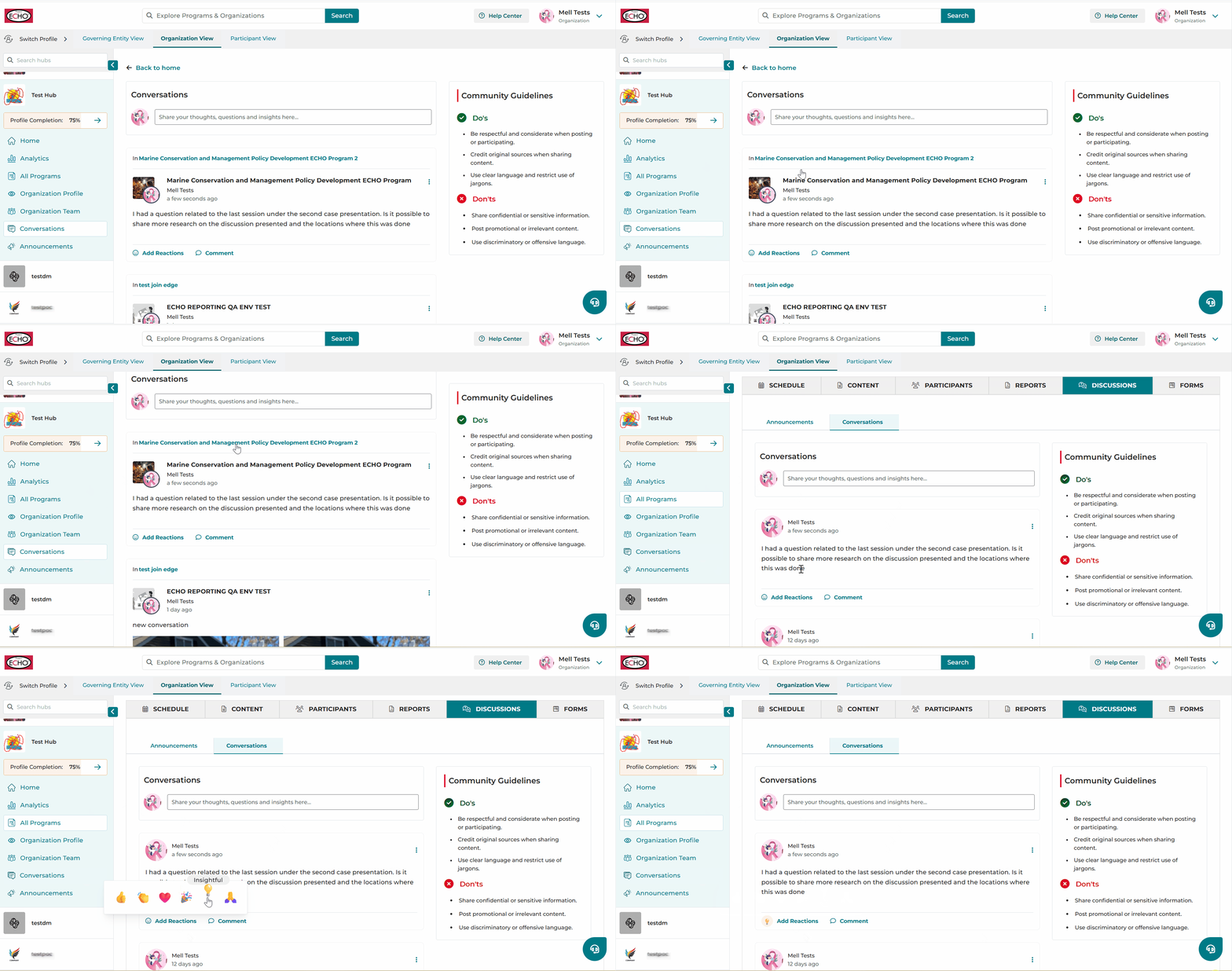
Conversations
Community members are encouraged to engage in interactive discussions here. These conversations can revolve around introductions within participant groups, addressing inquiries, delving into session topics, research, news, or updates related to the program.
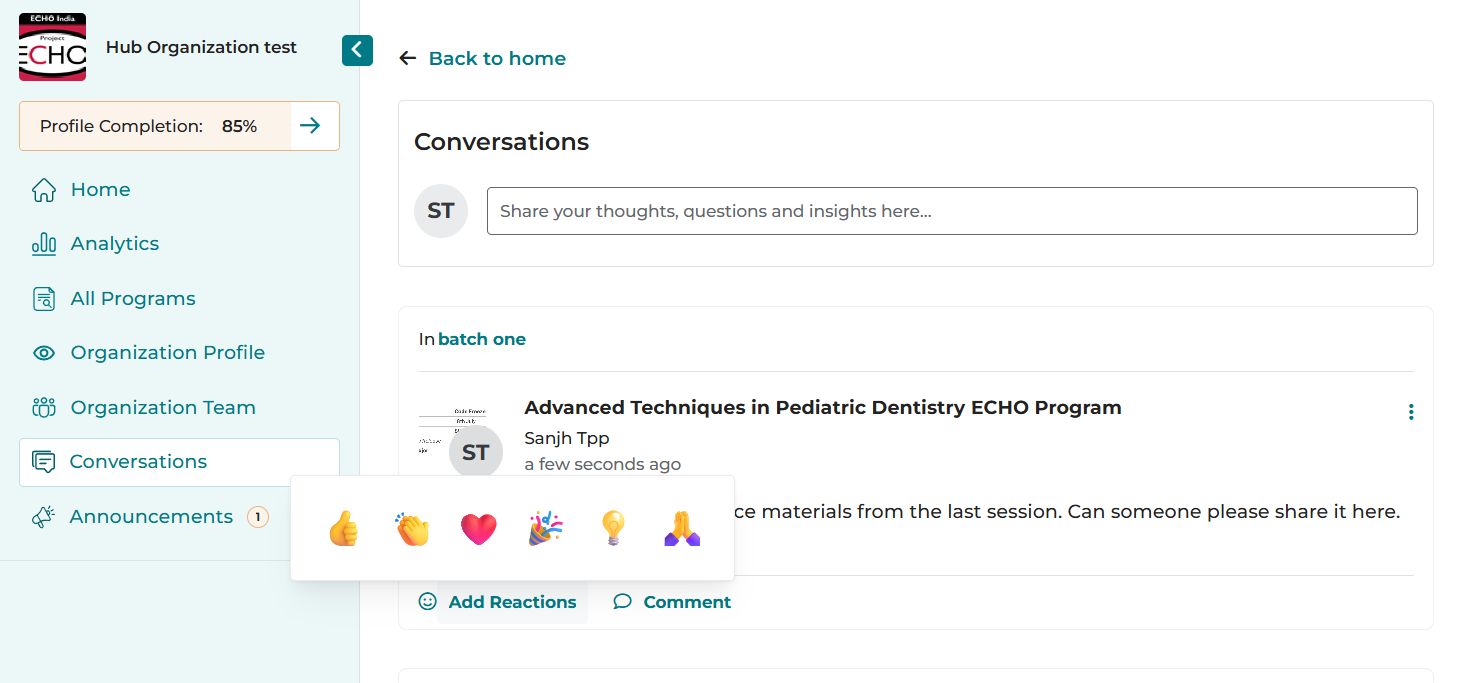
- On your iECHO homepage, select Conversations from the left navigation panel.
- Click Share your thoughts, questions and insights here.
- If only one program or participant group is available, it will be auto-selected, taking you directly to create the post.
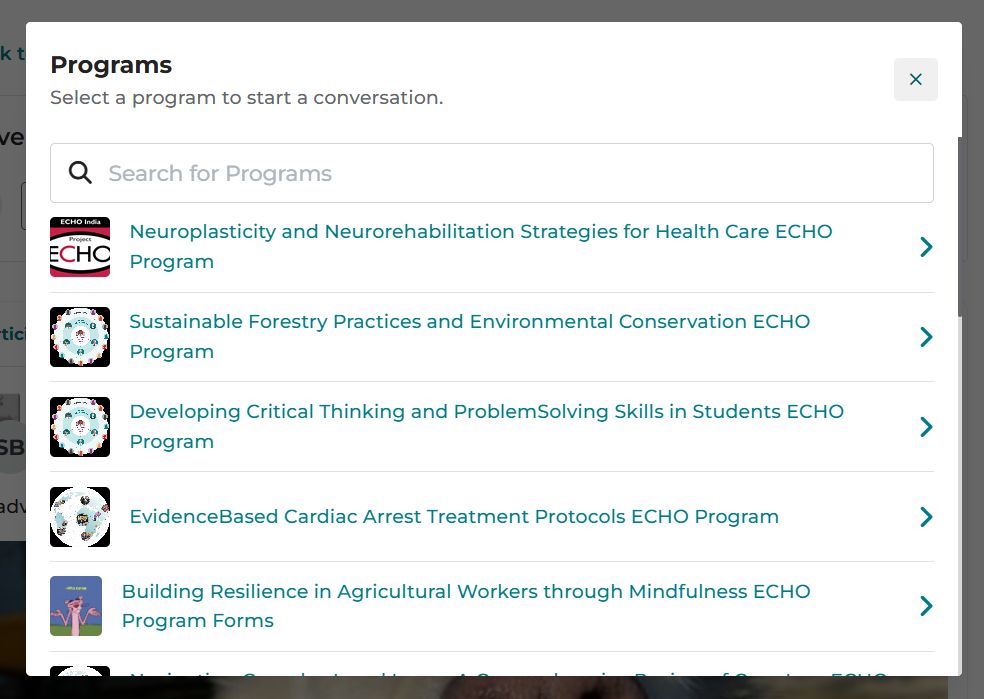
- If your hub has multiple programs and participant groups available:
- Select or search for the relevant Program from the list.
- Select the Participant Group.
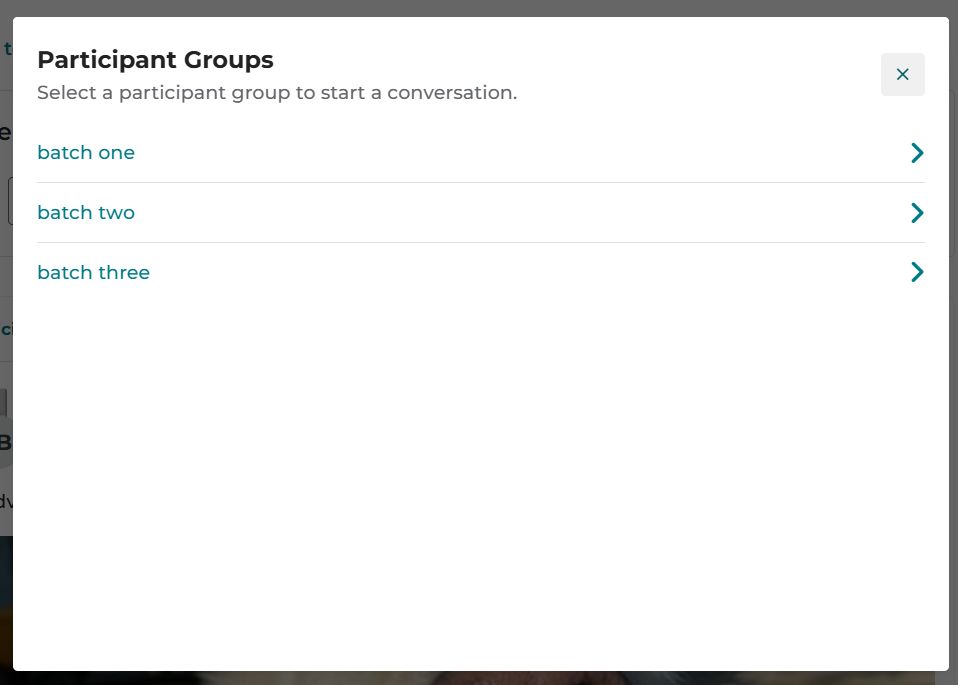
- Post your message.
- You can upload supporting images and documents. The image editor also allows you to annotate images and add text.
- After adding all necessary details, click Post.
Both organization members and participants can engage in conversations beyond sessions using the Add Reactions or Comment options.
Announcements
Announcements is a space for organization teams to post program and participant group updates, such as policy changes regarding attendance or certification, new program or cohort launches, and schedule modifications.
- On your iECHO homepage, select Announcements from the left navigation panel.
- Click Make an Announcement.
- If only one program or participant group is available, it will be auto-selected, taking you directly to create the post.
- If your hub has multiple programs and participant groups available:
- Select or search for the relevant Program from the list.
- Select the Participant Group.
- Post your message.
- Enter the title and a brief description of the announcement. You can also add supporting images and documents.
- Click Post.
Note:
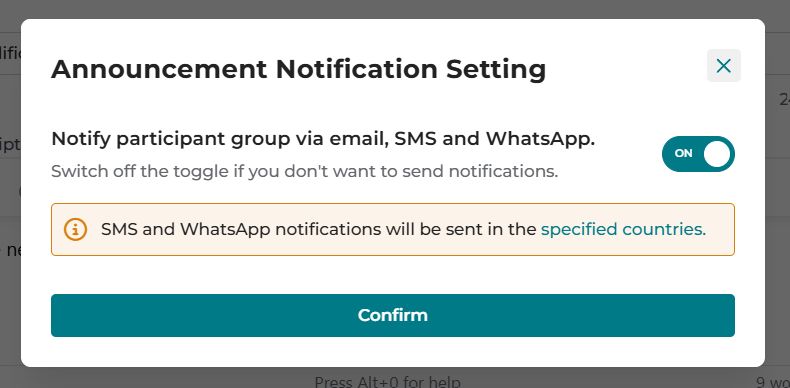
In the next step, click Confirm to send notifications.
(The notification toggle is set to ON by default.)
If you do not want to send notifications, turn the toggle off and then click Confirm.
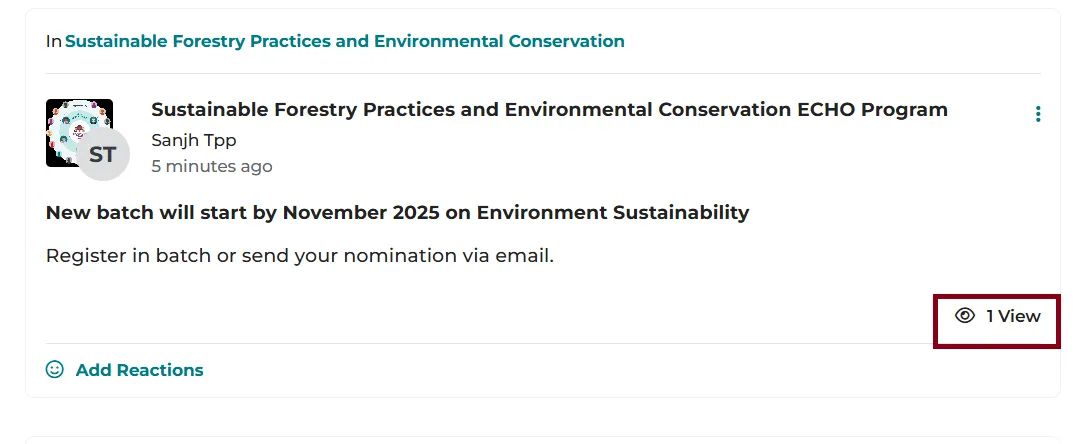
Announcements serve as one-way communication for organizations. Participants can only add reactions to posts. The number of views is visible for each announcement.
For mobile users
iECHO enables easy access to Announcements and Conversations for seamless engagement on mobile devices.
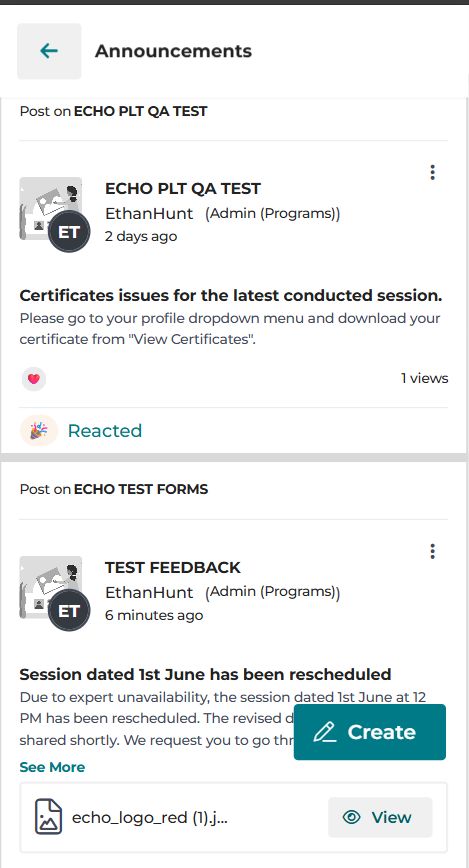
Accessing Announcements on mobile
- On your mobile device, go to the Homepage.
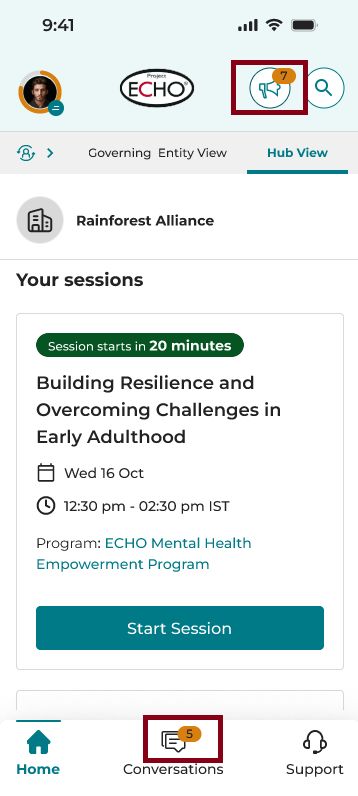
- Tap the announcement icon (📢) at the top right corner, next to the search icon (🔍).
- View all posts created under any program or participant group. Creator details are visible.
- React to announcements using emojis: 👍, 👏, ❤️, 🎉, 💡, 🙏. Post views appear on the right.
Accessing Conversations on mobile
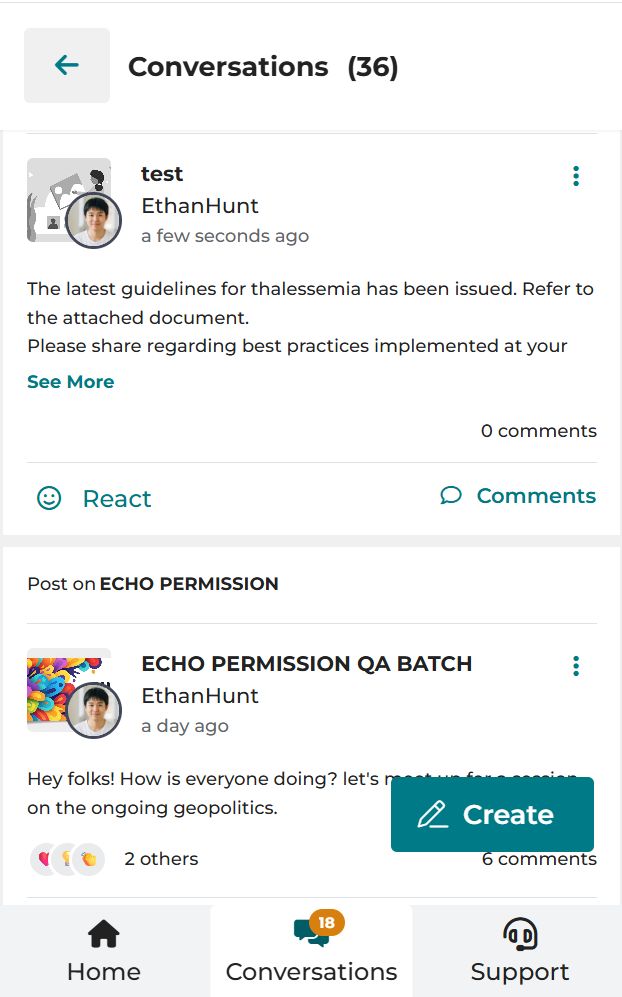
- On your mobile homepage, tap the Chat icon at the bottom of the screen.
- View and react to existing conversations using emojis.
- Add comments and attachments.
- Tap on a post and check the top of the screen to view members in the participant group.
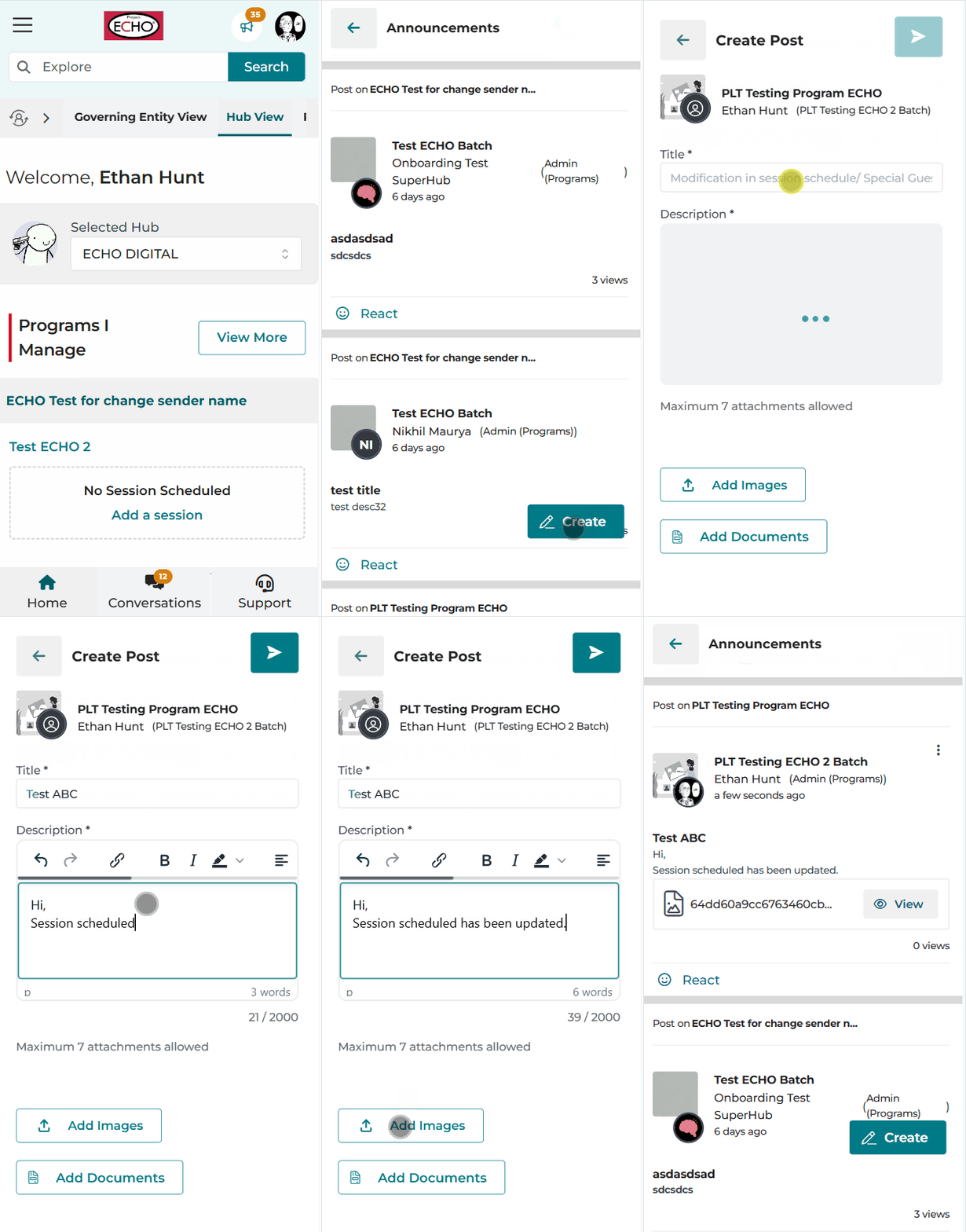
Video tutorial: Creating an announcement or conversation on mobile
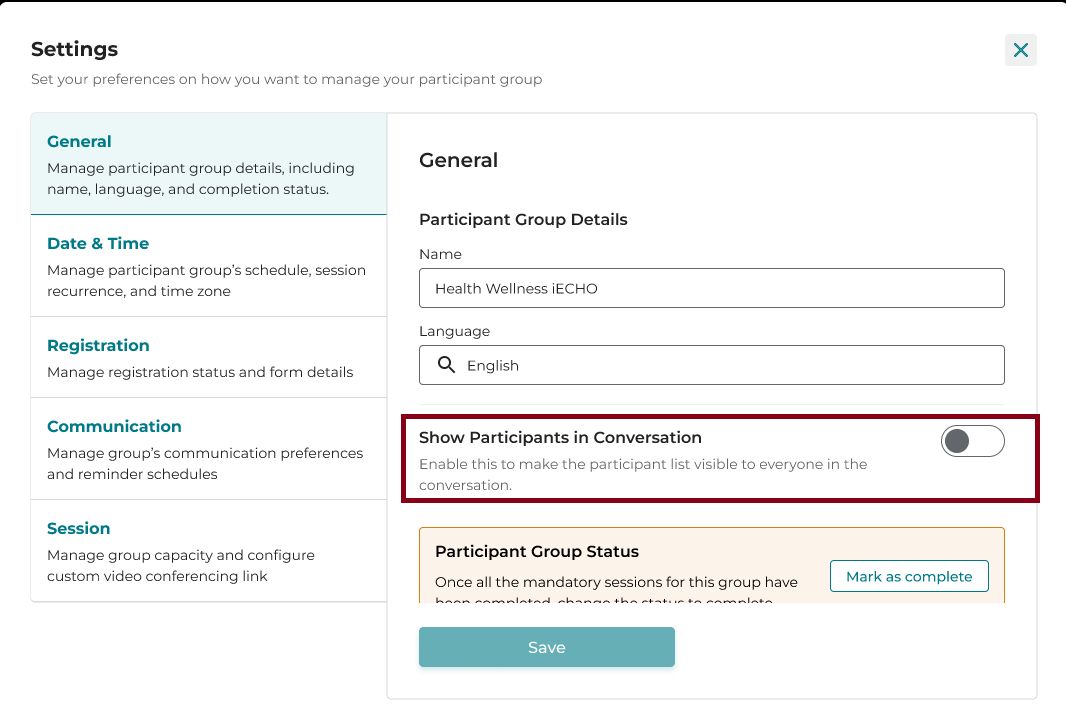
Hub team members can disable the participant list view in Participant Group Settings if required.
Scheduling Announcements NEW
To schedule an announcement for a future date and time:
- On your iECHO homepage, select Announcements from the left navigation panel.
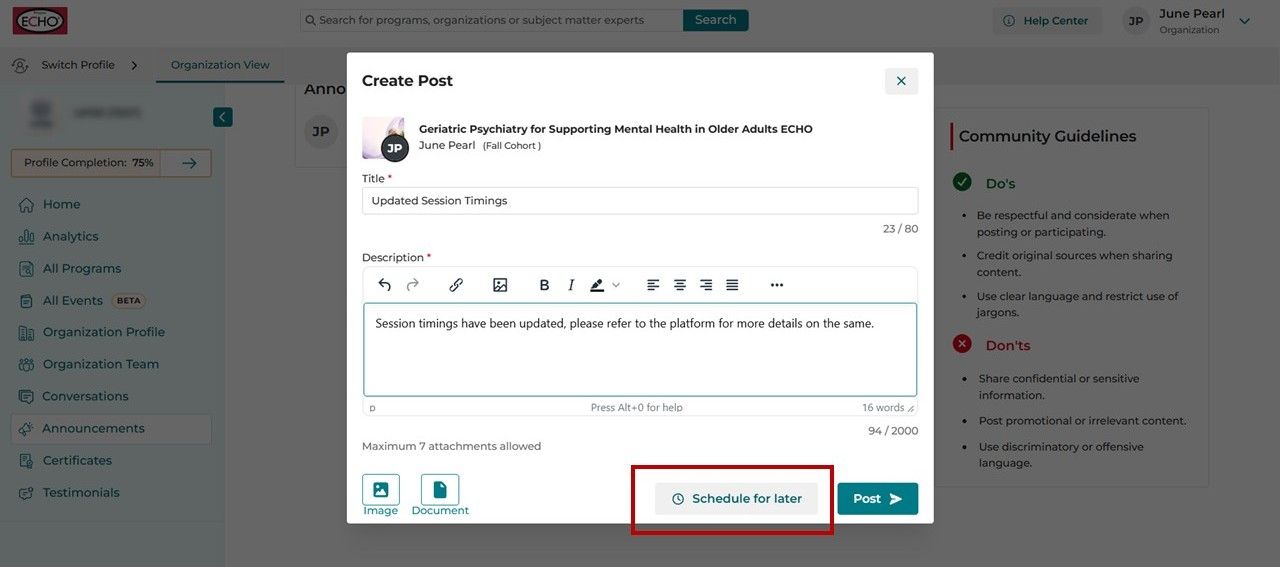
- Click Make an Announcement and enter the announcement details.
- Select Schedule for later.
- Set the date, time and time zone according to which you want the announcement to be posted.
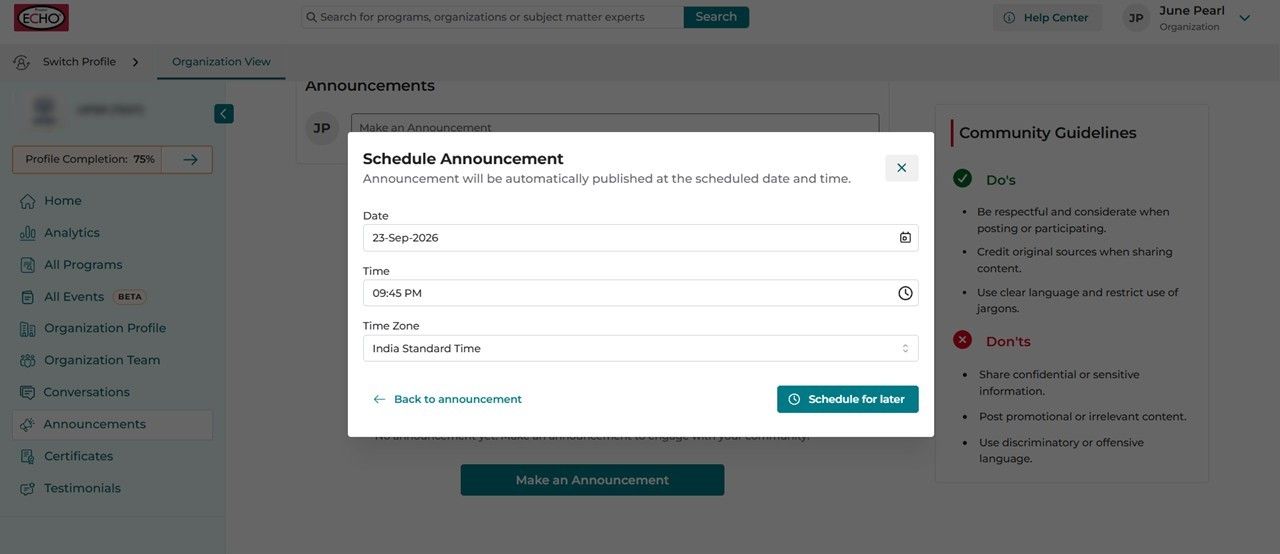
- Click on Schedule for later.
- In the next step, click Confirm to send notifications.
(The notification toggle is set to ON by default. If you do not want to send notifications, turn the toggle off and then click Confirm.)
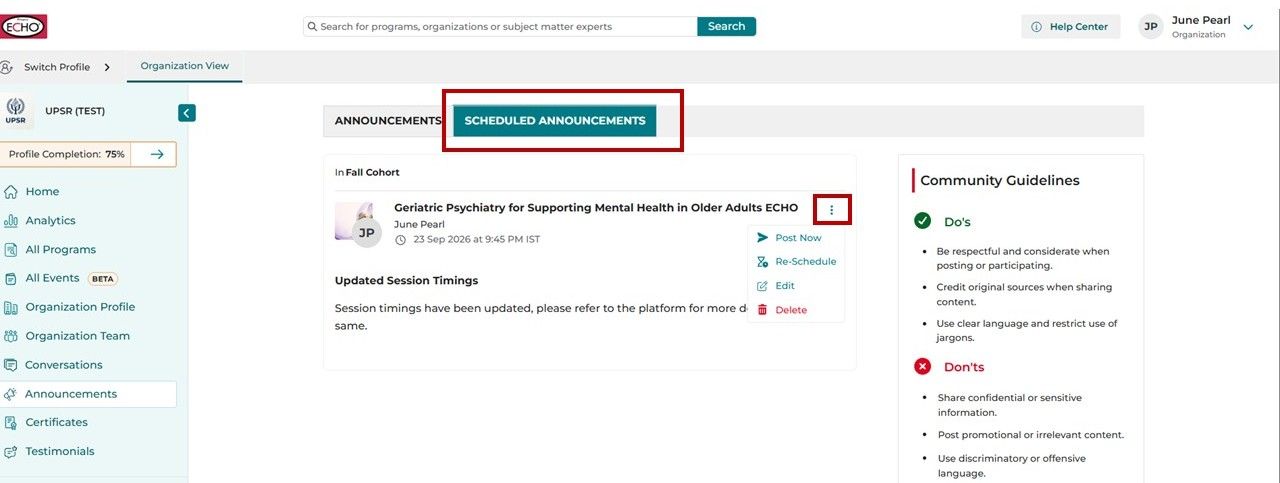
You can view and manage scheduled posts under the Scheduled Announcements tab on the Announcements Dashboard.
Note: Announcements must be scheduled for a minimum of 30 minutes from the current time; scheduling for less than 30 minutes is not supported.
To update or make changes to a scheduled announcement, click the three dots (⋮) next to it to select from the following options:
- Post Now: Publish the scheduled post immediately.
- Re-schedule: Modify the scheduled date or time.
- Edit: Make changes to the announcement content or attachments.
- Delete: Remove the scheduled announcement entirely.
Frequently asked questions
Can posts be edited, and who can edit them?
Posts can be edited until they receive a response. The member who created the post can edit it. Once a post receives a comment, it can no longer be edited and can only be deleted.
Who can post announcements?
Only Organization Owners and Organization Admins can post announcements.
How are participants notified about new announcements?
Participants receive email, SMS, and WhatsApp notifications about new announcements.
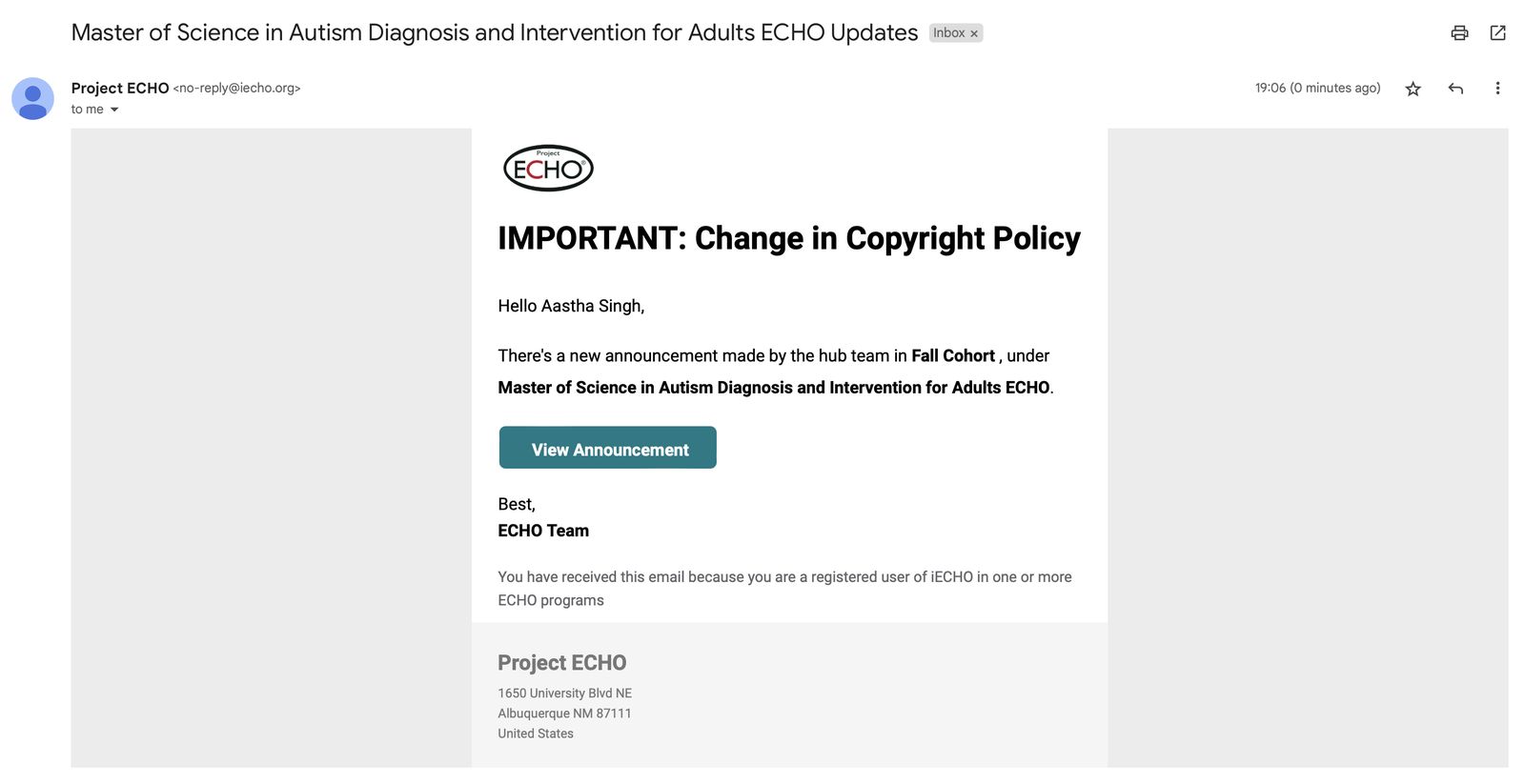
What information is included in announcement email notifications?
- Title of the announcement
- Participant group name
- Program name
- View Announcement button
How can organizations promote engagement and participation among members?
To promote engagement and participation:
- Encourage active participation: Organization Owners and Admins can actively participate in discussions, ask questions, and provide valuable insights to stimulate conversation.
- Share relevant resources: Share useful articles, videos, or resources related to the program topic to keep members informed and engaged.
What should you do if you encounter disruptive behavior or inappropriate content in discussions?
If you encounter disruptive behavior or inappropriate content within discussions, take prompt action to maintain a respectful environment. Organizations can take the following steps:
- Address the issue privately: If possible, contact the individual privately through direct messaging or email. Provide clear feedback about the specific inappropriate behavior or content and ask for it to be corrected or removed.
- Enforce community guidelines: If the behavior violates community guidelines or terms of service, remind the individual of these rules and emphasize the importance of adhering to them.
- Moderate or remove content: If the behavior persists or escalates, moderate or remove the offending content from the discussion forum to prevent further disruption.
- Communicate transparently: Communicate openly with members about actions taken to address disruptive behavior, reiterating the commitment to a safe and inclusive environment.
- Provide support: Offer support to any members affected by disruptive behavior or content, and encourage them to reach out if they have concerns.
- Report to platform administrators: If the behavior violates platform community guidelines or terms of service, report the issue to support@iecho.org for further investigation.