

iECHO enables efficient management by allowing organizations to assign specific admins to individual programs. This ensures that each program is overseen by an owner, admin, and/or member with tailored responsibilities. iECHO also offers customizable View, Edit, and Notification access to align with the organization's unique requirements.
What do View, Edit, and Notification permissions mean for admins?
| View | Provides access to program data exports, analytics, and insights. |
| Edit | Complete access to manage programs, create sessions, and communicate with participants. |
| Notification | Receive notifications about program updates, such as session reminders. |
There are three ways that admins can be assigned to individual programs:
- Assign programs while inviting a new member to the organization.
- Assign admins while creating a new program.
- Edit a program and assign new admins.
Consider the example of the University of Psychological Sciences, an organization dedicated to the comprehensive study and advancement of psychology. They are currently running the following programs:
- Master of Science in Autism Diagnosis and Intervention for Adults ECHO Program
- Master of Arts in Mental Health Counseling with a focus on Integrative Therapy Approaches ECHO Program
- Doctorate in Clinical Psychology with a specialization in Trauma-Informed Care and Resilience Building
- Neurodiversity and Inclusive Education ECHO Program plus 4 additional programs.
These programs are independently spearheaded by 5 different admins: Gia Thomas, Arya Sawyer, Noah James, Mell Rose, and David Barash. Here is how you can manage their permissions across different programs.
Assign admins while creating a new program
To assign admins during program creation:
- Log in to your iECHO account.
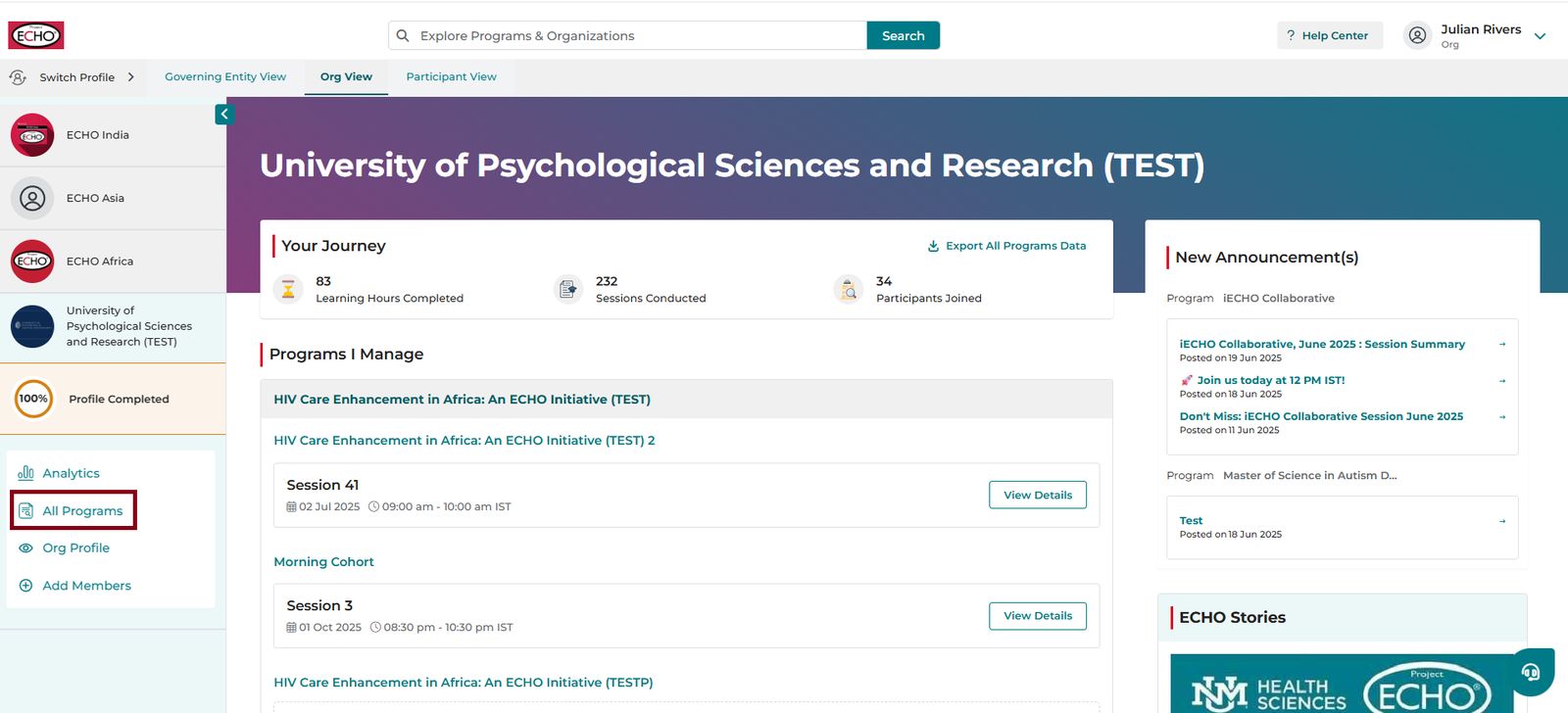
- On the left navigation panel, click All Programs.
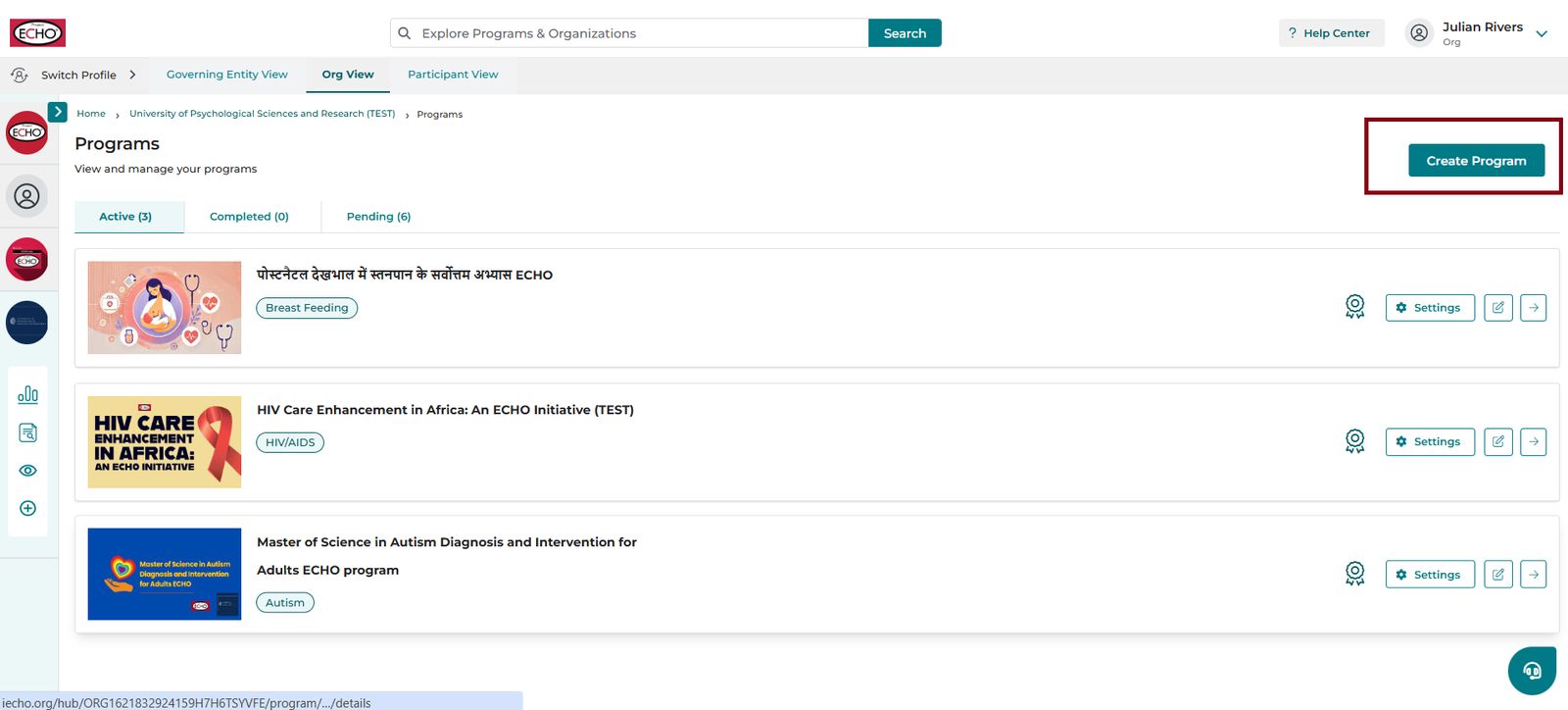
- Click Create Program.
- Enter the required program details.
- After completing Accreditation Information, view the list of organization team members. Under Assign Permissions, set the View, Edit, and Notification access as required, then click Save.
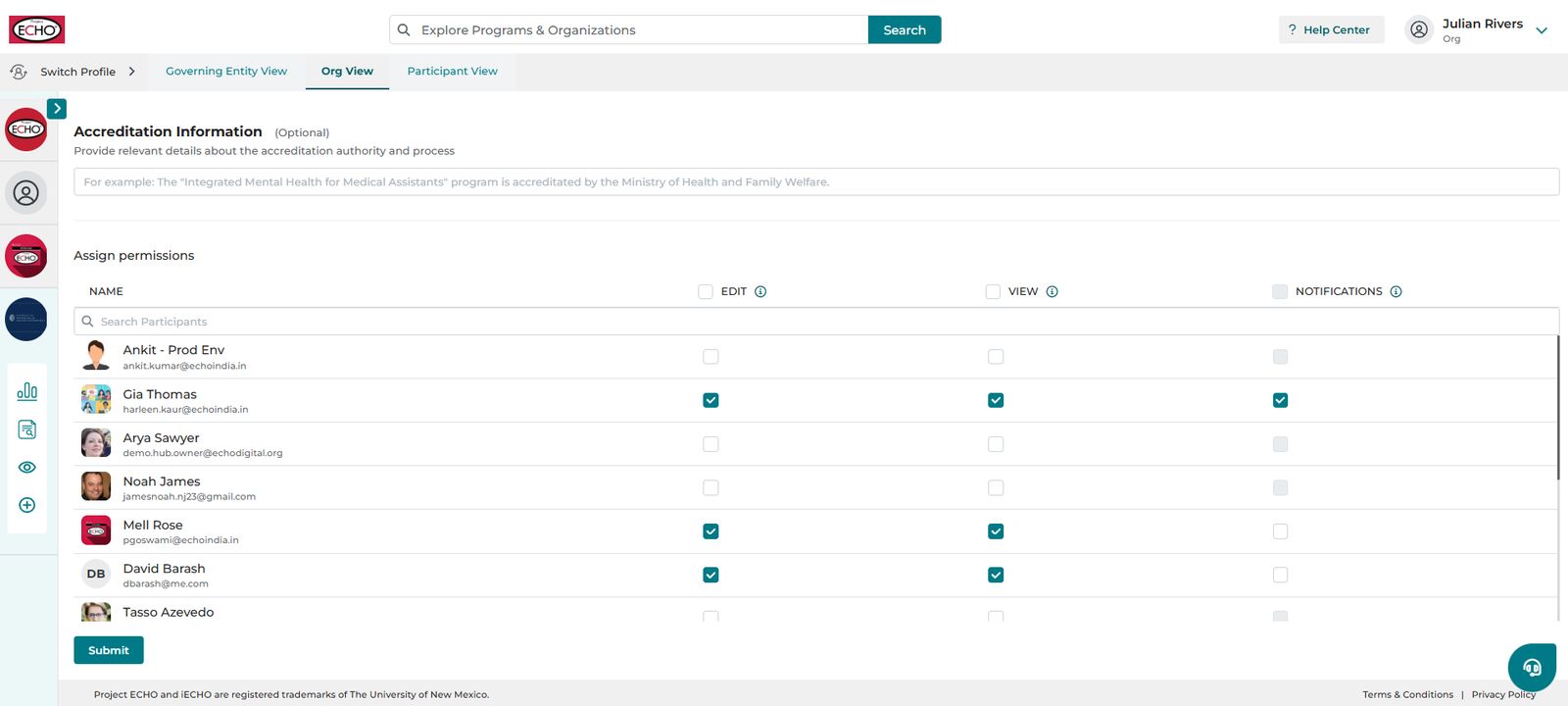
From the example: Gia Thomas is creating a new program called Mindfulness-Based Stress Reduction (MBSR) and Positive Psychology ECHO Program, and wants to grant Mell and David edit and view access. She can check the Edit and View checkboxes for both members before saving the program.
Edit a program to assign new admins or modify existing permissions
To assign new admins or edit permissions for existing team members:
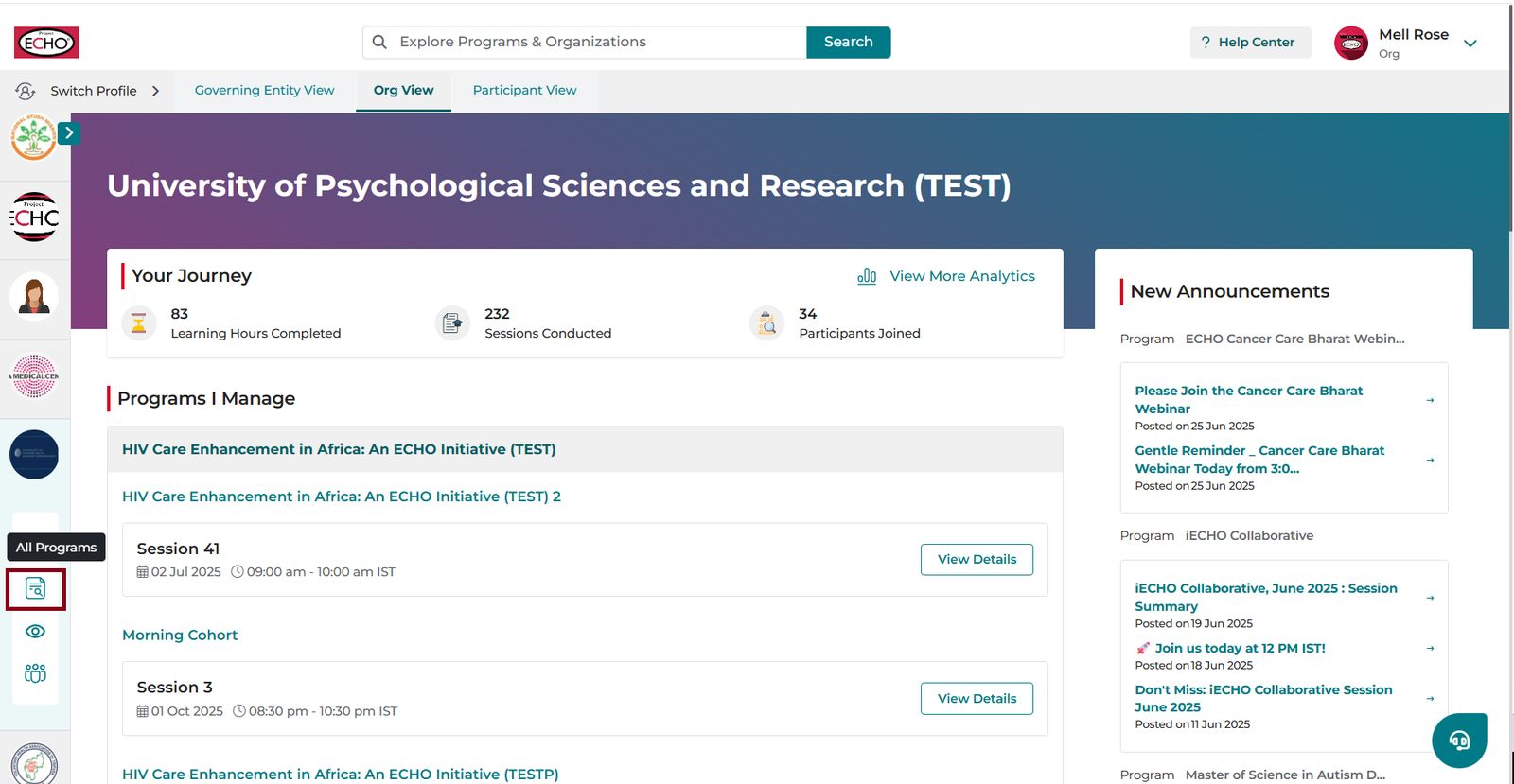
- On your homepage, go to the left navigation panel and click All Programs.
- Add the member's details, assign their role, and select the View and Edit checkboxes as required.
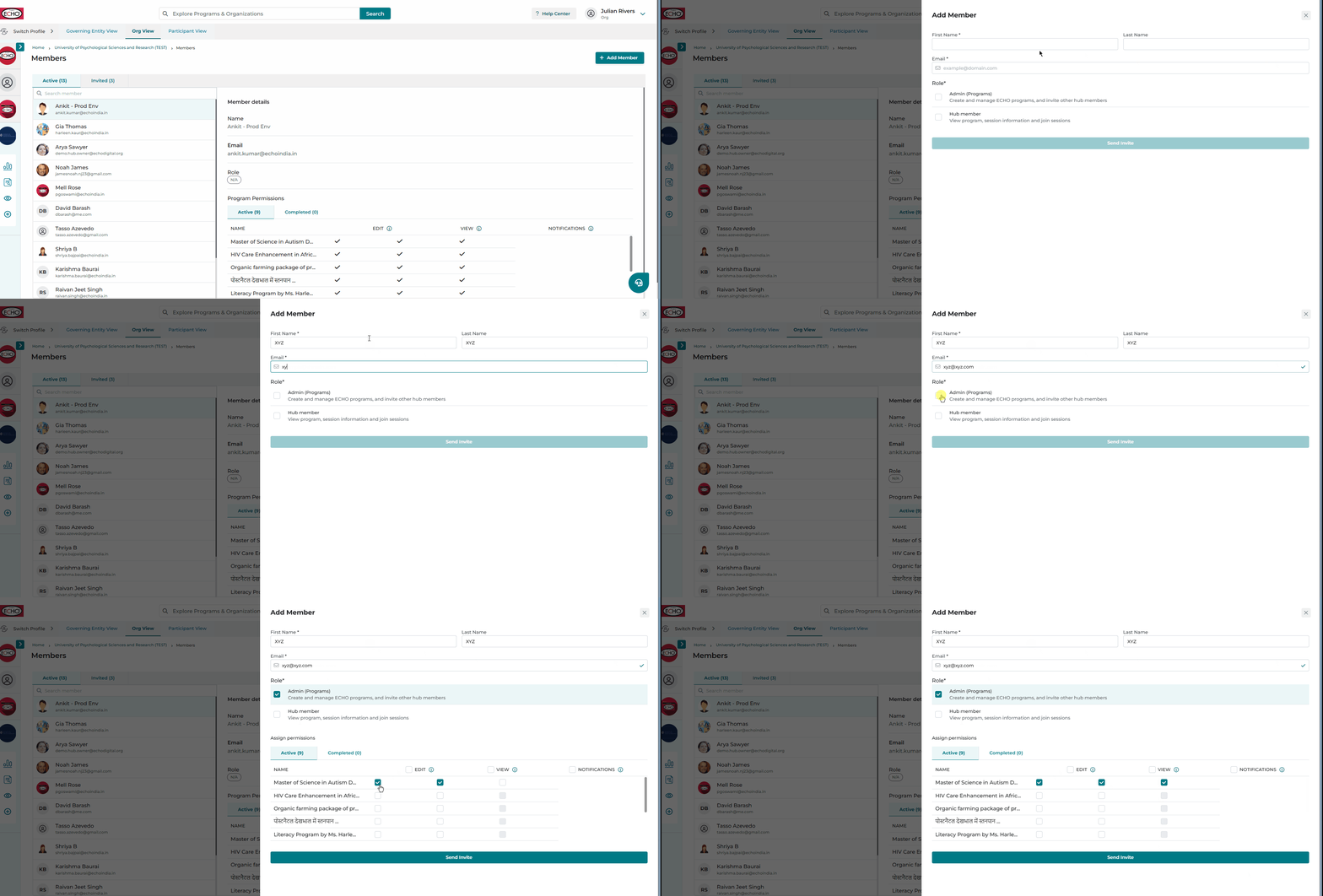
To edit existing permissions for organization team members:
- On the left panel, click All Programs.
- Click Settings.
- Under Permissions, select or deselect the View and Edit checkboxes for each team member as needed.
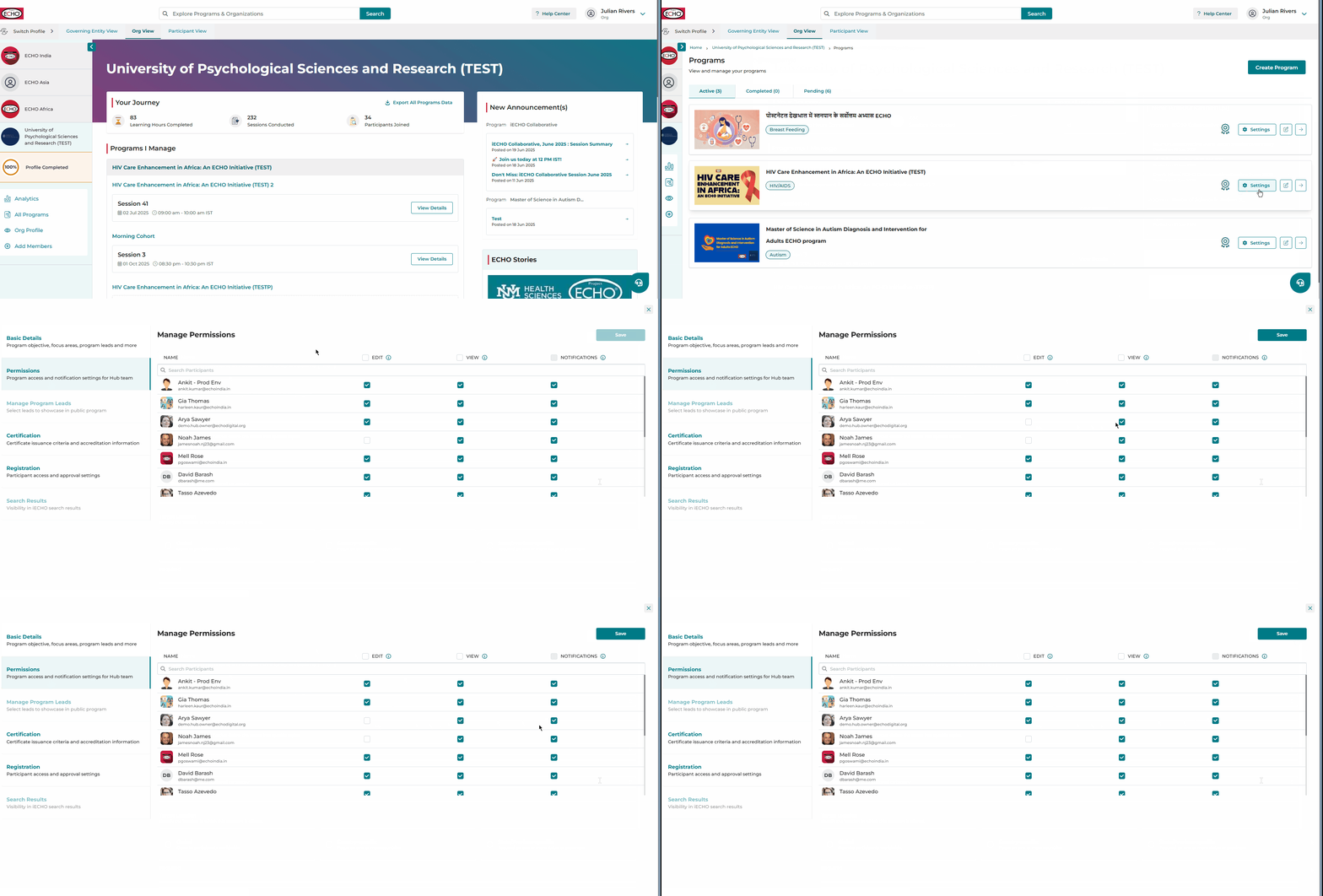
Once you click Save and confirm your changes, iECHO sends a notification email to all affected team members.
Watch this video tutorial on managing program permissions:
Things to Remember
- Anyone with Edit permissions automatically receives View permissions for that program.
- Unless a team member has Edit or View permissions, the Notification permission remains disabled.
- An owner's permissions cannot be modified or managed by any other team member.
- Owners can only manage their Notification permission. Edit and View permissions are selected by default for owners.
- Member names and email addresses cannot be edited on this screen.
Frequently Asked Questions (FAQs)
How does this feature benefit our organization?
- Confidentiality and Data Security: Programs often involve sensitive participant, research, or clinical data. Assigning specific admins per program ensures that data access is restricted to authorized personnel.
- Workflow Management: Dedicated admins can focus on their specific program tasks without distraction from unrelated programs.
- Effective Communication: Customized notification settings ensure admins receive updates relevant only to their assigned programs.
- Preventing Information Overload: Restricting program access prevents team members from being overwhelmed by unneeded alerts and notifications.
- Clear Accountability: Explicit roles prevent administrative confusion and ensure clear ownership across programs.
Can I enable my own notification access for a program if I already have View and Edit access?
Yes. You can manage your notification access either by opening the program settings or by editing your permissions under team member settings.
Can I remove or modify another admin’s access if I have View and Edit permissions for a program?
Yes, admins with View and Edit permissions can modify permissions for other program admins.
What types of emails and notifications will I miss if notification access is disabled?
You will not receive program updates such as:
- Session reminders
- Case presentation communications
- Announcement emails
Are there any limitations on the number of admins I can assign to a program?
iECHO does not limit the number of admins assigned to a program. However, assigning admins judiciously is recommended to maintain clear accountability.
Will members be notified of permission changes?
Yes, iECHO sends an email notification to members whenever their roles or permissions are updated.
As an owner, can I edit my permissions for a program?
You can only edit your own notification access for a program.