
iECHO simplifies inviting and managing Organization team members, allowing efficient role assignments and control over their activities. This feature ensures smooth team management, keeping all members integrated into the Organization's operations.
Organization Owners and Admins can customize access levels to ensure appropriate program permissions, enhancing collaboration and security.
Permission levels:
| Edit | Full access to manage programs, create sessions, and communicate with participants. |
| View | Read-only access, allowing team members to view program data, analytics, insights, and forms without making changes. |
| Notifications | Receive updates about program changes, such as session reminders or announcements. |
If no permissions are assigned, the team member will see an Access Restricted message on the program page.
After the Owner registers on the platform, other team members can be invited to the Organization.
Inviting an Organization Team Member
- Log in to your iECHO account.
- From the homepage, use the search option or click an Organization logo in the left panel to switch Organizations if you belong to multiple Organizations.
- Click Organization Team in the left panel to view or edit existing members, or click Add Members to invite new members to your Organization.
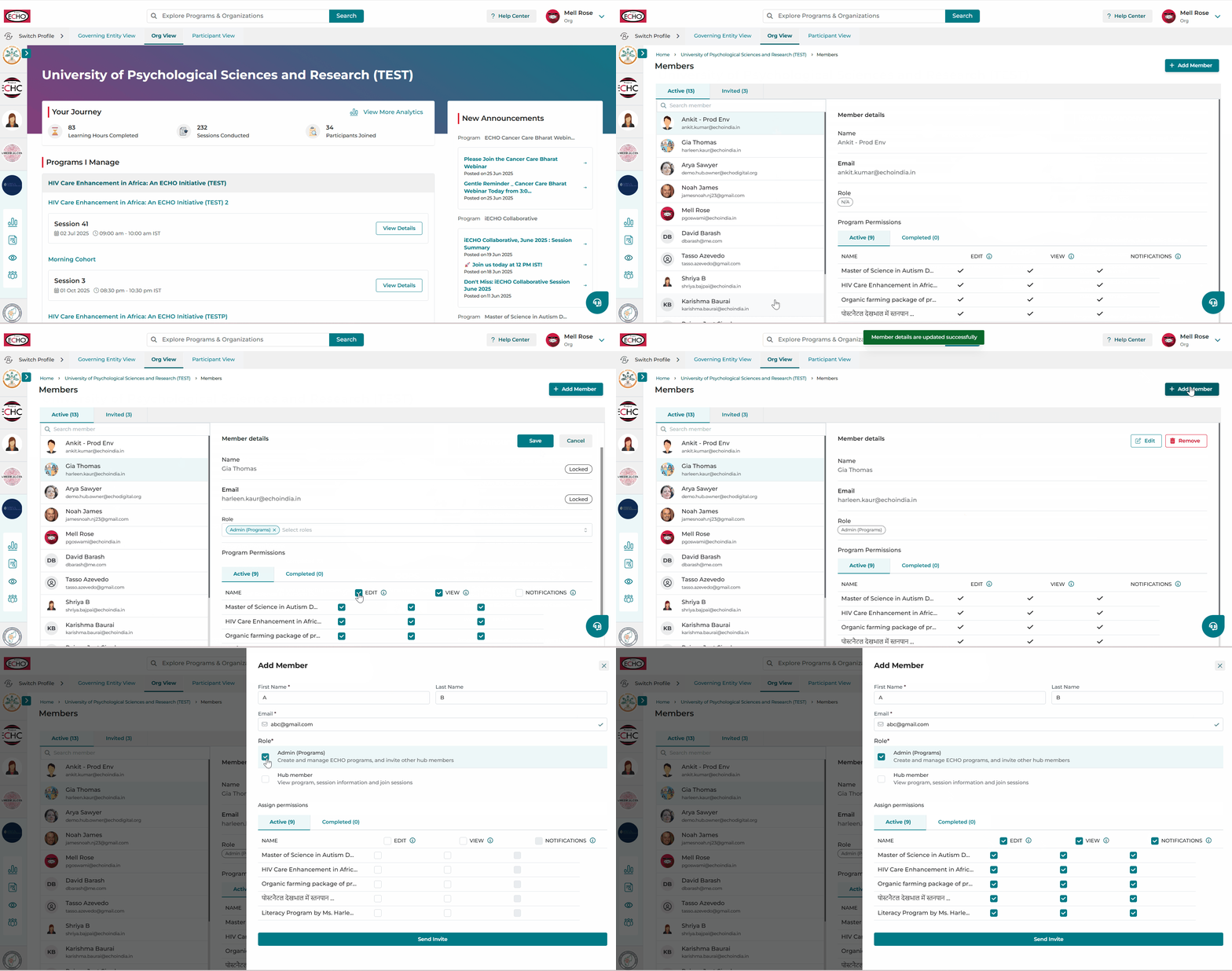
- Upon selecting the relevant role, the list of programs under the Organization will be displayed.
- After assigning program permissions, click Send Invite.
✅ Permissions to all programs can be assigned using the Select All option or individually at the program level as required.
Important:
- Assigning Permissions: If Edit permission is selected, View permission will be automatically assigned.
- At least Edit or View access is needed to assign notifications.
- Invitation Status: Invited members will appear in the Invited list until they complete registration. They will gain access once registered.
- Permissions for a team member can also be changed while in the invited stage.
- Owners have access to all programs in the Organization by default, with the ability to modify notification access.
The Admin (Programs) role is a crucial position in any organization. This individual has complete access to the Organization. They can:
- Start ECHO sessions and download reports.
- Invite additional Admin (Programs) and Organization members to join the organization.
It is recommended to assign this role to someone who handles daily Organization operations and understands its functions deeply. They should troubleshoot issues and ensure smooth Organization operation. A dedicated Admin (Programs) streamlines processes and enhances efficiency.
An Organization Member is a user with limited permissions in the Organization compared to the Organization Administrator.
An Organization Member:
- Has view-only access to program and organization information.
An Organization Member cannot:
- Create programs or sessions on iECHO.
While an Organization Member may not have the same access as an Admin (Programs), they can be given access to manage programs as required by an Admin or Owner.
Here is an example of assigning roles for four team members:
- Alpha: Assigned Admin (Programs) with Edit and View permissions for Program A.
- Charlie: Assigned Admin (Programs) with Edit and View permissions for Program B.
- Bravo: Assigned Organization Member with View and Notification permissions, so they can view program details and receive updates without editing rights.
- Delta: Assigned Organization Member with View and Notification permissions, same as Bravo.
This ensures full operational control for Alpha and Charlie, while Bravo and Delta stay informed.
Watch this video tutorial on how to manage your Organization team:
ℹ️ Use the Organization Profile icon and Organization Team icon in the left panel of the homepage.
Removing an Organization Team Member
Organization Owners and Admins can remove team members from the Organization when access is no longer required.
Steps to remove a team member:
- Click Organization Team from the left panel on the home screen.
- Scroll and select the team member from the list.
- Click Remove in the member details panel.
- Confirm to complete the removal.
Once removed, the team member will no longer have access to the Organization or its programs.
Important notes
- Only Organization Owners and Admin (Programs) can remove team members.
- Removed members immediately lose access to all assigned programs and permissions.
- If required, the same member can be invited again by sending a new invitation.
List of permissions for different roles
| Permissions | Organization Owner | Admin (Programs) | Organization Member |
|---|---|---|---|
| Invite Admin (Programs) | ✅ | ✅ | ❌ |
| Delete an Admin (Programs) | ✅ | ✅ | ❌ |
| Invite Organization Members | ✅ | ✅ | ❌ |
| Delete an Organization Member | ✅ | ✅ | ❌ |
| Create & Manage a Program | ✅ | ✅ | ❌ |
| View a Program | ✅ | ✅ | ✅ |
| Create & Manage a Participant Group | ✅ | ✅ | ❌ |
| View a Participant Group | ✅ | ✅ | If access provided |
| Create & Manage a Session | ✅ | ✅ | ❌ |
| View a Session and Session Details | ✅ | ✅ | If access provided |
| Start a Session | ✅ | ✅ | ❌ |
| Add & Manage Content Resources | ✅ | ✅ | ✅ |
| Invite & Manage Participants | ✅ | ✅ | ❌ |
| View Participants Tab | ✅ | ✅ | If access provided |
| Invite Subject Matter Expert, Case Presenter & Guest Participant | ✅ | ✅ | ❌ |
| View Subject Matter Expert, Case Presenter & Guest Participant | ✅ | ✅ | If access provided |
| Send Quick Emails | ✅ | ✅ | ❌ |
| Issue Certificates | ✅ | ✅ | ❌ |
| Create and Conduct Assessments and Other Forms | ✅ | ✅ | ❌ |
| View Assessments and Other Forms | ✅ | ✅ | If access provided |
| Create an Announcement | ✅ | ✅ | If access provided |
| Start a Conversation in Discussions and Manage it | ✅ | ✅ | If access provided |
| Download Reports | ✅ | ✅ | If access provided |
| View Dashboards | ✅ | ✅ | If access provided |
Frequently asked questions
- Will members be notified of permission changes?
Yes, an email will be sent to the respective members notifying them of any additions or changes.
- Can I add a team member to the Organization without assigning program permissions?
Yes, team members can be added without assigning program permissions. However, if a Program Admin is added without permissions for any program, they will not receive View access to those programs, and an "Access Denied" message will be displayed.
- What happens if I invite a team member who has not registered yet?
The invited team member will appear in the Invited list until they complete registration. You can still assign or edit program permissions, but they will only gain access after registering.
- Are there limitations on the number of admins I can assign to a program?
No, there is no fixed limit on the number of admins. However, for effective management, it is recommended to assign only necessary admins.
- What happens to program permissions after removing a member?
All program permissions are revoked automatically once the member is removed.
- Can I remove a member who is still on the Invited list?
Yes, invited members can be removed before they complete registration.