
Caution: Use this feature sparingly to ensure data authenticity on iECHO.
iECHO enables you to mark missing attendance records of participants for multiple sessions at once. This feature is useful in cases where participants joined the session:
- Using forwarded session reminders
- Using shared devices or in groups
- Using links other than the session reminder sent to them on their registered iECHO channel
- For a negligible duration (for example, 5 minutes or less), but were marked present for the whole session
- There was over-reporting or misrepresentation of their presence due to custom video conferencing
What's New?
iECHO now enables you to adjust over-reported attendance. You can reverse a present attendance status if a participant did not attend the session for the full duration.
Read More
How admins and owners edit attendance data for participants
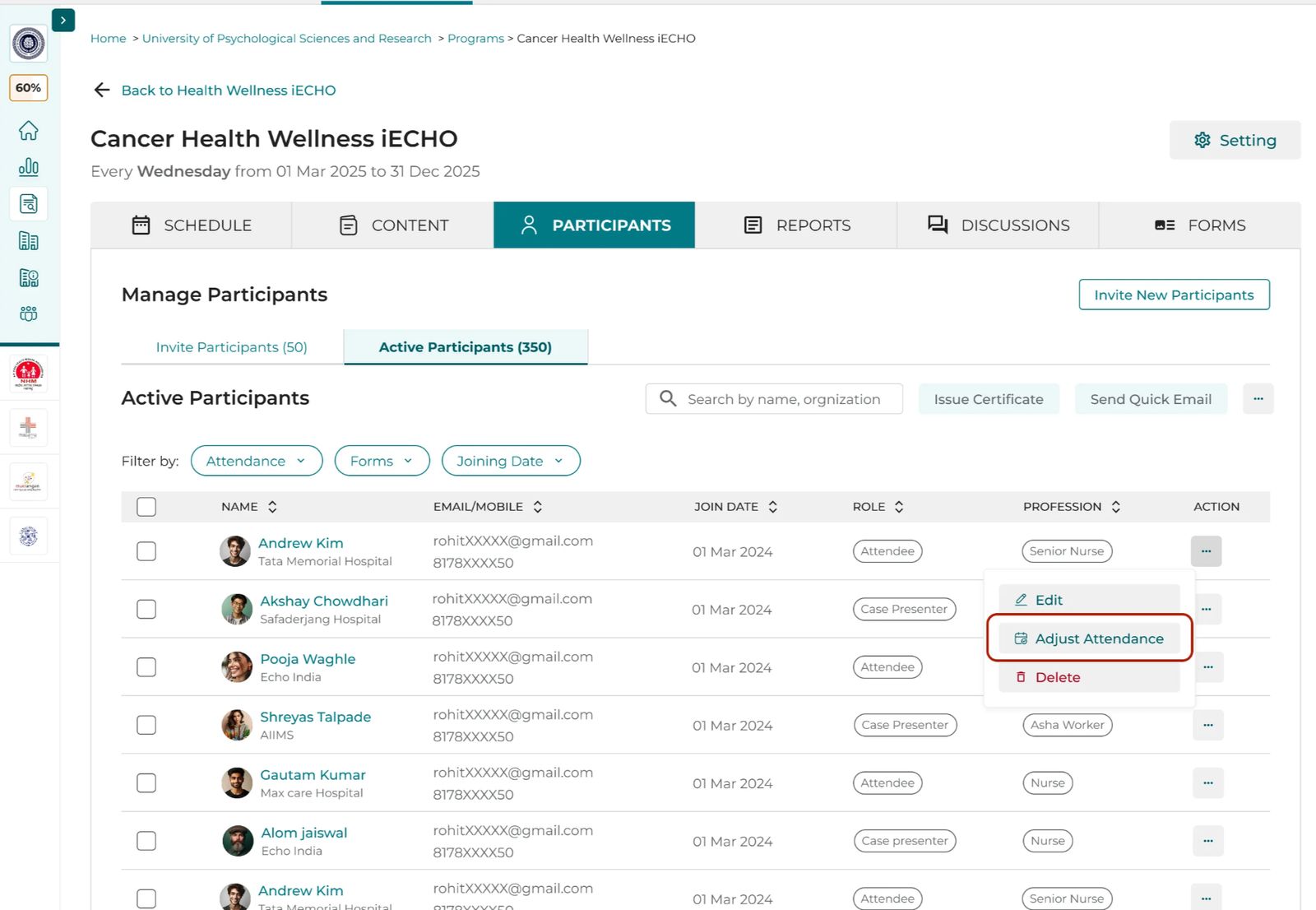
- Select the participant whose attendance record you would like to edit, click the three-dot menu adjacent to their name, and select Adjust Attendance.
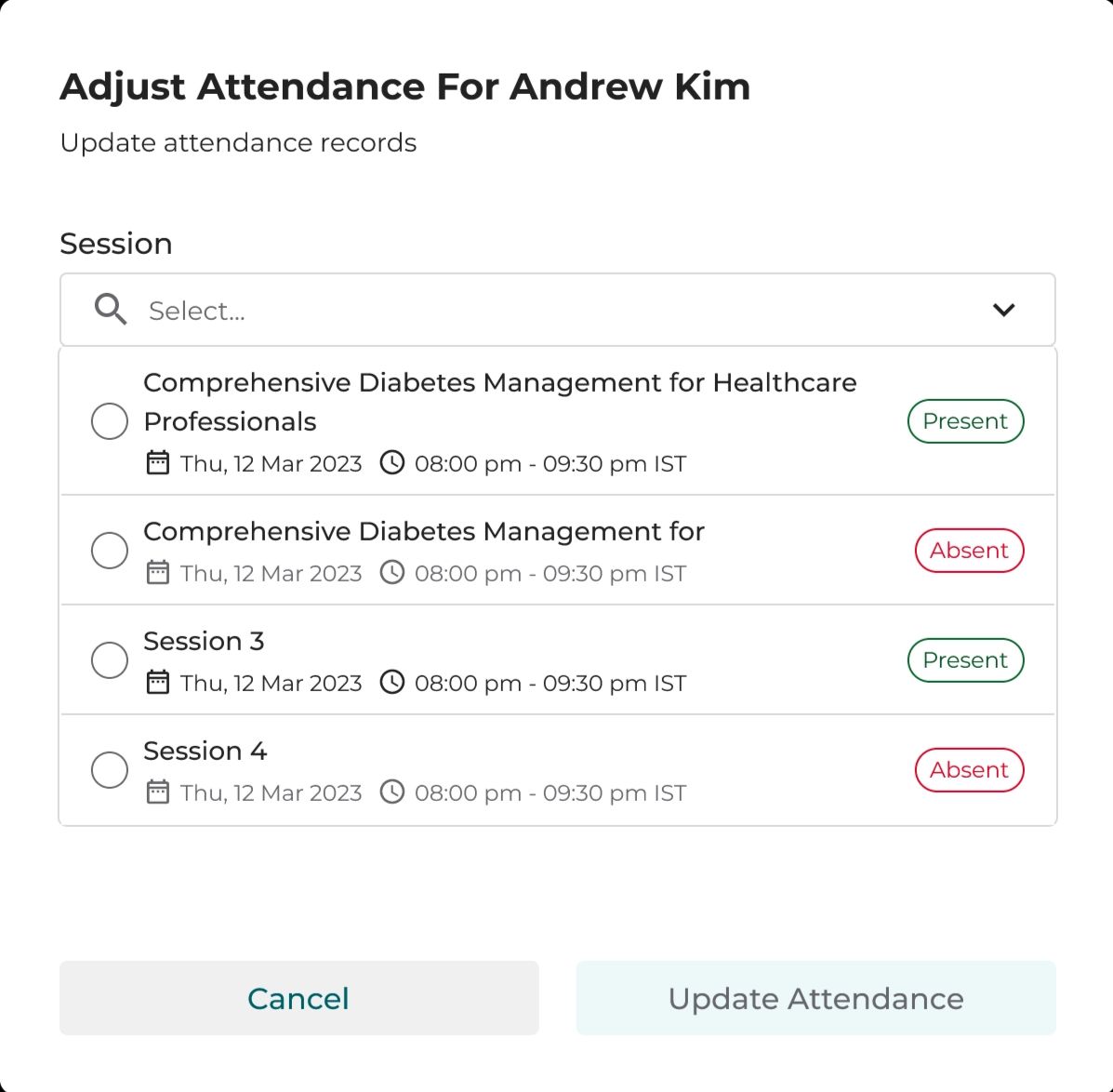
- Select the sessions for which you would like to edit the records (you can select more than one). You can adjust the record for a session where the person was absent or present.
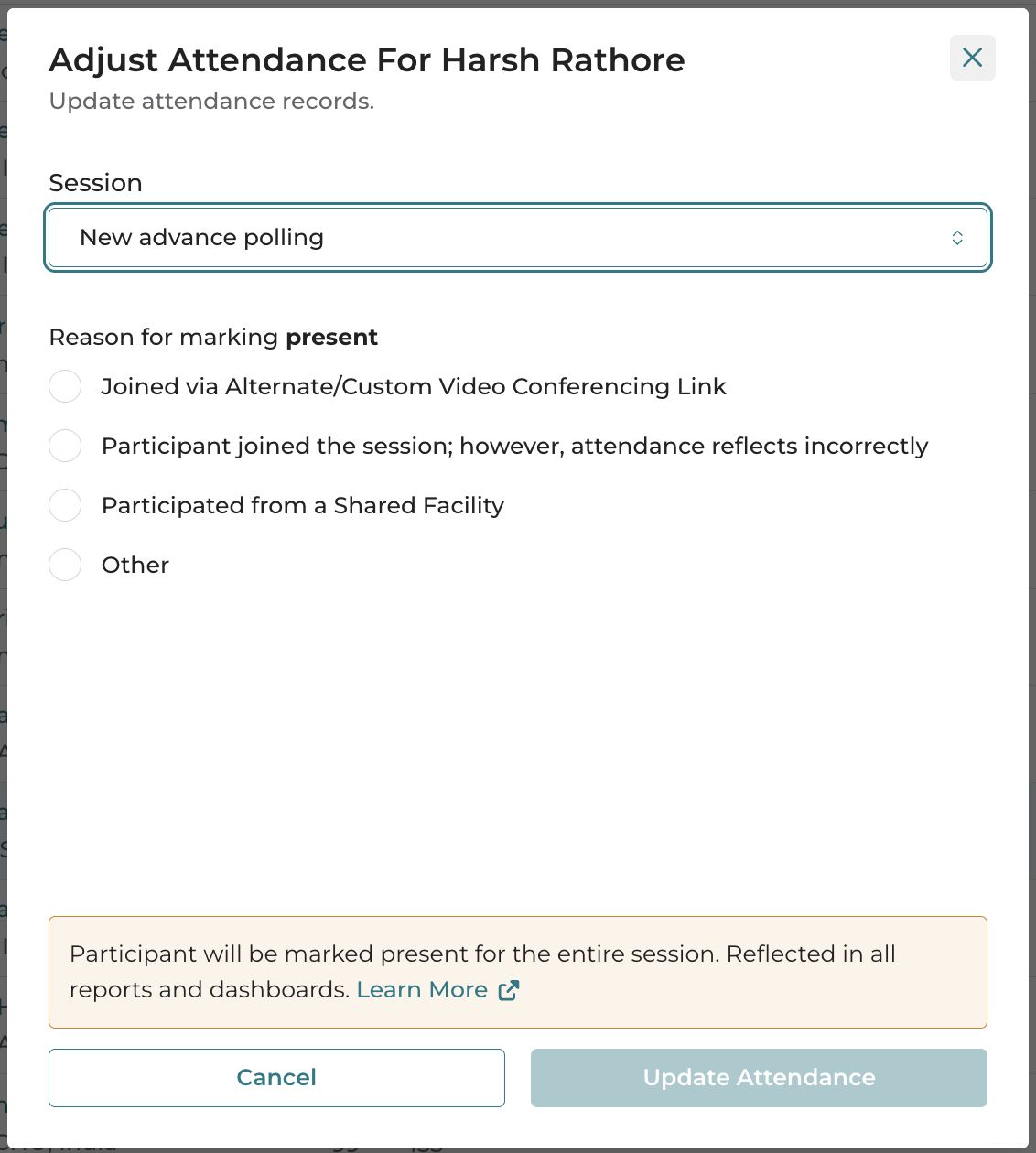
- Select the reason for adjusting the record.
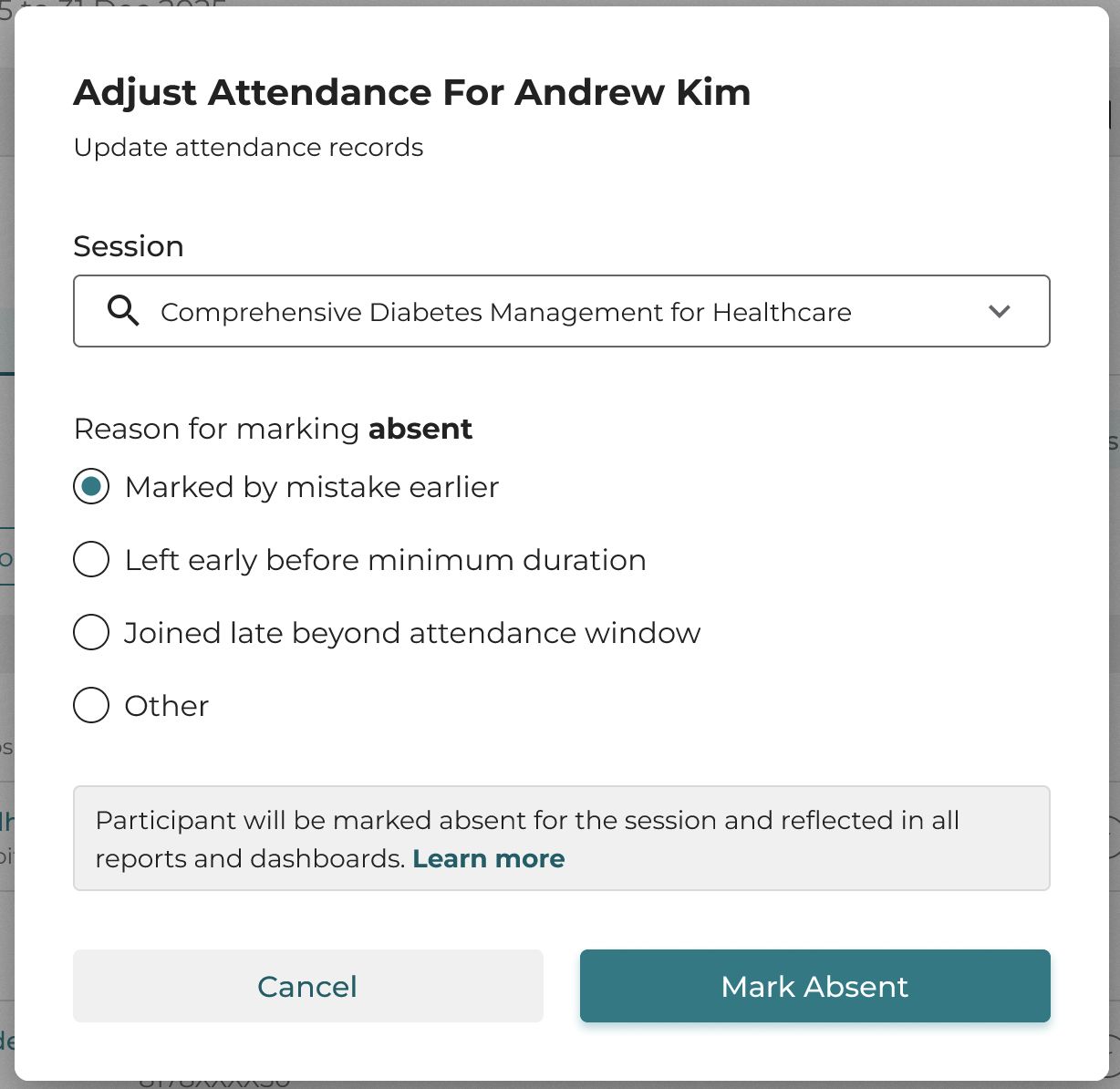
- Select Mark Attendance or Mark Absent as needed.
How changes are reflected in records
In the report, you will primarily see the changes reflected in the last two columns:
- Attendance Marked By (second to last column):
- The name of the admin or owner who adjusted the session attendance for the participant will appear.
- If the user marked their own attendance through the platform, the value will be 'Self'.
- Adjusted (last column):
- If attendance is adjusted, the column will display 'Yes – Reason: [Reason]' (e.g., Yes – Reason: Internet Issue or Yes – Reason: Technical Glitch).
- In the case where attendance is not adjusted but you see another user's name in the 'Attendance Marked By' column, this indicates that the participant joined the session using the "Me + Others" option.
Best practices
- Validate before adjusting: Always verify the participant's actual presence and participation before approving changes.
Example:
If your program requires 80% attendance for certificate eligibility, cross-check the session logs or recordings before approving an adjustment request to avoid granting certificates incorrectly.
- Limit 'late join' or 'technical issue' adjustments: Approve attendance adjustments for late joiners or technical issues selectively, with proper documentation.
Example: If a participant joined 15 minutes late due to internet downtime, verify logs before updating attendance to avoid inflating participation records.
- Adjust attendance for late pre-session survey: Ensure attendance reflects completion of required pre-session activities.
Example: If a participant completed the pre-session survey after the session ended due to technical issues, update their attendance only after verifying the survey submission to reflect accurate participation.
- Complete attendance adjustments promptly: Process attendance adjustments quickly to avoid backlog and discrepancies.
Example: Complete all adjustment requests within 48 hours of the session. Delaying updates can pile up requests, making records inaccurate and harder to reconcile.
Note:
- Respective participants will be informed about these edits.
- Participants will be marked present for the entire duration of the session.
- These changes will be reflected in all attendance reports and dashboards.