
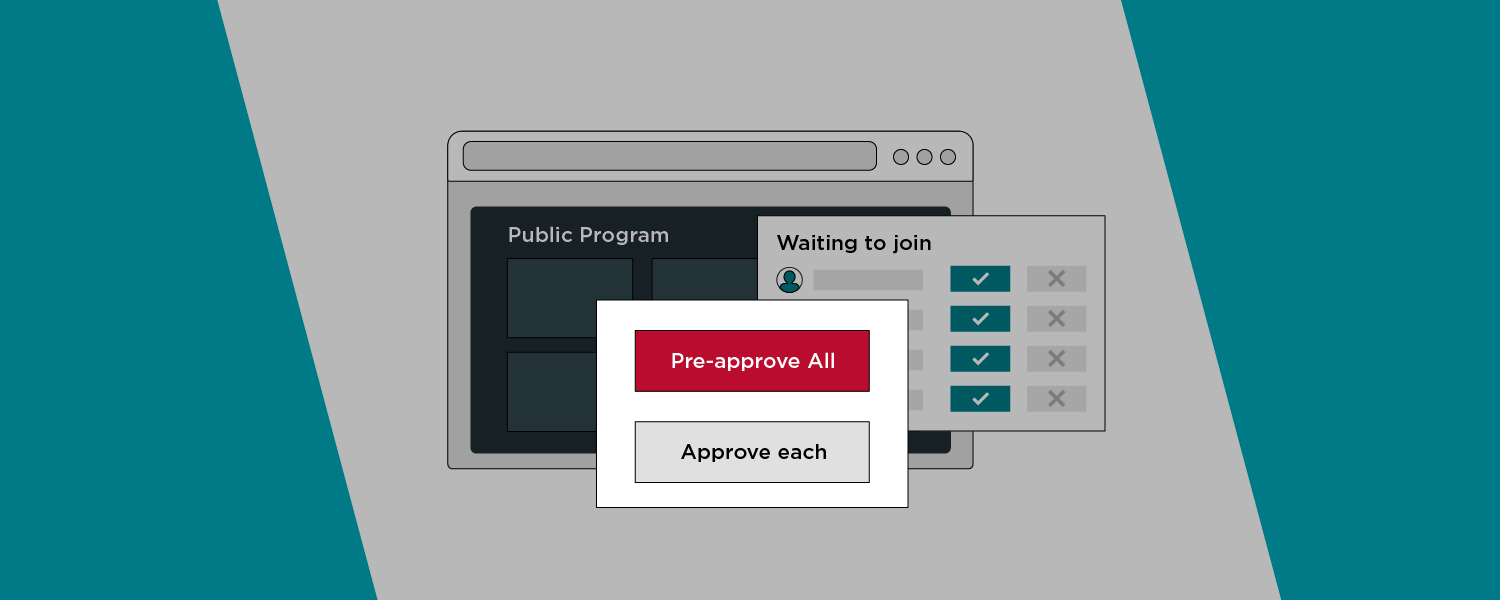
Hub teams can govern the mechanism for participants to join a publicly listed ECHO program. This feature gives hubs the ability to accept or reject requests to join, ensuring a better fit for their community.
Registration settings
There are two types of registration settings that the hub can opt for in public programs:
| Auto Approved | Participants join the program without requiring approval from the hub team. This is presently the default for all public ECHO programs. |
| Approval Required | Hub teams gain the ability to review participants and approve or decline their program enrollment. This is helpful when the hub team wants to engage specific types of participants. |
If you need additional information to screen participants, you can also create a program registration form that participants must fill out during registration.
Program approval settings
While creating a public program
You can set participant approval settings while creating a public program:
- Log in to iECHO.
- Click All Programs in the left-hand menu on the homepage.
- Select Create a Program.
- Follow the setup steps.
- Once you select the registration type as public, you will see an option to select the Participant Approval settings.
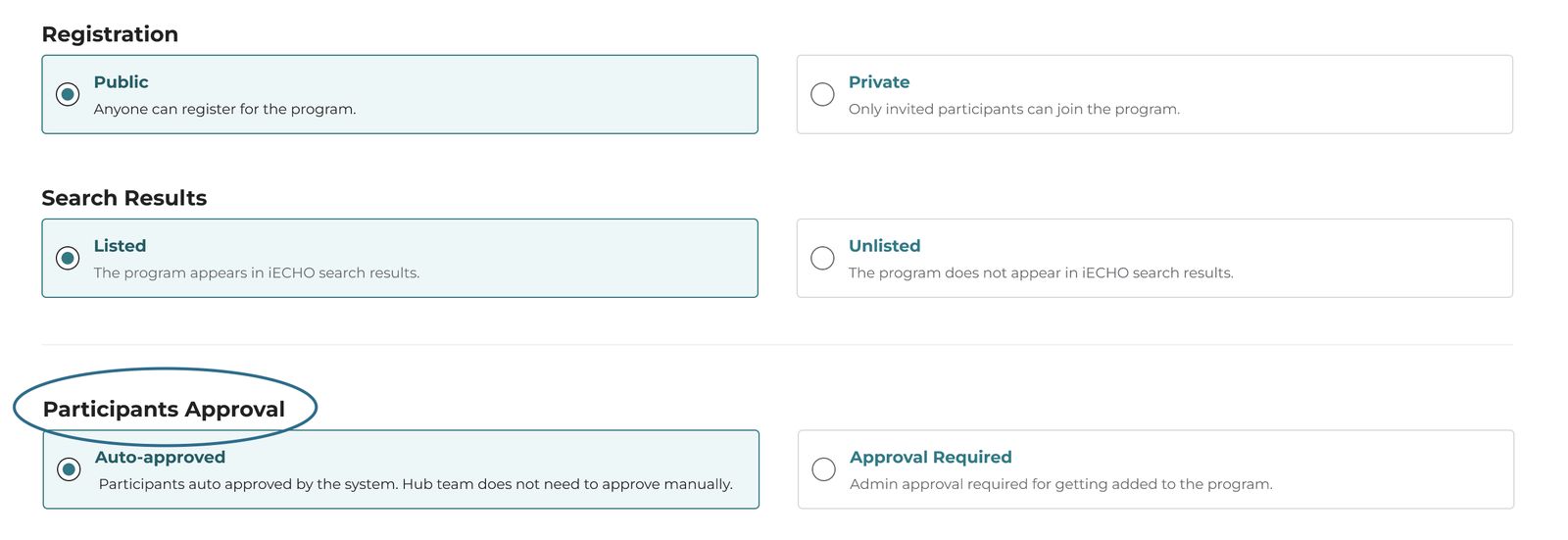
Note: If you need to gather additional information from participants, you can create a program registration form once a participant group is created.
Under program settings
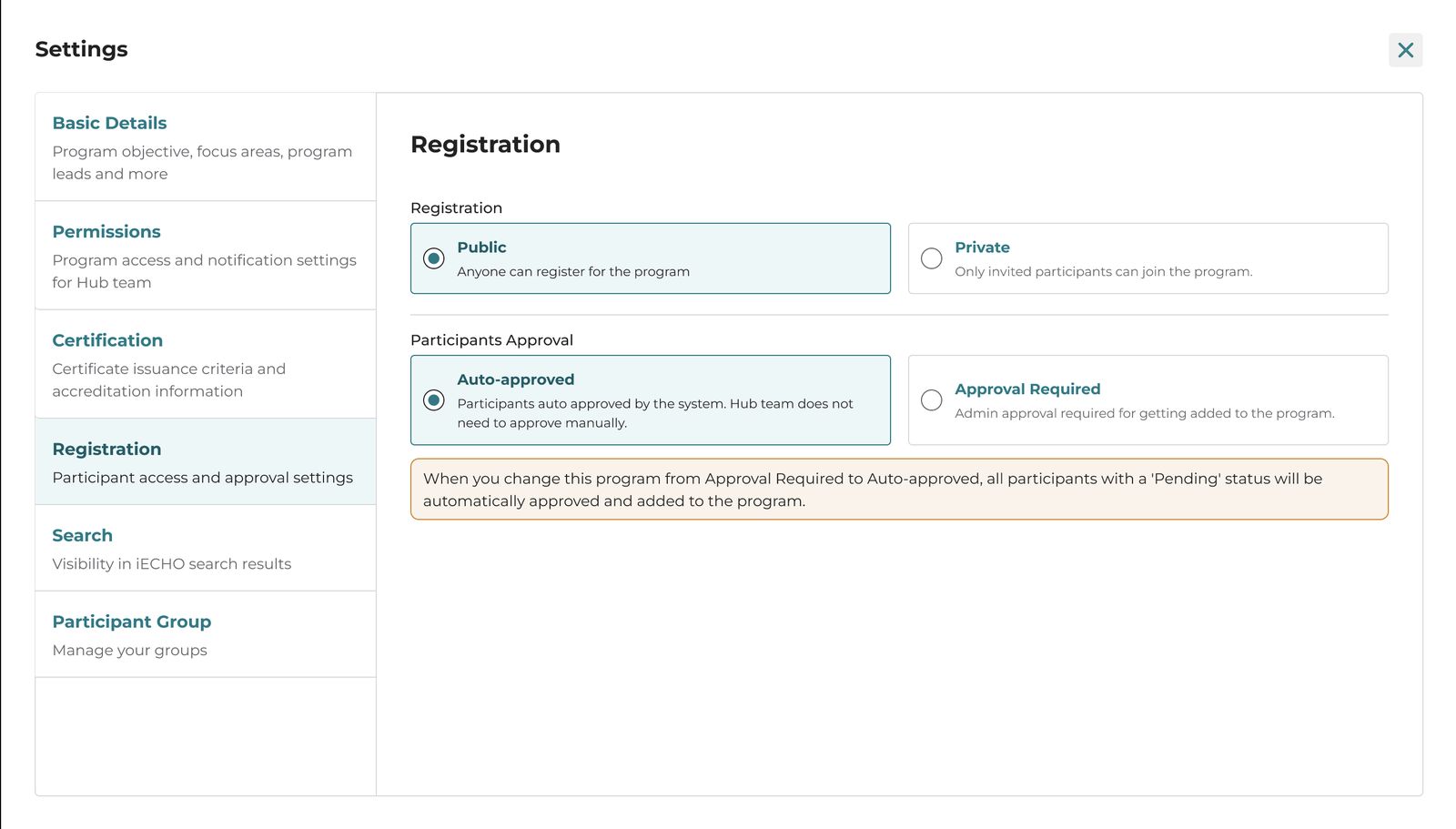
You can also adjust participant approval settings under program settings. Note that all previously created public programs are set to Auto Approved by default.
- Select All Programs from the left-hand menu.
- Identify the program where you want to edit approval settings and click Settings.
- Select Registration. Here, you can select Auto Approved or Approval Required.
Additional information from participants
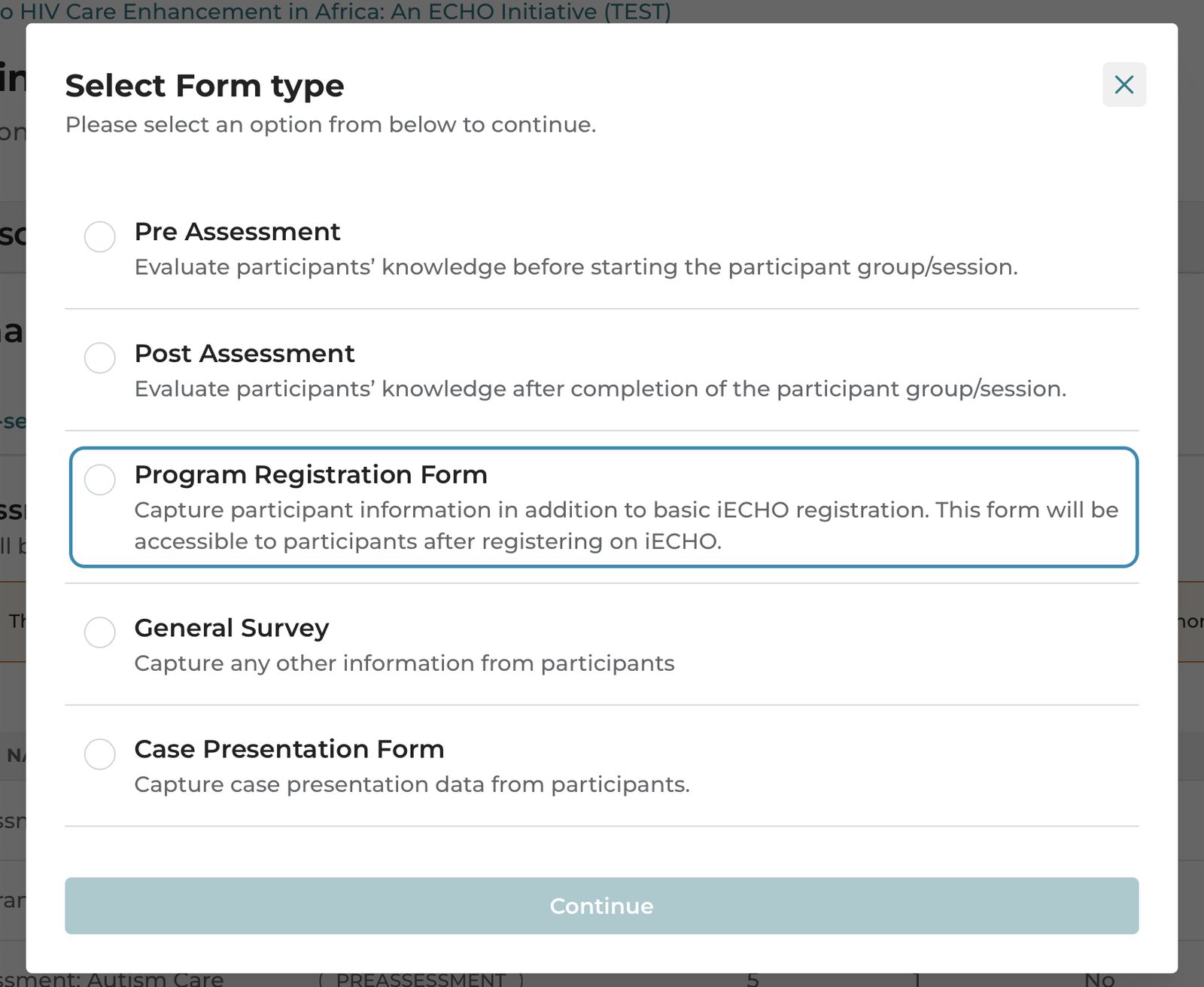
You can create a program registration form under a participant group to gather additional information.
- Ensure that participant approval settings are set to Approval Required.
- Participants will not be able to join a session without filling out the program registration form.
Accept or reject a participant's request to join a program
- Navigate to the Participants tab in a participant group.
- Select Approval Pending.
- Under the Action column, select Accept or Reject next to each participant entry.
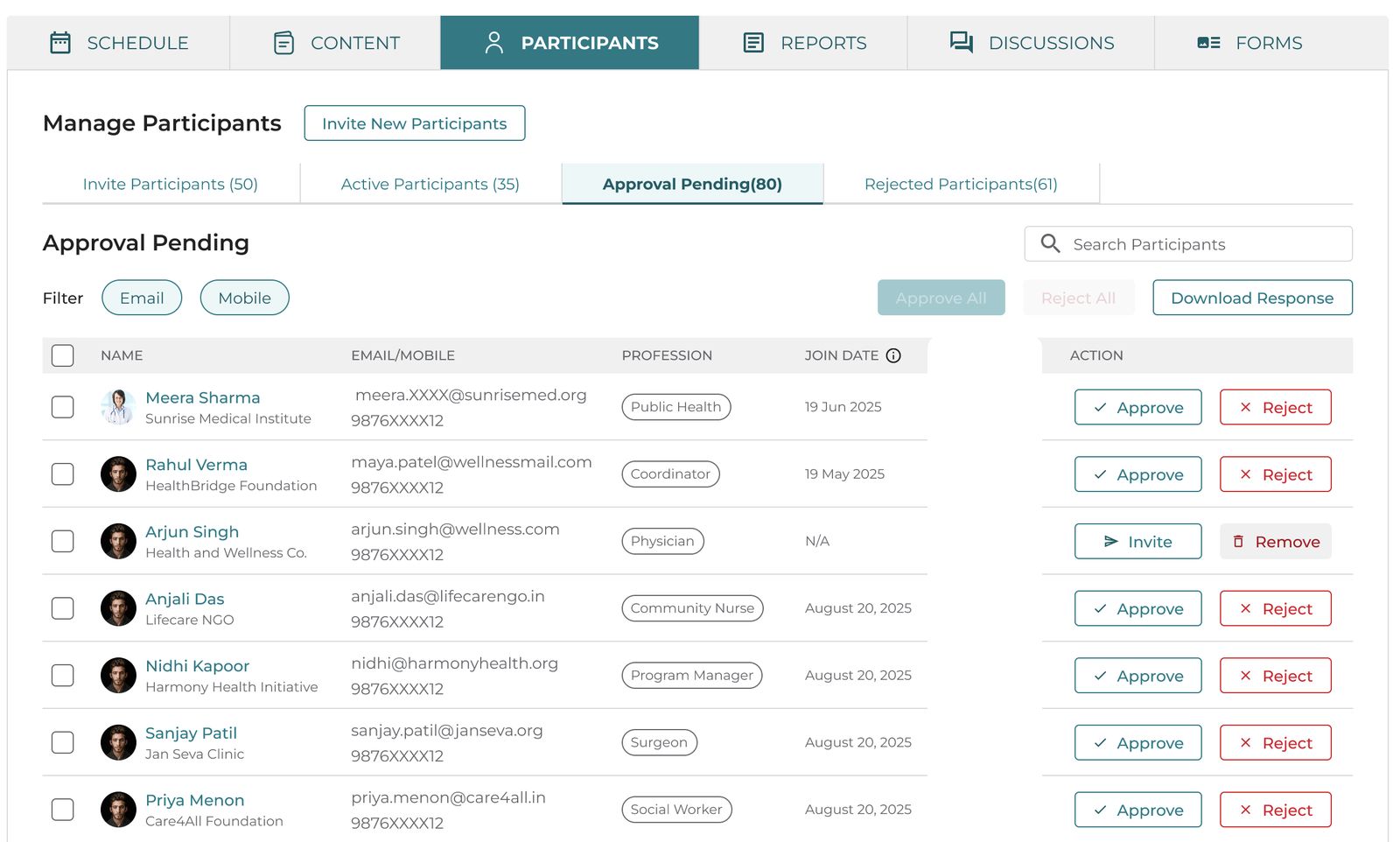
You can bulk approve or reject participants using the email and mobile filters.
View participants' form responses before accepting their requests
- Navigate to the Participants tab in a participant group.
- Select Approval Pending.
- Click Download Responses. You can view this report in an Excel sheet.
- Filter the Excel sheet to select the email addresses or phone numbers of participants whose enrollment you want to accept or reject, then copy those email addresses or phone numbers.
- Select the Email or Mobile filter in the Approval Pending list and paste the entries.
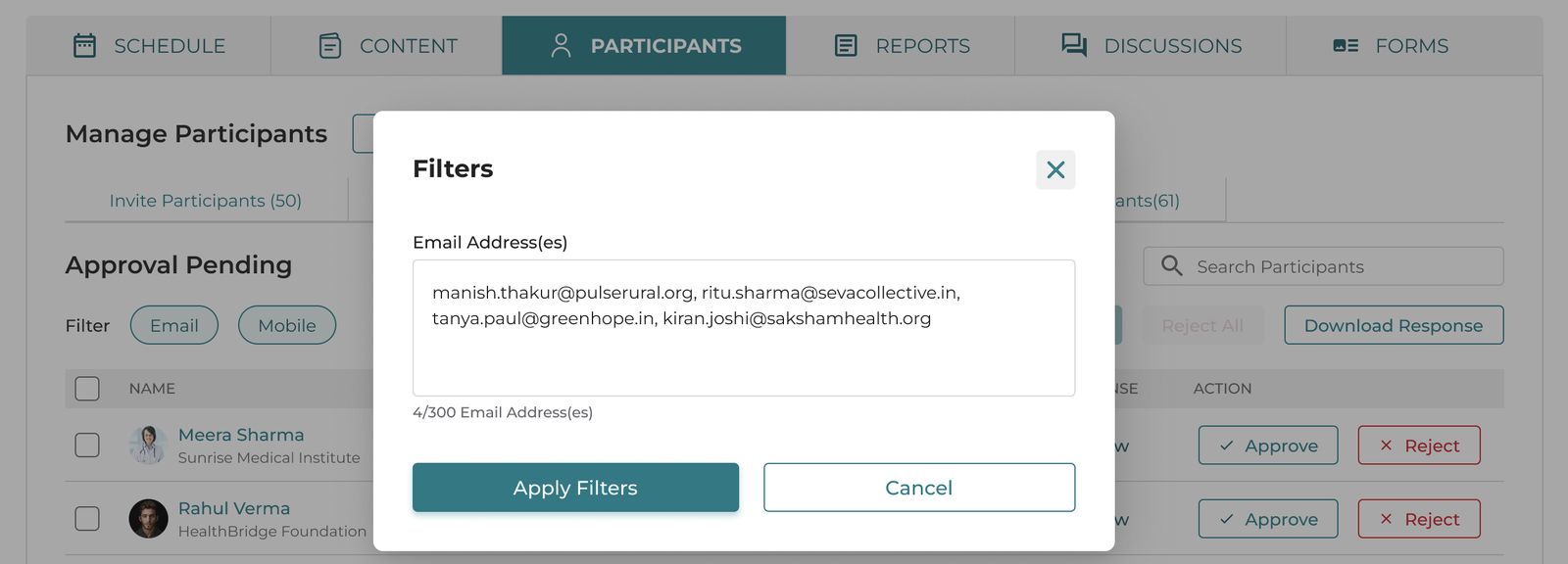
- Select Apply Filters. iECHO will filter the list of participants.
- Select Approve Selected.
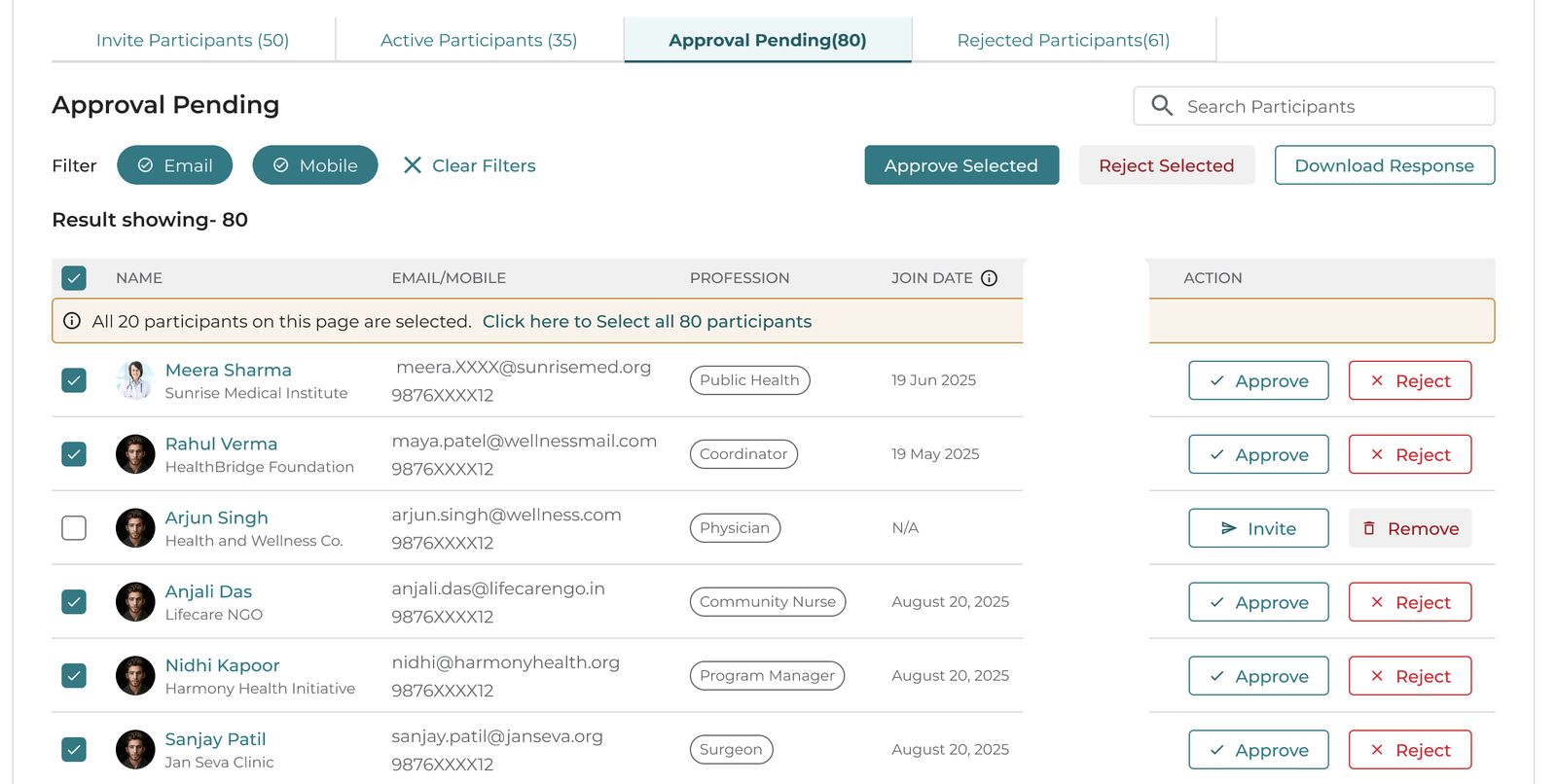
Follow the same steps to reject participants.
ℹ️ Program admins receive a daily email notification when participants are waiting for approval to join the program.